January 12, 2019
Answered

[Video] How do I do what the person in this video is doing? I get an error when I copy him.

  • January 12, 2019
  • 2 replies
  • 357 views

Video: https://youtu.be/nUD6uzHNbCk

In short he is making an Action set to the F2 key. He make 4 lines crossing with the brush tool. Like this...
761f009bda6dafa5265fc9087b88593d.png
And then he does this...

[START RECORDING]
Group
Copy
Delete
Paste Twice
Send to Back
Object -> Expand Appearance
Unite Shape (Pathfinder tool)
Select a fill color.
Object -> Compound Path -> Release

[STOP RECORDING]

But whenever I do that and then press "F2" I get this.

3b77c0cae01713f4a93d83a7c1349af6.png
But ONLY when I use the shortcut key. Whenever I do it manually it works just fine???

Please help me if you can. I've tried this like 20 times. 
I want more than anything in the world to be able to do what he's doing.

I'm trying to be able to color my drawings instantly like that while still having editable lines.

I currently color my lines in manually using the paint brush tool and it takes forever.
This topic has been closed for replies.
Correct answer Ton Frederiks

I do not see the advantage of his method.

He wants to keep his brush strokes editable, but when you adjust the strokes after colouring the fills, you still have to adjust the filled shapes to match the adjusted strokes.

You could do the same (with the same restrictions of matching the fills with adjusted strokes) by using Live Paint.

Actually Live Paint does a better job.

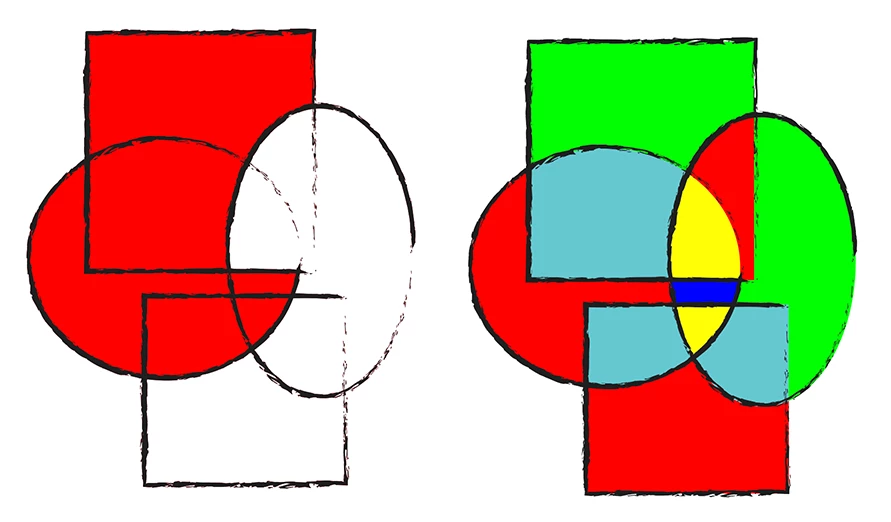
I made a test with ovals and rectangles using a default brush.

The result at left using his expand/ unite/ color/ release compound path method does not fill every intersection of the objects with a color.

The result on the right was made in the following way and also keeping the editable brush strokes:

Duplicate the layer with the strokes and lock the top copy.

Convert the layer with the strokes below it to a Live Paint object, the strokes become simple stroked lines, but you won’t see it because of the locked brushed copy on top.

Color it and when finished choose Object > Live Paint > Expand

This would result in a layer with 2 groups, one with fills and one with simple strokes, which you can delete because you have your brushed version on top.

2 replies

Ton Frederiks
Community Expert
Ton FrederiksCommunity ExpertCorrect answer
Community Expert
January 12, 2019

I do not see the advantage of his method.

He wants to keep his brush strokes editable, but when you adjust the strokes after colouring the fills, you still have to adjust the filled shapes to match the adjusted strokes.

You could do the same (with the same restrictions of matching the fills with adjusted strokes) by using Live Paint.

Actually Live Paint does a better job.

I made a test with ovals and rectangles using a default brush.

The result at left using his expand/ unite/ color/ release compound path method does not fill every intersection of the objects with a color.

The result on the right was made in the following way and also keeping the editable brush strokes:

Duplicate the layer with the strokes and lock the top copy.

Convert the layer with the strokes below it to a Live Paint object, the strokes become simple stroked lines, but you won’t see it because of the locked brushed copy on top.

Color it and when finished choose Object > Live Paint > Expand

This would result in a layer with 2 groups, one with fills and one with simple strokes, which you can delete because you have your brushed version on top.

Monika Gause
Community Expert
Community Expert
January 12, 2019

You want to colorizes your artwork fast?

Here is the documentation for live paint: How to create and work with Live Paint groups in Illustrator

You will need to expand brush strokes before using it, but then you can just draw along without using pathfinder > unite first.