
Weird glitch with strokes and gaussian blur...
I'm working on a small project in Illustrator CS 5...mainly a silly little thing to keep in practice more than anything...and I've ran into a bit of a glitch that I have never encountered before. Basically some of my "shapes" are created with a single line with a stroke added, with a gaussian blur applied...the problem is that while the lines are black, for SOME reason, the blur keeps coming out as a brownish "halo". Here's a quick screen cap to show folks what I'm talking about....

I've used this technique MANY times in the past, for a variety of projects and have never had this happen. As you should be able to see in the second screen cap here, we are talking about a simple line, with NO color and a black stroke applied....
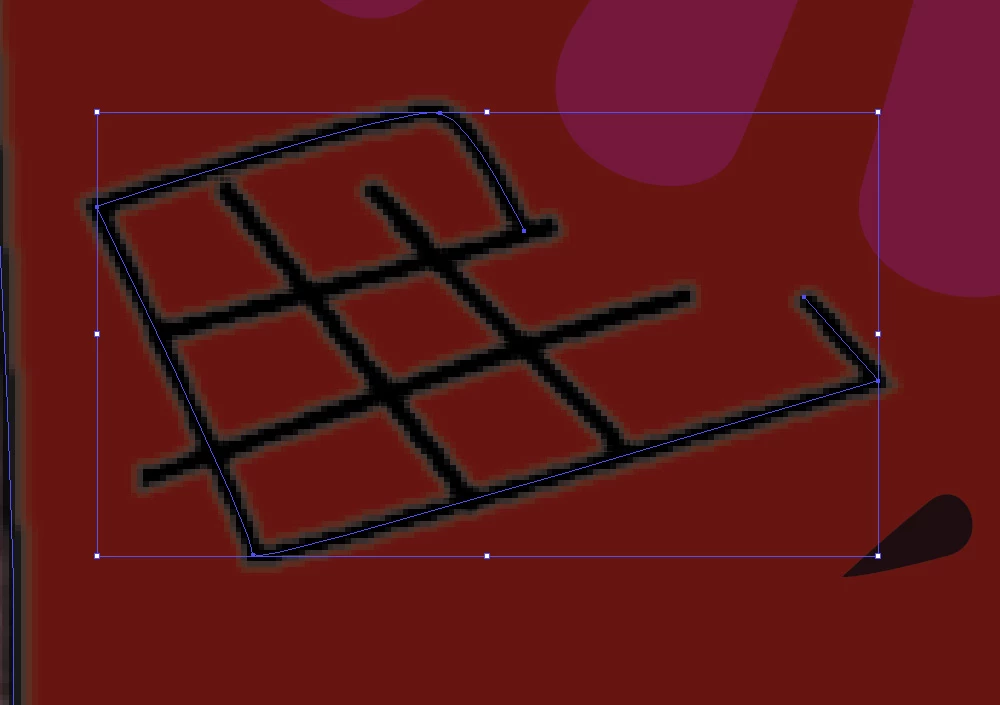
The stoke is fine until I add the gaussian blur...that is when the brown outline appears around the stroke. Now as far as I can tell, there's NO color setting under gaussian blur and I've even gone into my Preferences to make sure nothing there was botched up (I had to recently reinstall Illustrator due to a harddrive failure)...I've been back and forth thru things and can't figure out what's causing this.
Now before ANYONE suggests I simply "upgrade", let me assure you THAT IS NOT GOING TO HAPPEN, so PLEASE spare the keystrokes and the bandwidth! IF I thought this was somehow a version problem, I might consider it, however I have been using this version of Illustrator since I had gone back to college back in '09, so I'm confident that is not the problem and I am NOT going to throw away money on something I do NOT want, nor do I need....for my needs, the older CS versions generally work just fine. Sorry if that sounds rude, but there always seems to be one or two folks on forums like this who encourage others to toss money out the window on upgrades...often because they simply don't know the answer to such a question.
Not that it should matter, however for the sake of reference, again this is Illustrator CS5 and I'm running it in Windows 7 on a home built system with an AMD FX 8 core processor, ASUS motherboard, 16 gigs of RAM, roughly 5 terabytes of hardddrive space, AMD video card, etc...a fairly beefy system (I also do 3D modeling & animation, so I don't usually skimp too much on the hardware, LOL)
Soooooo...any clue what's causing this...or better yet, how to fix it?
Thanks!
 AdChoices