

While 'exporting as' a .PSD (Photoshop) file from Illustrator, some elements come in flattened
I'm using an application called Crank Storyboard Designer. It's an embedded UI platform which can import .PSD files for graphic placement etc.
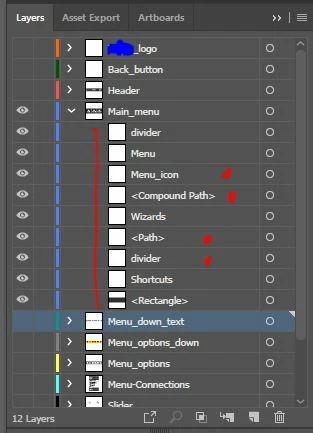
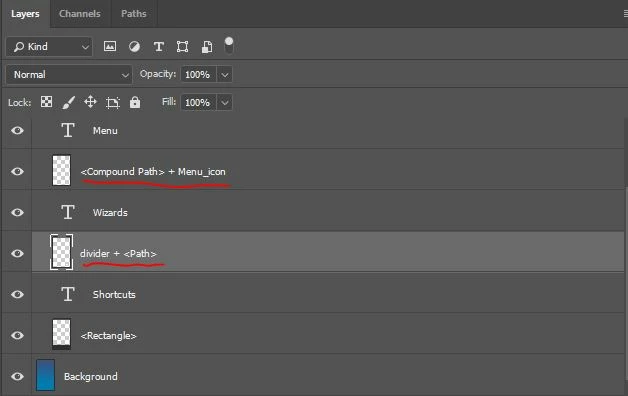
While trying to export the Illustrator file to Photoshop,I put all the different screen elements into different laters, and most of them come in as groups of layers in Photoshop, but some of them get merged (seemingly at random) so I have a few layers in Photoshop named <path> + <path> + <compound path> and these items were definitely not grouped in Illustrator. They were however, next to each other in the arrangement hierarchy.
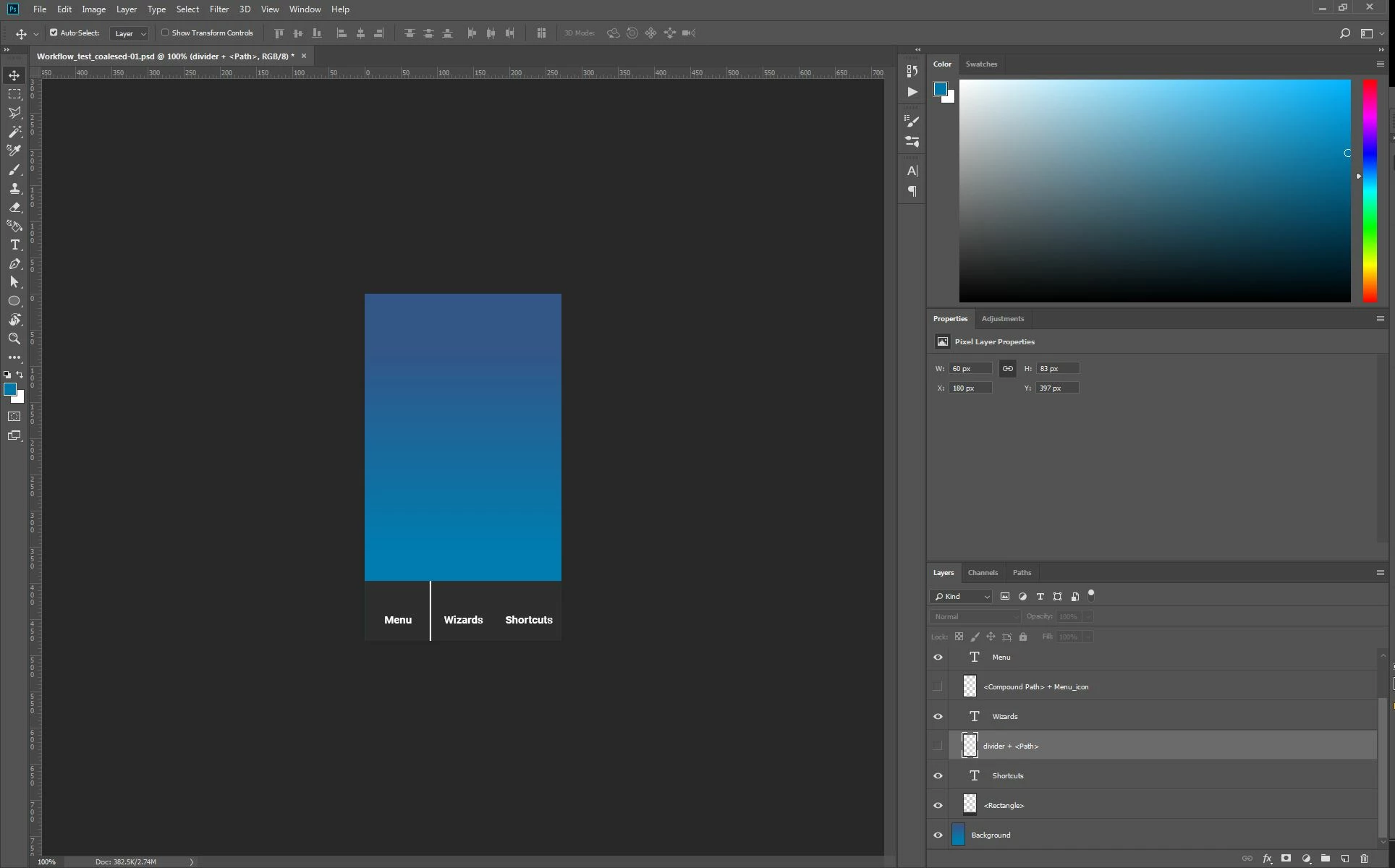
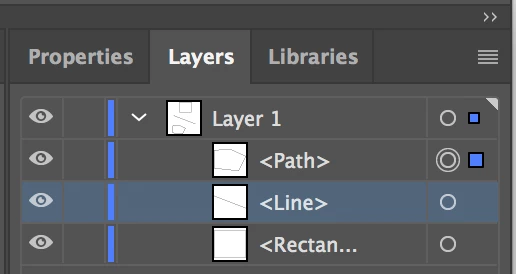
Here is the Illustrator layers on the left vs the photoshop layers on the right. The <Compound Path + Menu_icon and divider + <Path> Layers are what I'm trying to avoid
Here's what the photoshop import looks like:
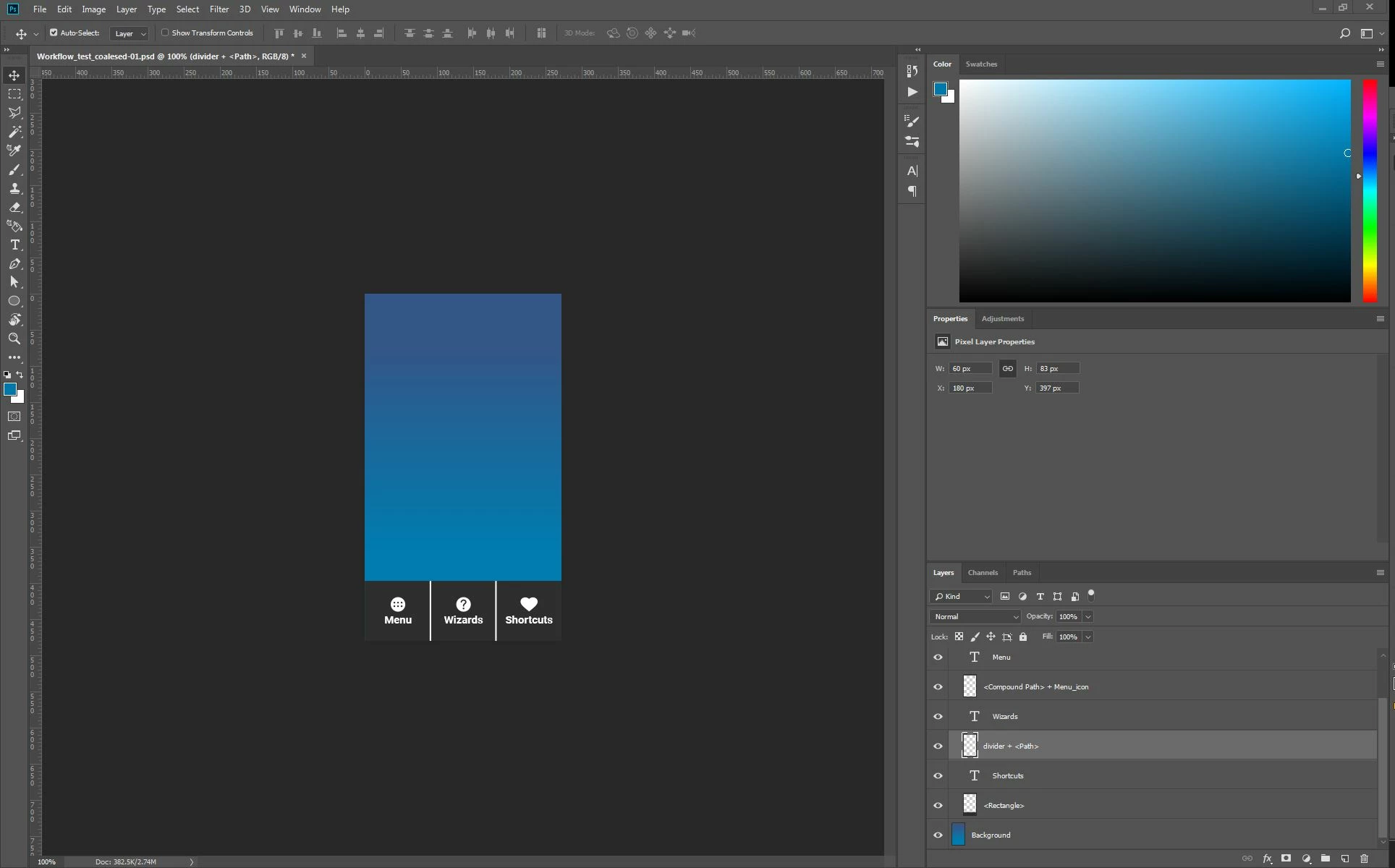
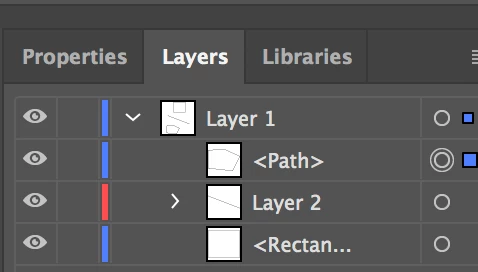
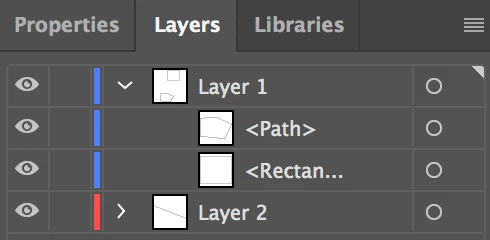
And these are the elements that are being combined that you can see because I'm turning off their visibility:
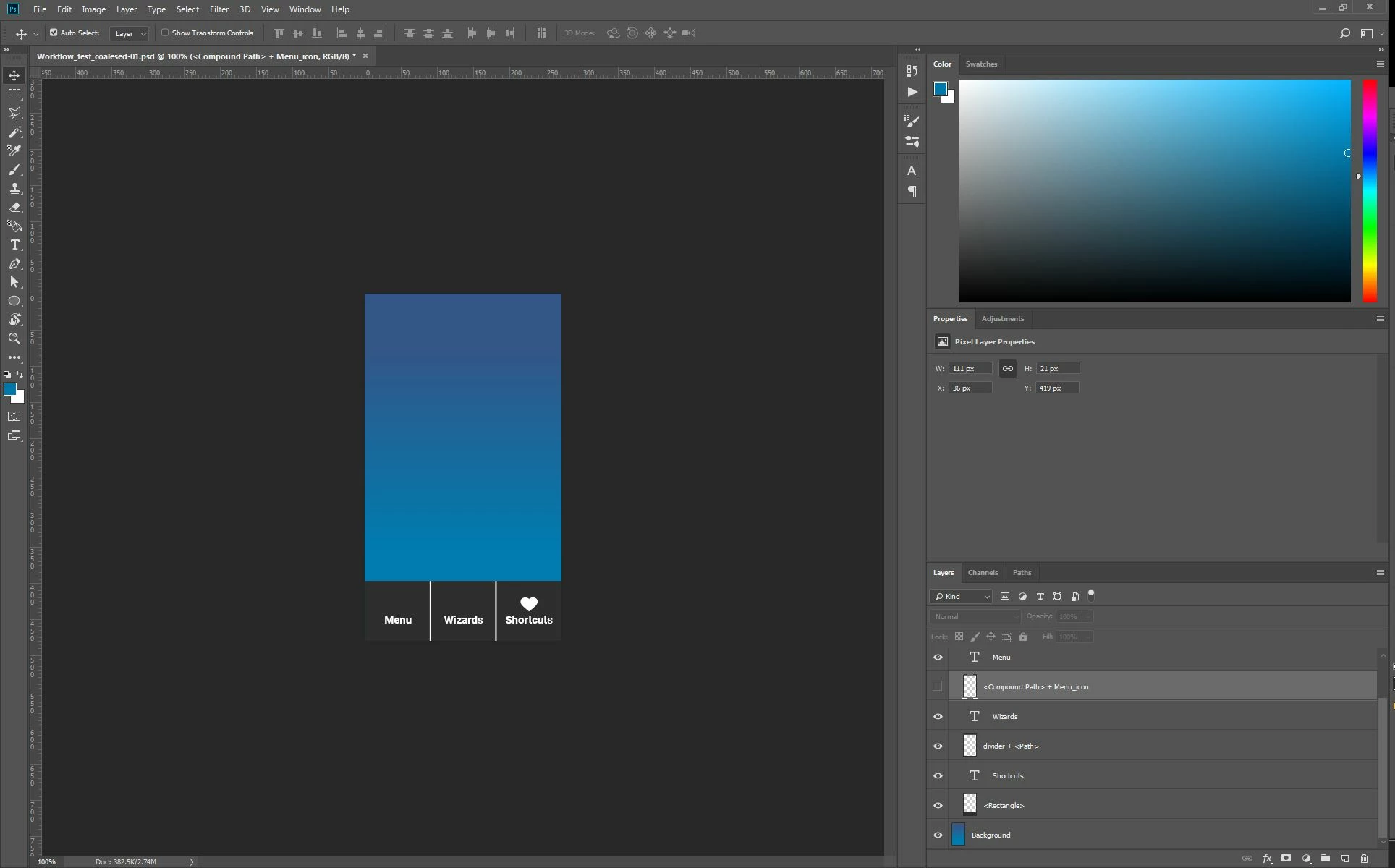
and
This is just one example of this happening, there's a ton of other places this is happening and it's really aggravating. I need this export to work perfectly because the Photoshop files need to be very well organized for the import
Thank you for your help!
 AdChoices