
Participant
January 25, 2019
Answered

White Objects Disappear when Exporting

  • January 25, 2019
  • 4 replies
  • 30007 views

Hello!

I am having an issue exporting an image I made. When I export my text (which has been converted to shape for editing) as black it exports fine, but when I change my shapes to white it just exports as a giant block. Does anyone know how I can fix this?
Correct answer Mike_Gondek10189183

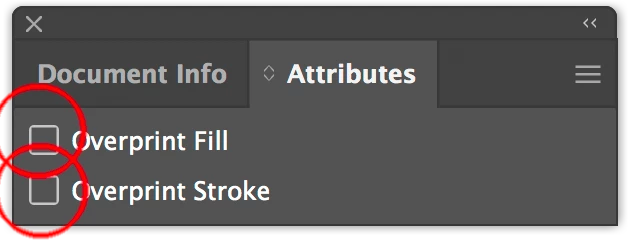
Select the items and uncheck overprint in the attributes panel. If you do not have any placed images you can select all and remove teh overprint. The overprint settings do not apply to images, sometimes I hide all images then do a select all.

You can proof that you did not miss any by doing a view >> overprint

4 replies

Participant
June 14, 2022

Hi Guys, the only thing that worked for me was rasterizing the white vector to a transparent PNG and then exporting it normally. It shows right away in overprint preview.


Monika Gause
Community Expert
Community Expert
June 14, 2022

And you didn't try unchecking the overprint in the Attributes panel?

Participant
June 14, 2022

I did, unfortunately it didnt work for me.

Participant
September 25, 2020

Hello, in my case, I went to View > Overprint Preview and noticed my whites were not showing. I remember that I had brought thew outlined text from InDesign, so what I did in Illustrator was, opened pathfinder, and divided all objects. Apparently when you drag from ID into AI, some mask or compund path get added to that grphic.


KarinSteenkamp
Participant
October 14, 2020

This worked for me - I opened an InDesign-generated PDF in Illustrator, and unwittingly created overprint issues. Your answer solved my problem.

Mike_Gondek10189183
Community Expert
Mike_Gondek10189183Community ExpertCorrect answer
Community Expert
January 25, 2019

Select the items and uncheck overprint in the attributes panel. If you do not have any placed images you can select all and remove teh overprint. The overprint settings do not apply to images, sometimes I hide all images then do a select all.

You can proof that you did not miss any by doing a view >> overprint

grimm1212Author
Participant
January 25, 2019

That didn't work

Mike_Gondek10189183
Community Expert
Community Expert
January 26, 2019

That should have worked, as your description strongly suggests a classi overprint issue. Did you select the items prior to going to the attributes panel.

What happens if you do a view >> overprint preview, does the artwork change

Can you post a copy of the file using google drive, dropbox or similar.

Kurt Gold
Community Expert
Community Expert
January 25, 2019

It's not quite obvious what you mean.

What do you mean by "giant block"?

Maybe it has to do with inappropriate overprint settings. Can you share at least a screenshot that may illustrate your issue?

Also, which version of Illustrator are you using?

grimm1212Author
Participant
January 25, 2019

I'm using Illustrator CC 2019

Here is my image exported with black-

And here is my image exported with white-

I wanted it to be like the first one but with white text instead of black (bar still black though). All I did in photoshop was change the color of my objects.

Monika Gause
Community Expert
Community Expert
January 25, 2019

grimm1212  schrieb

All I did in photoshop was change the color of my objects.

WHat exactly did you do to change the color of the objects?