Answered
This topic has been closed for replies.
Thank you. Art Brush - see below.
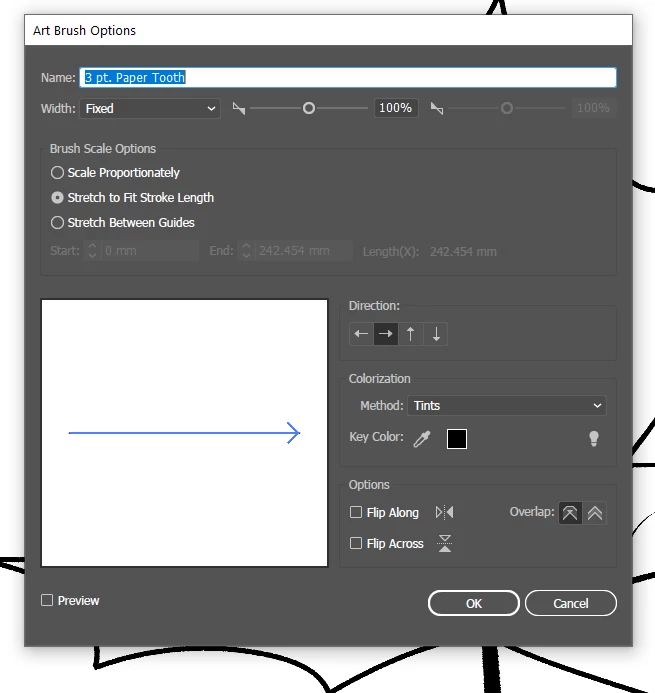
This is due to the rather obscure way Illustrator treats these brushes as compond paths.
Drag the brush out of the brushes panel onto the artboard. You should see that the brush is made up of the irregular shape and a rectangle with no stroke or fill.
Using the white selection arrow, select just the filled shape.
Open the Attributes panel. There, change the fill rule from Even-Odd to Non-Zero Winding (you may have to show options in the panel menu to do this).
Using the black selection tool, drag the brush back into the brushes panel. Hold alt and drop it back over the original brush to replace it.
Sign up
Already have an account? Login
To post, reply, or follow discussions, please sign in with your Adobe ID.
Sign inSign in to Adobe Community
To post, reply, or follow discussions, please sign in with your Adobe ID.
Sign inEnter your E-mail address. We'll send you an e-mail with instructions to reset your password.
 AdChoices