
kathrynb81600265
Participating Frequently
September 26, 2017
Answered

White printing as grey, overprint issue?

  • September 26, 2017
  • 2 replies
  • 2404 views

I've been having trouble with Illustrator lately. It's taking objects filled with white and printing them with grey.

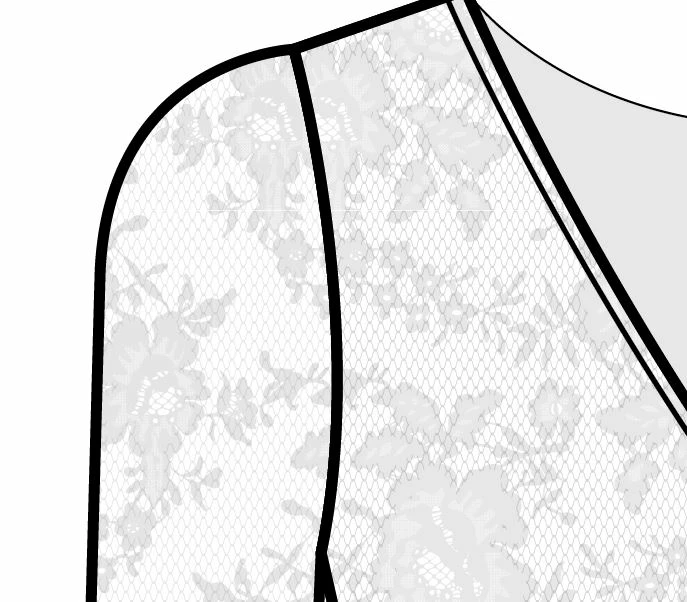
This is a screenshot... the part of the left is a lace pattern (transparent background) as the only layer. The part just beside it has an identical white shape behind.

(The grey shape to the far right is NOT in behind the lace, just to the boundary)

From my googling it seems like it might be something to do with overprint. I have opened the attributes panel and turned that off and it doesn't seem to make a difference.

It looks like a subtle detail, but it's messing up my print materials. HELP PLEASE!!
    This topic has been closed for replies.
    Correct answer jdanek

    Have you tried a 0% Fill instead of White?  Is the White covering something underneath that part of the artwork ( right side )?  Make sure Transparency Blend mode is set to None ( instead of Multiply or any other setting ).  Double check your Layer settings.  Is there any color set to overprint?

    2 replies

    jdanekCorrect answer
    Inspiring
    September 27, 2017

    Have you tried a 0% Fill instead of White?  Is the White covering something underneath that part of the artwork ( right side )?  Make sure Transparency Blend mode is set to None ( instead of Multiply or any other setting ).  Double check your Layer settings.  Is there any color set to overprint?

    kathrynb81600265
    Participating Frequently
    September 28, 2017

    0% prints okay, but sometimes I need the white in behind to cover something I don't want to show through. It's a lot of extra steps to go back and ensure I have no overlapped areas.

    I believe my transparency blend is okay and I've unchecked all the overprint settings I can find.

    Here's a link to the file: Dropbox - Untitled-2.ai

    The top objects have a transparent shape in behind, and the bottom row has a white shape behind.

    Monika Gause
    Community Expert
    Community Expert
    September 26, 2017

    Is this a vector based pattern? Or a pixel image?

    Can you please point out the details? I don't see a difference in your screenshot?

    Which kind of printer is it? Maybe it can't handle transparency?

    Can you show a print?

    kathrynb81600265
    Participating Frequently
    September 26, 2017

    It is vector.

    The colour of the flowers is different. If you look at the ones on the left side of the line to the right. It's subtle, but more noticeable when it prints.

    Printer is Color HP LaserJet Pro MFP M277dw. From what I know it can handle transparency.

    The same thing happens when I print just a plain square with white fill (no pattern or transparency), it still prints grey.

    Initially I thought it may be a printer issue, but since there is a visual difference in Illustrator before printing, I'm pretty sure it's a setting that got accidentally switched. I've printed these same types of drawings for years with no issues.

    Monika Gause
    Community Expert
    Community Expert
    September 26, 2017

    Then you need to select the base artwork of your pattern and open the appearance panel to inspect it.

    Note that you cannot only assign attributes to the path, but also to its Fill or strokes.