



scottmosher
Inspiring
April 19, 2018
Answered

Why are anchor points missing in Illustrator CC2018?

  • April 19, 2018
  • 11 replies
  • 105003 views

After upgrading, its one issue after another, but here's a major one.

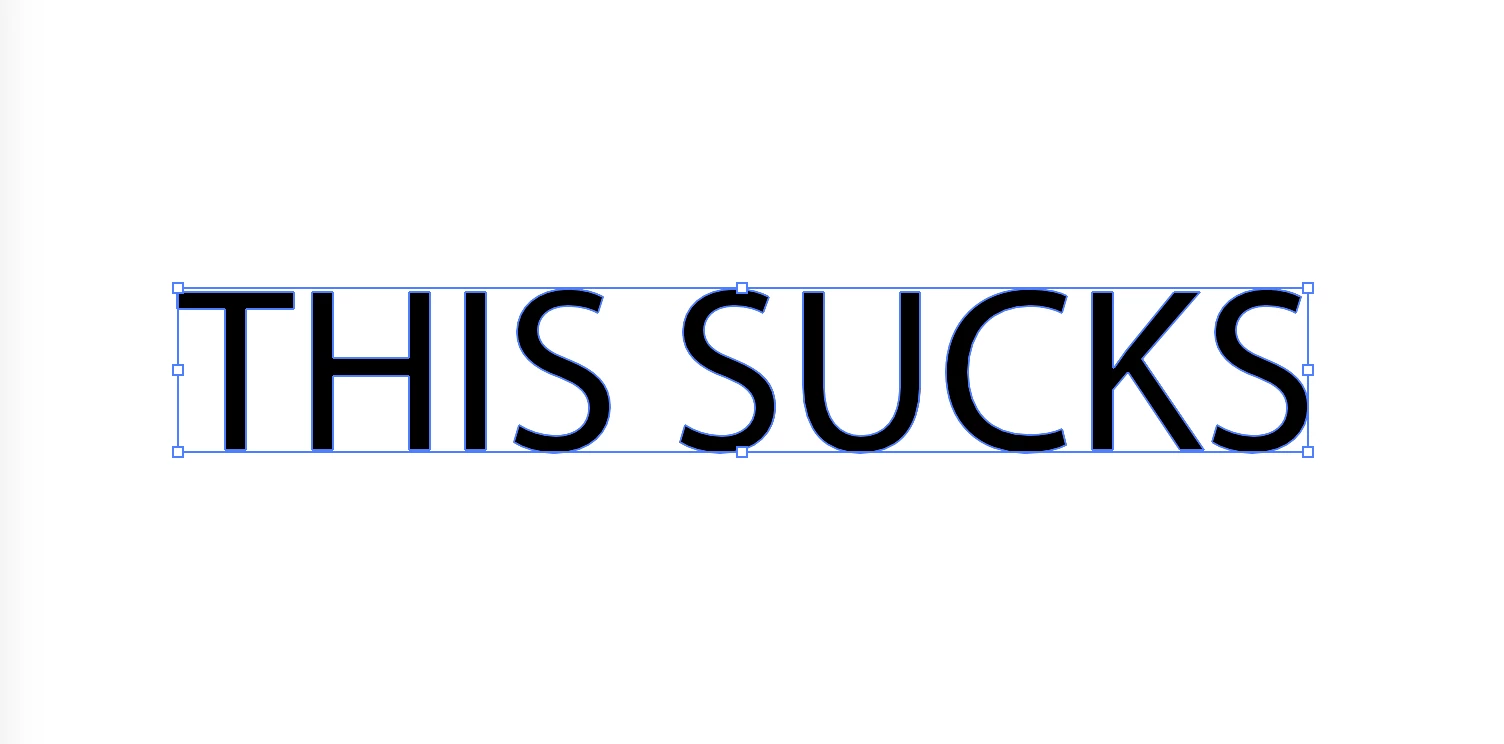
My anchor points are missing and they only show up when I mouse over the object or hold down the COMMAND, or Hold down the COMMAND SPACE BAR (zoom) - what happened to the good old days when I have the SHOW EDGES option on And the ACTUAL EDGES remain visible.  The first picture is what I'm getting at all times. I'm looking to have the edges shown at all times... the second picture is like it was in the good old times, when the edges were shown at all times if one had the 'show edges' option on. I also went through the preferences. TO no avail. Any help on this would be appreciated.

Correct answer Kurt Gold

Go to the Illustrator Preferences > Selection & Anchor Point Display and turn on the option that is called Show Anchor Points in Selection tool and Shape tools.

11 replies

CSI Productions
Inspiring
November 6, 2024

Rather than confusing those of us who have used illustrator since version 1.0 with "Upgrades?" and forcing us to waste time searching for what used to be a default feature (this time can't see points or outlines). Why not make the default what it's always been and give people the option to turn them off in preferences? This times every Adobe app doing the same is compounding the time suck.

R.CatesCSI ProductionsIf you want peace, be peaceful.
Monika Gause
Community Expert
Community Expert
November 6, 2024
quote

Rather than confusing those of us who have used illustrator since version 1.0 with "Upgrades?" and forcing us to waste time searching for what used to be a default feature (this time can't see points or outlines). Why not make the default what it's always been and give people the option to turn them off in preferences? This times every Adobe app doing the same is compounding the time suck.


By @CSI Productions


THere hasn't been a change. If it does not work for you, I would suggest rebooting the system or maybe resetting the preferences.

Participating Frequently
November 6, 2024

There HAS been a big change (for the worst) when it comes to providing access to the Add/Delete/Change anchor points tools. It was fine and easy until about 2-3 years ago when a coder at Adobe apparently ran out of work and decided to mess around with the location of those tools. It was NOT a change that enhances productivity, for my purposes. It seems that Adobe has trouble leaving well enough alone, sometimes (lol).

chrisc8318087
Participant
March 29, 2022

I think the time has come to consider alternatives to Adobe. Affinity by Serif looks very promising. They don't offer replacements for the whole CC suite, basically just alternatives to PS and AI. But a one-time charge under a 100 bucks for a lifetime license, it could throw a wrench in the old cogs of the Adobe money machine. My employer pays for my Adobe subscription, but if they didn't I would probably be using Affinity.

Participating Frequently
March 29, 2022

Agreed...just as Adobe kicked Quark off its high horse about 20 years ago, it's time for another hungry upstart to do similarly challenge Adobe...if not eventually knock 'em down to the #2 spot, then at least put a fire under them to start hiring more competent coders and being more of a end user's ally rather than bleeding everybody dry for constant buggy/non upgrades.

laurenjung1
Participant
March 15, 2022

I know this is an old thread. I was having this problem but ONLY with certain objects on my page. I would have one shape show the vector points, and another shape right next to it not show the vector points. I finally figured it out though. For some reason certain objects that were contained in a group would not show the points. But when I clicked into the groups, the points then showed up. Hope that helps someone. 🙂 

Monika Gause
Community Expert
Community Expert
March 15, 2022

So the correct answer in this thread doesn't help you?

frantic24
Participant
February 10, 2022

This relates to the BOUNDING BOX. 

Hit Ctrl+Shift+B...  Let me know if that works! 

DESTINK
Inspiring
November 22, 2021

I open a file, and this is the issue, but if I copy to other file, its showing, but still on original file, even I check the show anchor, still nothing.

PeterNTange
Participant
August 13, 2021

Hi all so i had this issue as well - although it was caused by the "Hide Edges" setting - so in case its the same for you, solution 1:
Solution 1 - View -> Show Edges 
Solution 2 - View -> Show Bounding Box
Solution 3 - Edit -> Preferences |> Selection & Anchor Display -> Show Anchor POints in Selection Tool and Shape Tools 

Participant
November 2, 2020

It seems not to work in the latest update (CC2021). I have tried everything that are suggested here. Any ideas? 

Participant
January 25, 2021

Try going to View > Show Edges (or Ctrl + H).

I just happened to find this option and my problem disappeared. 

Participating Frequently
July 14, 2021

Yes, this worked perfectly! Control H..... thank you! It toggles between showing or not showing handles and anchors!

Participant
May 31, 2020

Sir, Inspite of : Go to the Illustrator Preferences > Selection & Anchor Point Display and turn on the option that is called Show Anchor Points in Selection tool and Shape tools., I am unable to see the anchore points and hence unavble to scale of rotate the shape/form. This is very confusing and inconvenient. Kindly help Sir, I am a beginner and don't know much about the software technicalities. Regards.

Participant
July 1, 2020

As per both answers above. 


Go to the Illustrator View > Show Bounding Box (Command+Shift+B).  


Go to the Illustrator Preferences > Selection & Anchor Point Display and tick the option that is called Show Anchor Points in Selection tool and Shape tools.


It is very frustrating that certain short-cut commands turn off/on Bounding Box (Command+Shift+B). 

Going to preferences doesn't rectify the issue if Bounding Box has been accidently turned off.

There use to be in the top selection tool bar, an option to quickly turn on/off bounding box as an drop-down icon.  Since its removal, having to regularly search for this solution everytime Bounding Box has been accidently turn off.


Solution.  Remove short-cut commands for Bounding box under view.  Return the quick select icon.

Participant
May 31, 2020

Sir, in spite of selecting the : Go to the Illustrator Preferences > Selection & Anchor Point Display and turn on the option that is called Show Anchor Points in Selection tool and Shape tools, I am unable to see the anchor points and hence I am unable to rotate or scale the shape / form. THis is very confussing and inconvenient. Sir, I'm a beginner and I don't know where else to look for the solution. Kindly help Sir. Thank you.

Participant
April 28, 2018

I discovered another post regarding this matter, as I had the same issue. I apparently used a keyboard command that turned off the Bounding Box (probably trying to get "bold" font). When I turned it back on again, I had my anchor/selection points again!

Menu Bar:  View —> Show Bounding Box

I wish I could find the post where I found the answer to give the person credit, but I have lost it. I hope this solves your problem!

DrStrik9
Inspiring
June 15, 2018

Wow, this was freaking me out!  On Mac, it turned out to be Command-H that fixed the invisible edges, anchor points, control points, etc.  Suddenly, I was UNABLE to work! This fixed it.

Participant
June 15, 2018

I keep using Command-H to try to hide the Illustrator window, as on all other Adobe apps, which constantly toggles the bounding box. I now have it memorized that it does NOT hide the app. LOL.