Known Participant
February 19, 2020
Question

Why are the strokes from my Illustrator brushes so huge?

  • February 19, 2020
  • 1 reply
  • 6711 views

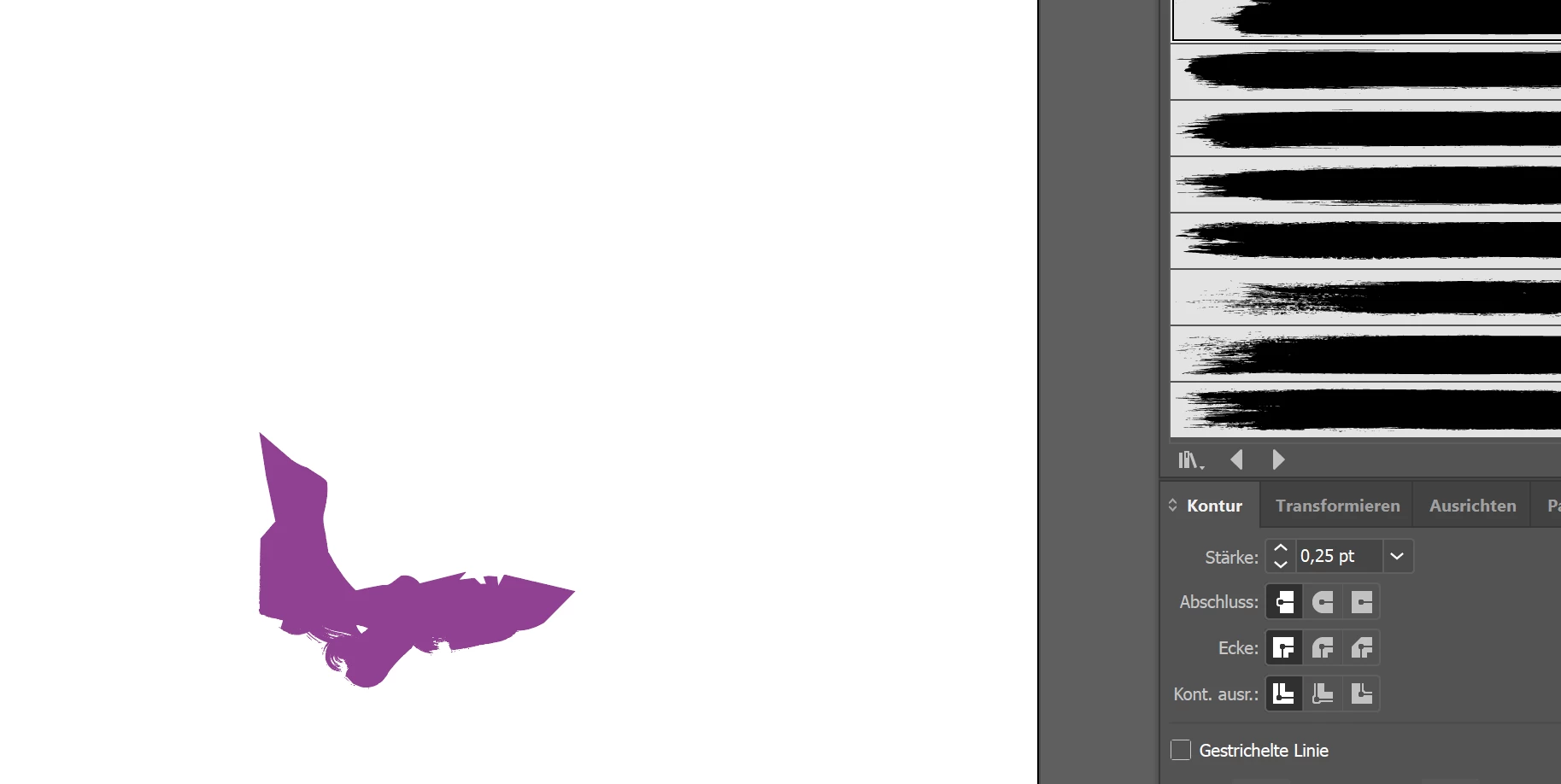
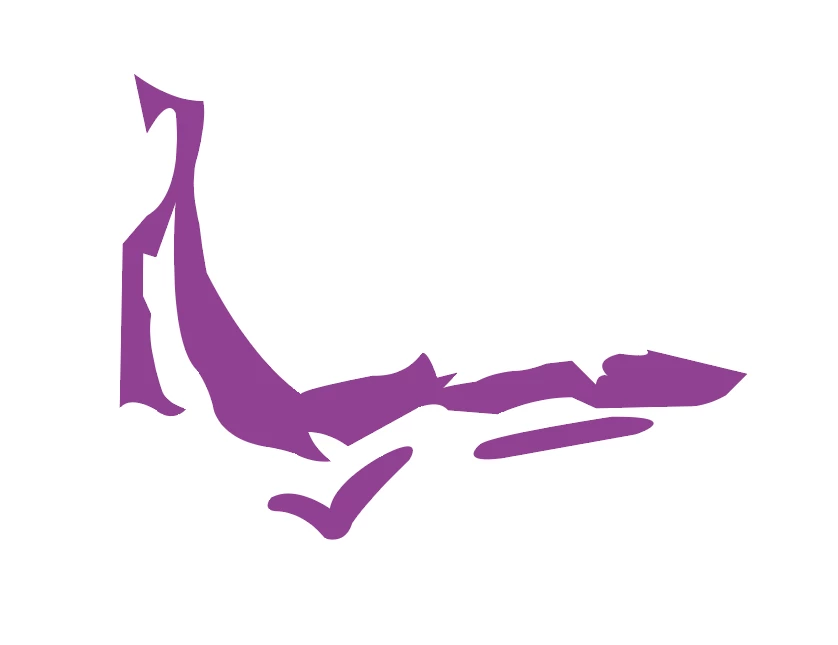
Hello, I am attaching two pictures to show what I am talking about - they are fairly nondescript but just imagine that they are sections of a bigger picture. I originally drew a sketch and I am now wanting make a vector of my drawing for use in a logo. I still want the sketchy feel to it though, so I will need to add some kind of brush to the stroke at the end to make it feel rougher and more naturally artistic. My issue is that I am working at a normal size - a normal piece of paper and resolution should not be an issue in illustrator anyway, seeing as I am working with vectors. And yet, when I go to stroke my path at a very small size - the smallest size .25 pt or whatever, the strokes are so huge, that my original forms are completely destroyed.... But this must be possible??? I just don't understand what is going on. I have always had a lot of issues with illustrator brushes for this reason and while attempting freehand drawing for similar reasons. The strokes are all too large and they look wild. Please help me fix this. Thanks!!!

Sincerely, April 
This topic has been closed for replies.

1 reply

Grant H
Community Expert
Community Expert
February 19, 2020

okay, so you are "brushing" the stroke. Depending on the brush itself will determine a particular width on the stroke and increase and decrease according to stroke size. you can edit the brush if you like to achieve the result you are looking for.

/G

Known Participant
February 19, 2020

Where do I go to edit the stroke? Would you mind posting a screenshot of how to do this? - Thanks for the reply.  - I found a place to edit the stroke, but I see no features that address the issue.

Grant H
Community Expert
Community Expert
February 19, 2020

That was a really nice tutorial, but that is somehow not what is happening to me. I am wanting to add strokes to forms. The idea is similar, as it is a stroke with an additional fill, and everything is path based... but what you were showing already looked like it was working correctly. (Considering that you were way zoomed in to be even able to show the over-large path.) The forms are not tiny, the first screenshot was taken at 100%. They may look small but the whole document is a normal-sized piece of paper so 8x11 inches and a 1pt line is really small, so it should actually work fine. Also, when I do exactly that with the brushes that I have nothing changes... I am guessing that it has to do with the brush "type"? I guess I might go see if I can find the chalk brush that you were using and see if the settings on that brush are also better. I just don't really understand why every brush that I have tried so far looks giant right out of the box... 


P.S. Also, I found the brushes that you showed and I tried it, and I have the same issue as before .25 pt is too large. It opens the artistic chalk brushes in a new tab (I am using the German version of PS) but then I go to the corner and there is no option to select "brush options" like I see in a different brush library that I have open... 


Correction: I failed to have the preview box checked on the other brush where I can get to the brush options menu. It does seem to work fine, thank you. However, I am still unsure why I cannot access the options on some of the other brush sets. I am also unsure of why everything seems oversized to start.


Hi. You will have to spend sometime exploring strokes, brushes, effects, paths, brushes and their attributes. There is too much for you to know to be able to address them all in one post. I am willing to look at the AI file of yours to see how/what etc your objects consist of and give you advice based on that. (strokes and non closed shapes and so on) Can all influence the look when applied.