
Why do compound shapes render differently at the pixel level than individual shapes in Illustrator?
When working with compound shapes, pixels are rendered differently than individual shapes. To give some context, I have a set of pixel grid optimized icons that I am trying to export in a transparent format, after creating compound shapes.
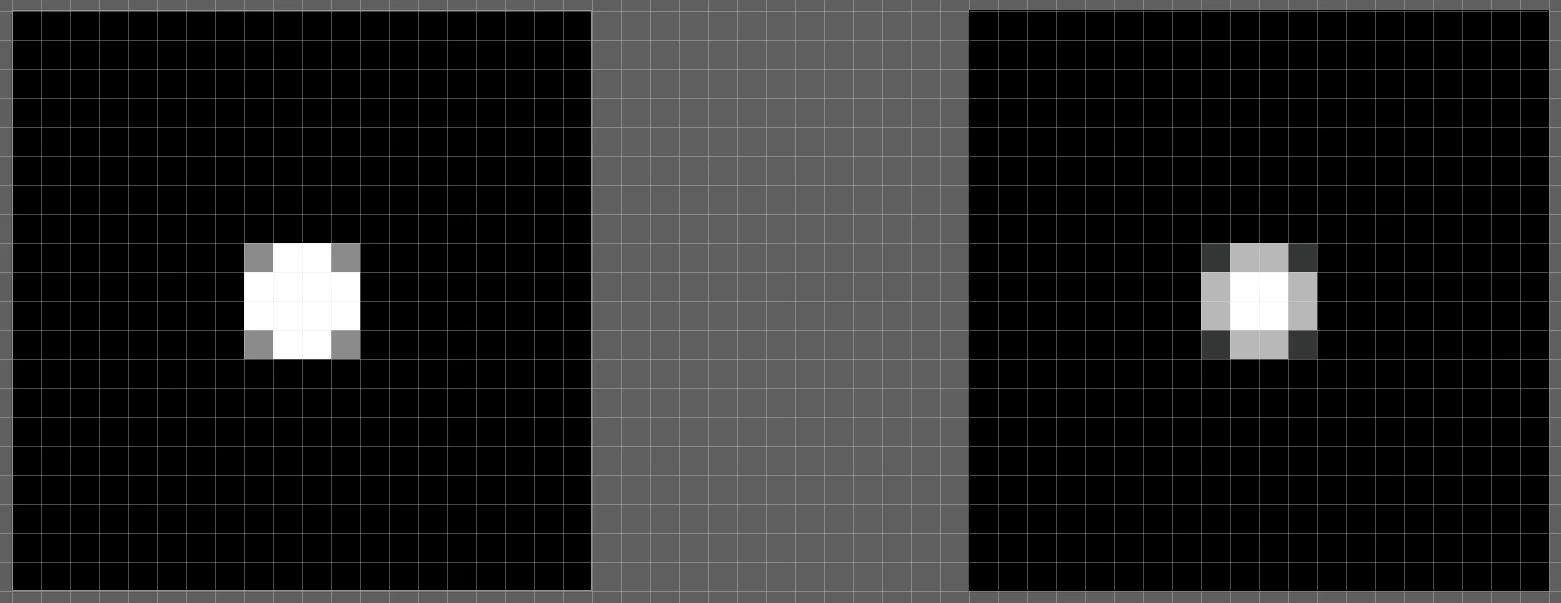
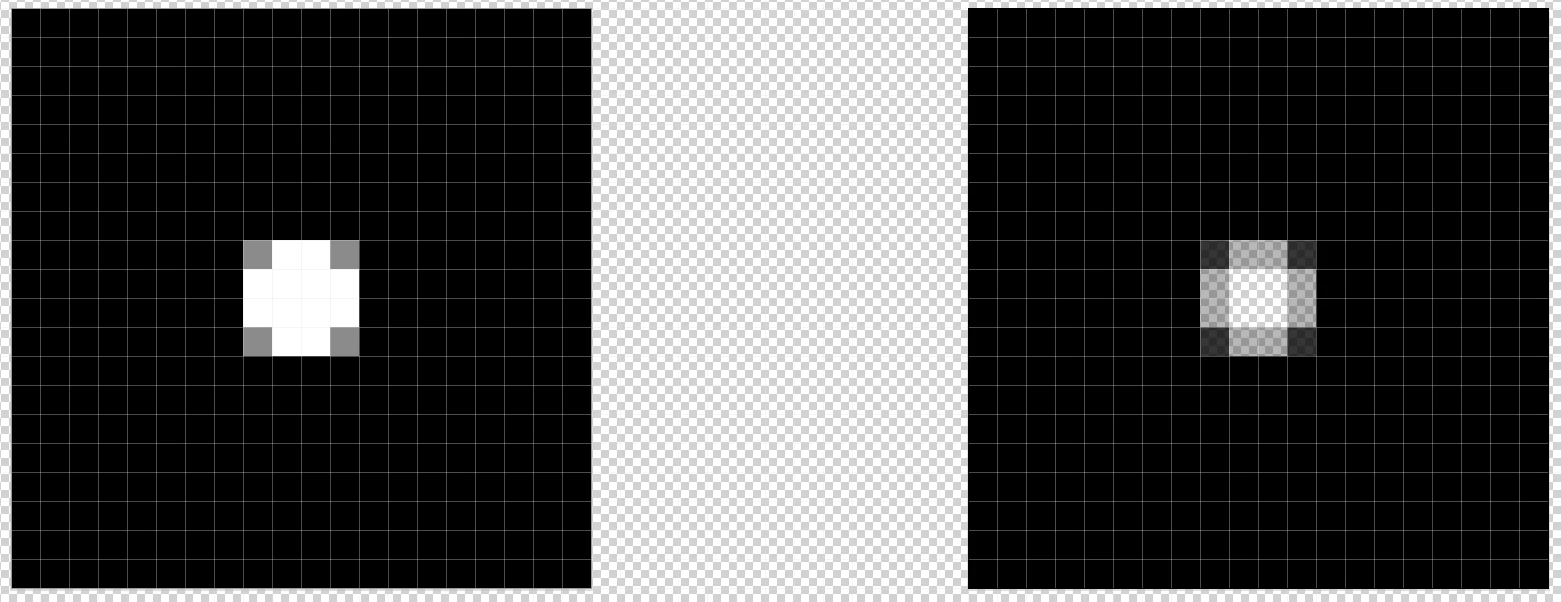
Simple example shown below, of a 20 px by 20 px rectangle, with a 4 px by 4 px circle on top, both perfectly aligned to the pixel grid. The left is two individual shapes. The right is a compound shape, created using Minus Front in the Pathfinder Palette.
White Artboard (Zoomed In View):
Transparent Artboard (Zoomed In View):
Exported PNG 24 graphic with transparency, using Save for Web (Anti-Aliasing - Art Optimized):
Exported PNG 24 graphic with transparency, using Export for Screens (Anti-Aliasing - Art Optimized):
As you can see the left circle appears sharp and precise, regardless of export method, while the right compound shape appears fuzzy and smaller, so to speak.
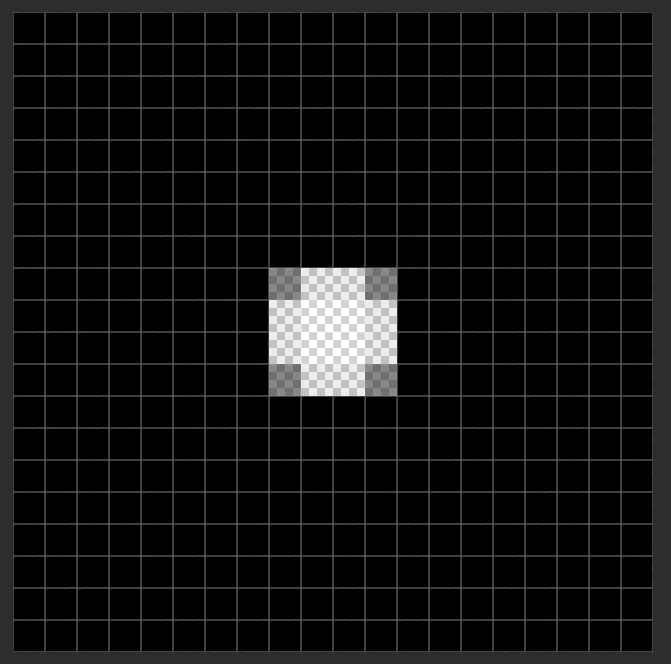
To make things more interesting, below is an example of the same compound shape brought over into Photoshop, as a Smart Object, by pasting from the clipboard (Zoomed In View):
The same Photoshop file exported using Export, Export As, in PNG 24 format with transparency:
The compound shape appears perfectly sharp, when exported from Photoshop, but does not when exported from Illustrator.
Is there any way to achieve sharp raster graphics from compound shapes, directly from Illustrator?


 AdChoices