Participating Frequently
May 4, 2017
Answered

Why does compound path overlaps items with white?

  • May 4, 2017
  • 3 replies
  • 5795 views

Hey guys,

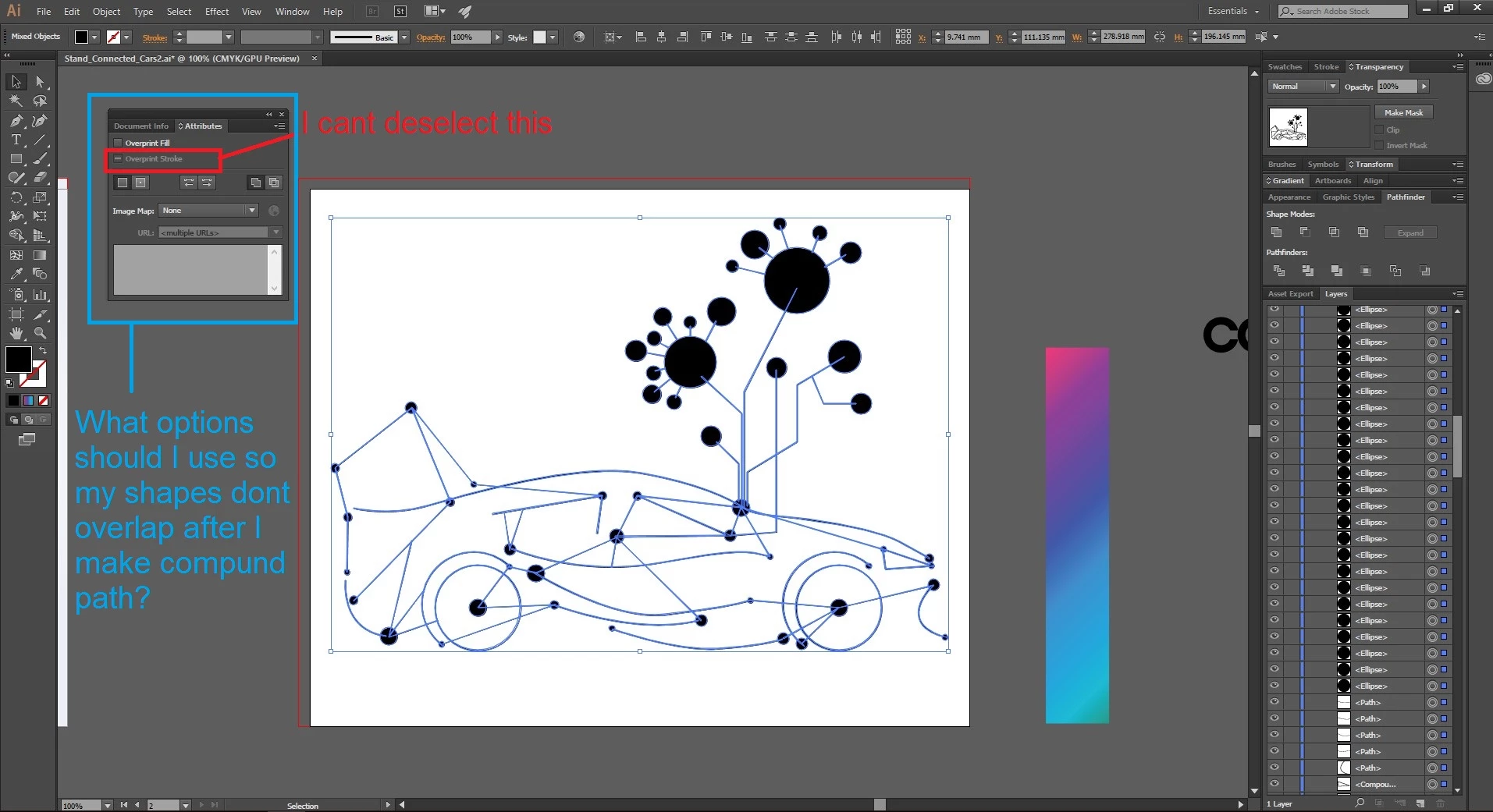
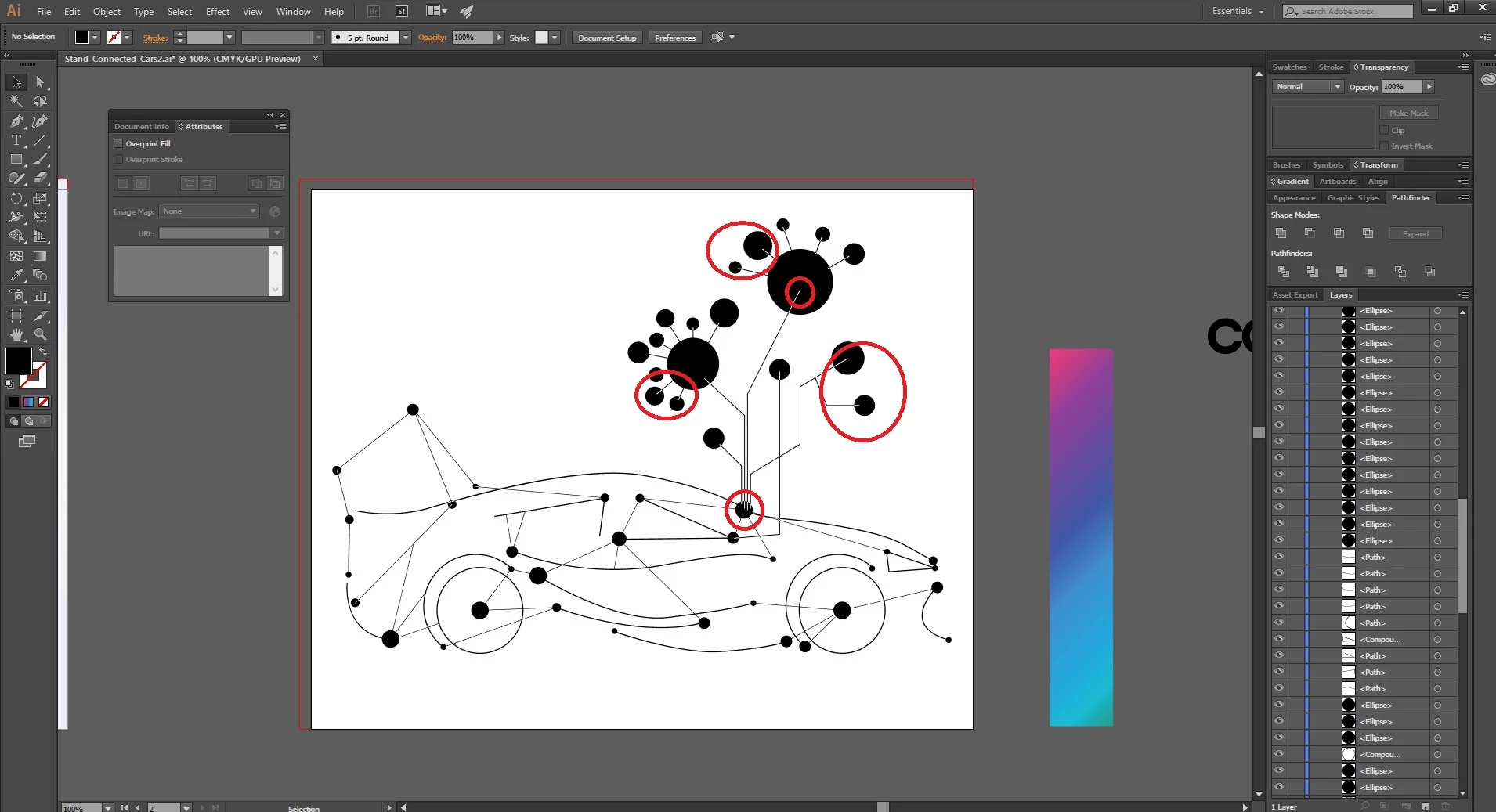
I am trying to make a compound path out of several objects, but when I click Compound Path > Make, the items that are overlapping become white.

There has been another issues like this on the forum but I have not managed to fix my problem based on those answers, because I have never worked with attributes before. Can you help me out pls?

I will post some pix with my shapes and the Attirbutes options I have selected.
Notice that after I apply Compound Path my shapes will overlap
This topic has been closed for replies.
Correct answer rcraighead

Monika's solution is the best in this case.

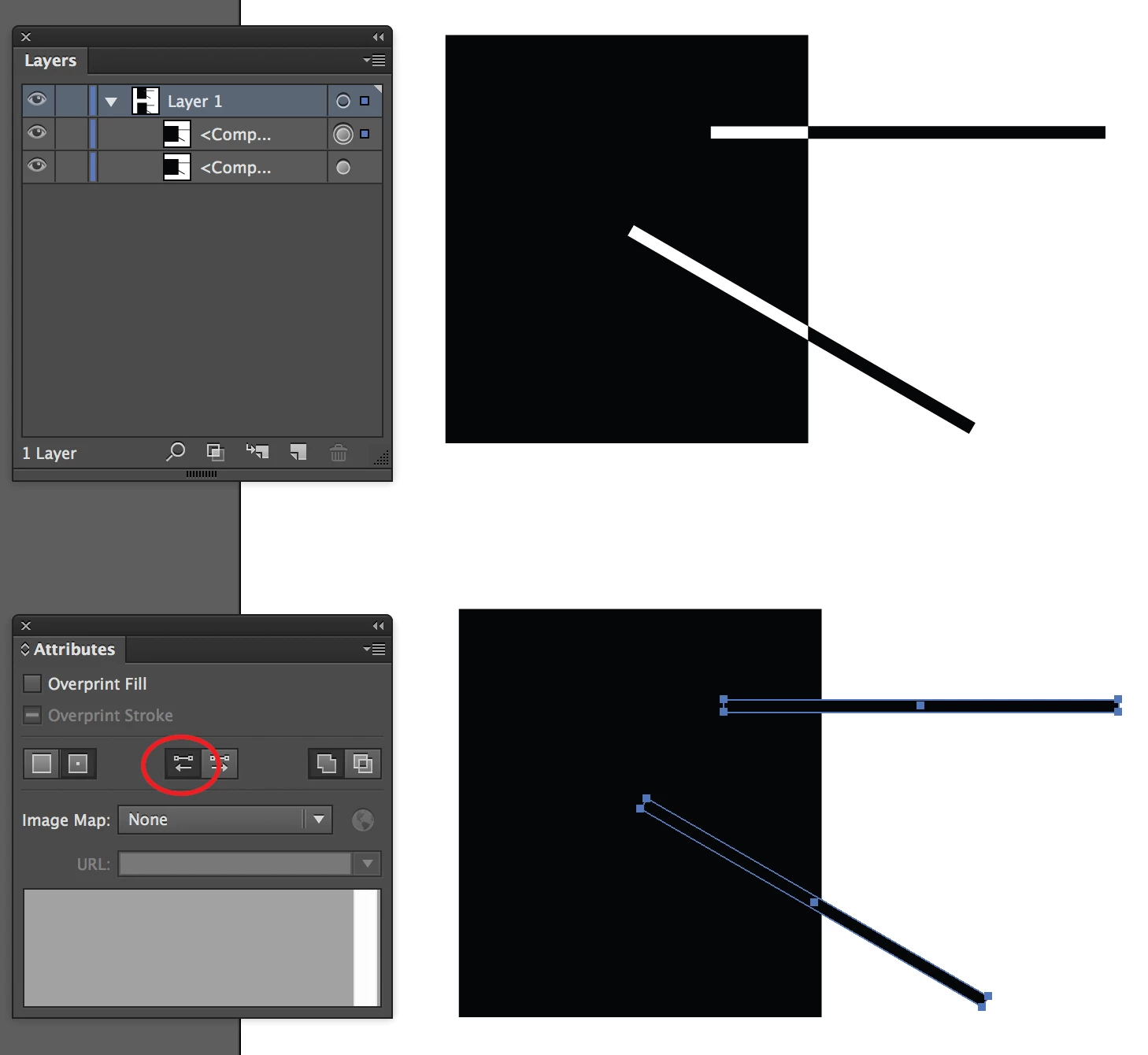
To answer the original question, individual stroke direction can be changed within Compound paths to control how they interact with the rest of the Compound group. Us the Attributes Panel to control individual stroke directions.

3 replies

rcraighead
rcraigheadCorrect answer
Legend
May 4, 2017

Monika's solution is the best in this case.

To answer the original question, individual stroke direction can be changed within Compound paths to control how they interact with the rest of the Compound group. Us the Attributes Panel to control individual stroke directions.

rcraighead
Legend
May 4, 2017

Use the Direct Selection tool or Layers Panel to select the individual strokes.

Off topic… will the "Actions" button ever be fixed in this forum??

Monika Gause
Community Expert
Community Expert
May 4, 2017

Why do you think you need compound paths?

Maybe the actual problem can be solved by other means.

Participating Frequently
May 4, 2017

I have melted all the shapes together with the Pathfinder > Unite option. I wanted a compound path in order to apply a gradient fill to all the shapes. But it worked with Pathfinder, now they are all merged into one object.

But still is there no way to unite items w/o overlaping? Just asking Ty

Monika Gause
Community Expert
Community Expert
May 4, 2017

It's actually prety simple and you don't even need to outline strokes.

Apply the Effect > Path > Outline Stroke to all open paths.

Group everything and apply a new fill to the group. Then apply a gradient to that fill.

Ton Frederiks
Community Expert
Community Expert
May 4, 2017

I am trying to make a compound path out of several objects, but when I click Compound Path > Make, the items that are overlapping become white.

That's normal, that's the way Compound paths work.

And you cannot deselect the Overprint stroke, because you don't have any strokes selected (and Overprint has nothing to do with Compound Paths).