


Participating Frequently
August 22, 2025
Answered

Why is my locked clipping mask moving?

  • August 22, 2025
  • 1 reply
  • 163 views

So I have a clip area. I selected some objects and made a clip group. I want to move objects within the group but not the mask, so I locked it.
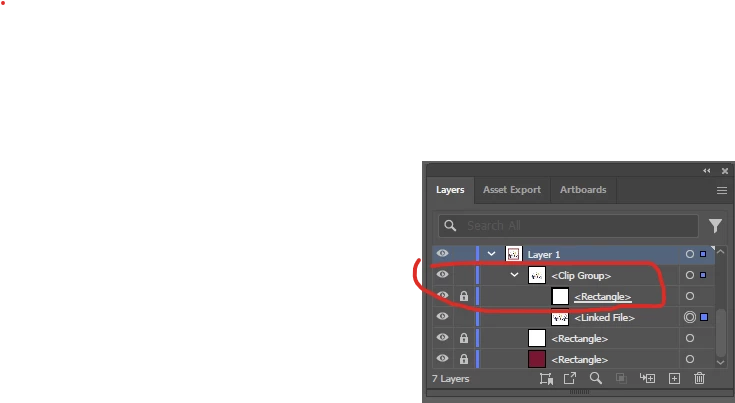
 

If I select the Clip Group in the Layers Panel and move it, only the unlocked layers move. Most of the time. If I happen to select an object in the clip group without selecting it in the layers panel, the entire group moves, which is not desired nor expected behavior- I've been masking for years and have never been able to move, much less select a locked layer.
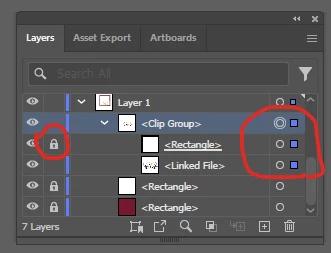


Why is this even happening? What's the point of locking my mask if it's just going to move if I click on it with the Move Tool?

Correct answer creative explorer

@phillippes43693942   when you use the Direct Selection Tool (the white arrow) or click on an object directly on the canvas without selecting its layer in the Layers Panel, you are selecting the object itself, bypassing the layer lock. The lock in the Layers Panel only prevents you from moving the entire layer when it is selected in the panel with the Selection Tool (the black arrow). This is the expected behavior in Adobe Illustrator; it's designed to allow for fine-tuned adjustments of individual components within a locked group or layer without unlocking the entire thing. The purpose of locking the mask is to prevent it from being accidentally moved along with the other layers when using the Selection Tool on the entire group in the Layers panel. To avoid this behavior, always use the Layers panel to select the specific objects you want to move within the clipped group, or select the clip group with the Selection Tool and then switch to the Direct Selection Tool to move only the unlocked objects.

1 reply

creative explorer
Community Expert
creative explorerCommunity ExpertCorrect answer
Community Expert
August 24, 2025

@phillippes43693942   when you use the Direct Selection Tool (the white arrow) or click on an object directly on the canvas without selecting its layer in the Layers Panel, you are selecting the object itself, bypassing the layer lock. The lock in the Layers Panel only prevents you from moving the entire layer when it is selected in the panel with the Selection Tool (the black arrow). This is the expected behavior in Adobe Illustrator; it's designed to allow for fine-tuned adjustments of individual components within a locked group or layer without unlocking the entire thing. The purpose of locking the mask is to prevent it from being accidentally moved along with the other layers when using the Selection Tool on the entire group in the Layers panel. To avoid this behavior, always use the Layers panel to select the specific objects you want to move within the clipped group, or select the clip group with the Selection Tool and then switch to the Direct Selection Tool to move only the unlocked objects.

m