Participant
December 3, 2018
Answered

Work space Layout - How to copy previous setup

  • December 3, 2018
  • 4 replies
  • 371 views

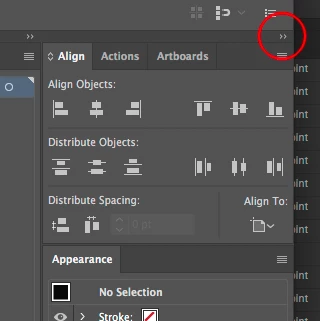
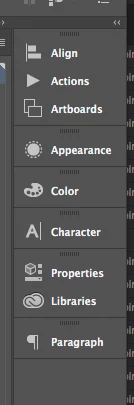
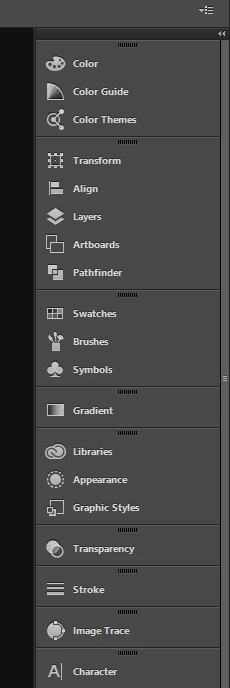
Previously I had my workspace setup like this. I have upgraded to the latest version and can't seem to get it like this again. How does one setup the righthand tool pane like such?
    This topic has been closed for replies.
    Correct answer Mike_Gondek10189183

    Click here

    to collpase

    You can then drag around to reorder and resize the panel.

    4 replies

    Participating Frequently
    December 3, 2018

    Forum thread to "preserve or bring back" the previous workspace.

    Workspaces CC2018

    Myra Ferguson
    Community Expert
    Community Expert
    December 3, 2018

    If you mean the order/organization of your panels, once you can drag them around where you want them, go up to the top of the screen to the workspaces and go to New Workspace... where you can save that order as a new workspace. Here's more information on customizing your workspace How to customize the Illustrator workspace

    Mike_Gondek10189183
    Community Expert
    Mike_Gondek10189183Community ExpertCorrect answer
    Community Expert
    December 3, 2018

    Click here

    to collpase

    You can then drag around to reorder and resize the panel.

    Simmer1
    Community Expert
    Community Expert
    December 3, 2018

    Hey,

    Basically it's just a number of palettes minimised within a workspace set up.

    Try going Window> Space > Painting this should give you the right hand stack.

    Then just open any palettes you would like to include and drag and drop them in.

    Lastly go Window> Workspace> New Workspace and name it.

    I hop this helps,

    Sim