Inspiring
February 19, 2018
Answered

Workflow Question: Mirror/Duplicate certain sections of an artboard on another artboard?

  • February 19, 2018
  • 4 replies
  • 1696 views

Project: I'm developing a web based sports jersey designer that uses SVG textures on a 3D model to show customers different jersey designs.

Problem: I need to create a user facing 2D SVG that looks like a jersey that is based on my 3D model's awkward looking 2D texture. Customer taps on the 2D thumbnail to load the texture on the 3D model.

Illustrator Question: What functions in Illustrator do I need to get to understand that would allow me to mirror/copy certain parts of my 3D model's texture artboard onto another artboard that creates a 2D jersey thumbnail? Can you mirror/duplicate certain portions of an artboard and arrange them on a second art board somehow?

Any tutorial videos or simple feature shout outs would help me start digging into this! Thanks!

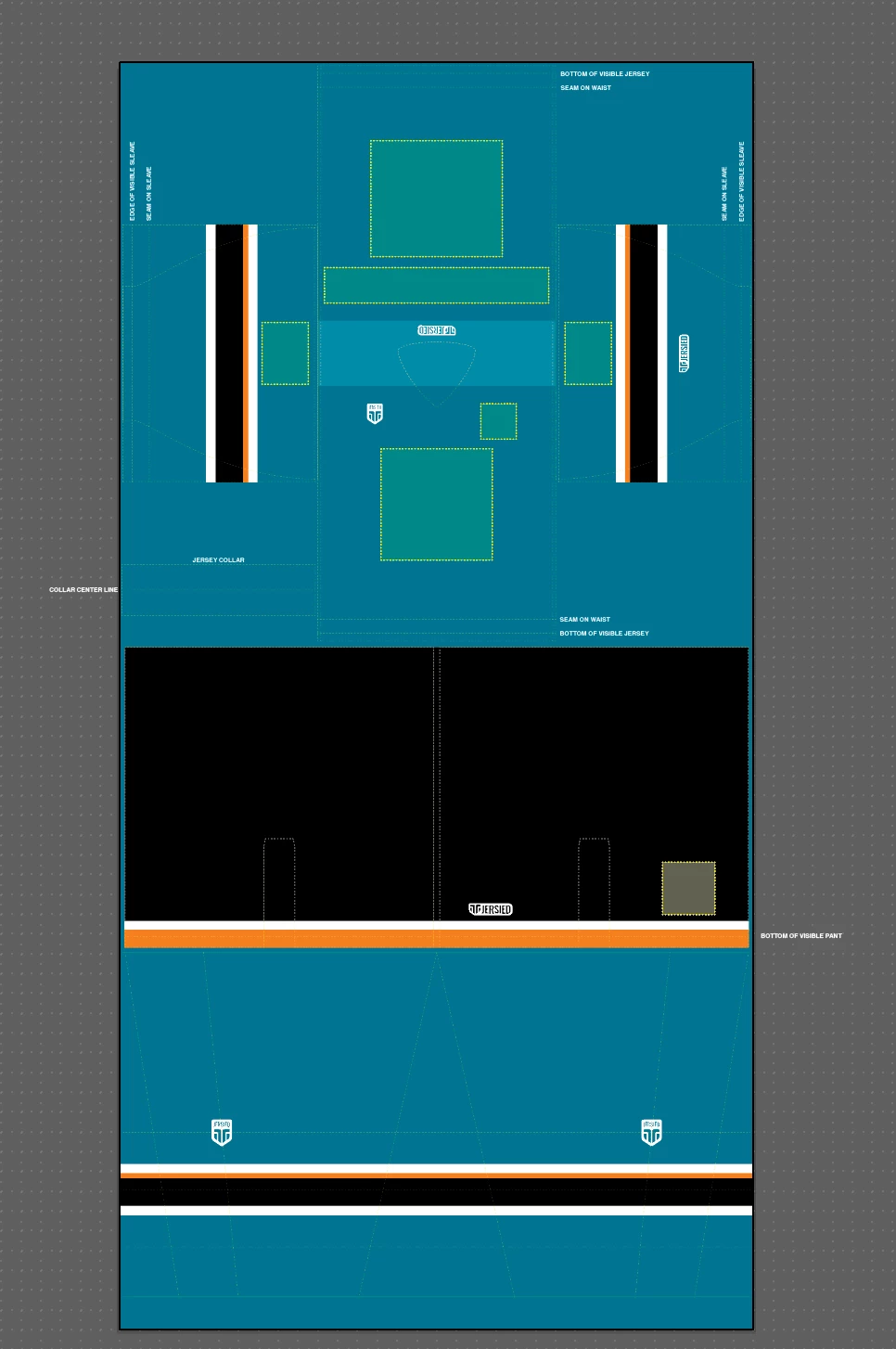
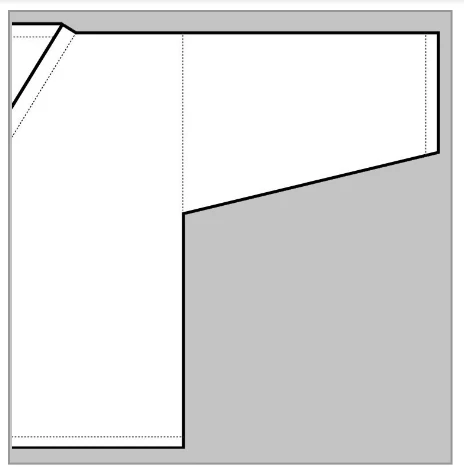
Attached is an example of my 3D model texture and a sample of the 2D thumbnail that I would like to be automatically create from the 3D texture.
    This topic has been closed for replies.
    Correct answer sharp_hands16B8

    If I'm understanding you correctly here's what I would try.

    1) If you have two artboards created make sure you put them edge to edge, as if they have a spine between two pages. You can use the artboard selection tool and look at the X/Y position values to make sure they are mathematically aligned.

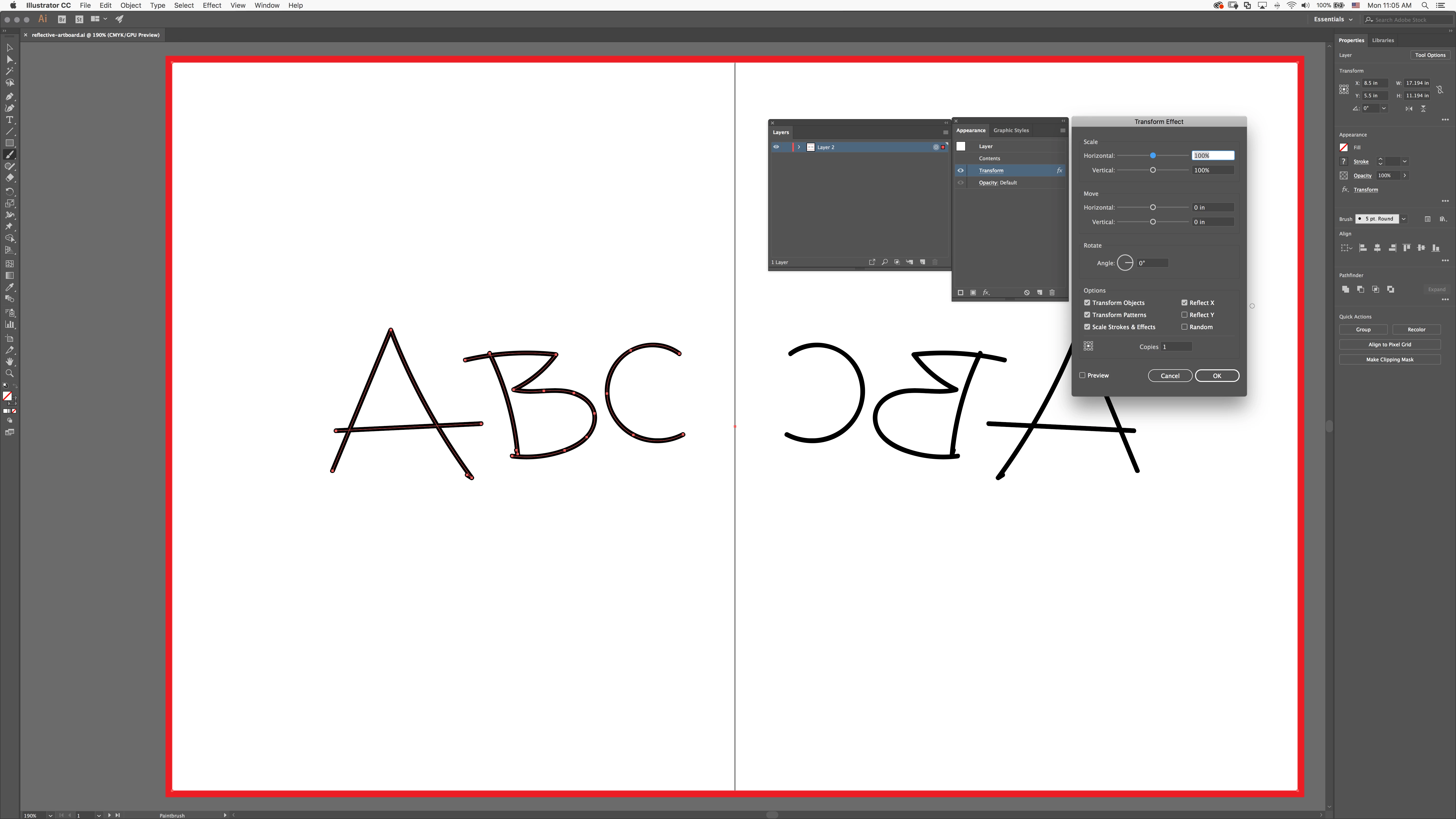
    2) Select the layer, which effects both artboards, and apply a Effect > Transform appearance property. Set it to Reflect (X or Y) and how many copies you need. Presumably 1. When selecting it, use the cursor in the right edge of the layer panel to the right of the layer name to select it. This isn't highlighting the layer, this is actually selecting the layer objects and everyone on that layer.

    3) Draw an outer frame around both artboards (this is the important part) and make sure it is centered both vertically and horizontally around both artboards. In my screenshot it's bright red. Leave this frame here, it can be bigger than the artboards if you are worried about it getting in the way of print, etc. But it must be centered over both.

    4) Anytime you draw on the left page, it will now automatically reflect on the right page.

    I'm attaching an Illustrator file for you to play with, download it here: reflective-artboard.ai.zip - Google Drive

    See the screenshot below. You can see I have the layer selected, it's properties are being shown with a transform value, and the transform settings are up for you to see.

    I hope that helps.

    @lifebypixels

    4 replies

    angie_taylor
    Legend
    February 19, 2018

    I also recommend the Transform effect. The great thing about it is that all changes remain “live” meaning you can tweak the settings by going to the Apperance panel and double-clicking it to edit it. I use it a lot to reflect artwork or to make any repeating shapes Or patterns. One thing that frustrates me is that the Preview checkbox is off when you open it though, make sure to check this to get live feedback on changes.

    here’s a tutorial on the Transform effect;

    Using the Transform effect to repeat shapes

    Inspiring
    February 19, 2018

    Thanks!

    sharp_hands16B8
    Community Expert
    sharp_hands16B8Community ExpertCorrect answer
    Community Expert
    February 19, 2018

    If I'm understanding you correctly here's what I would try.

    1) If you have two artboards created make sure you put them edge to edge, as if they have a spine between two pages. You can use the artboard selection tool and look at the X/Y position values to make sure they are mathematically aligned.

    2) Select the layer, which effects both artboards, and apply a Effect > Transform appearance property. Set it to Reflect (X or Y) and how many copies you need. Presumably 1. When selecting it, use the cursor in the right edge of the layer panel to the right of the layer name to select it. This isn't highlighting the layer, this is actually selecting the layer objects and everyone on that layer.

    3) Draw an outer frame around both artboards (this is the important part) and make sure it is centered both vertically and horizontally around both artboards. In my screenshot it's bright red. Leave this frame here, it can be bigger than the artboards if you are worried about it getting in the way of print, etc. But it must be centered over both.

    4) Anytime you draw on the left page, it will now automatically reflect on the right page.

    I'm attaching an Illustrator file for you to play with, download it here: reflective-artboard.ai.zip - Google Drive

    See the screenshot below. You can see I have the layer selected, it's properties are being shown with a transform value, and the transform settings are up for you to see.

    I hope that helps.

    @lifebypixels

    Inspiring
    February 19, 2018

    This could be a workable solution! Thank you for the tip! Much appreciated.

    Monika Gause
    Community Expert
    Community Expert
    February 19, 2018

    Maybe you can work with symbols.

    Or put everything on one layer and then with the transform effect duplicate/move/rotate the complete layer onto another artboard (working with clipping masks might even be possible as well, when you add another layer and work with layer based masks)

    I don't know of a tutorial that covers this process. And also the question is not clear enough to decide if this will work. Would need to know to which extent this artwork needs to edited, so not only is th result important, but the complete workflow and if you need to set this up as a template for similar artworks.

    Inspiring
    February 19, 2018

    I think symbols might work, super simple as well! Thank you for pointing out a incredibly obvious, simple solution that I didn't catch... thanks.

    barbara_a7746676
    Community Expert
    Community Expert
    February 19, 2018

    If I'm understanding the question, you should be able to reflect and duplicate a 3D object the same as any other object. However, depending on the 3D effect and the shape you are using, after reflecting you may need to change some of the settings of the 3D effect.

    You could select the object(s), select the Reflect tool. Alt or Option click between the artboards and then click Copy.

    Example with two artboards:

    Alt or Option click between the artboards.

    Inspiring
    February 19, 2018

    Thanks for taking the time to help me out, I clearly didn't do the best job explaining my challenge! I appreciate you taking a stab at a solution.