Known Participant
May 23, 2012
Answered

YIKES I need help!

  • May 23, 2012
  • 1 reply
  • 2894 views

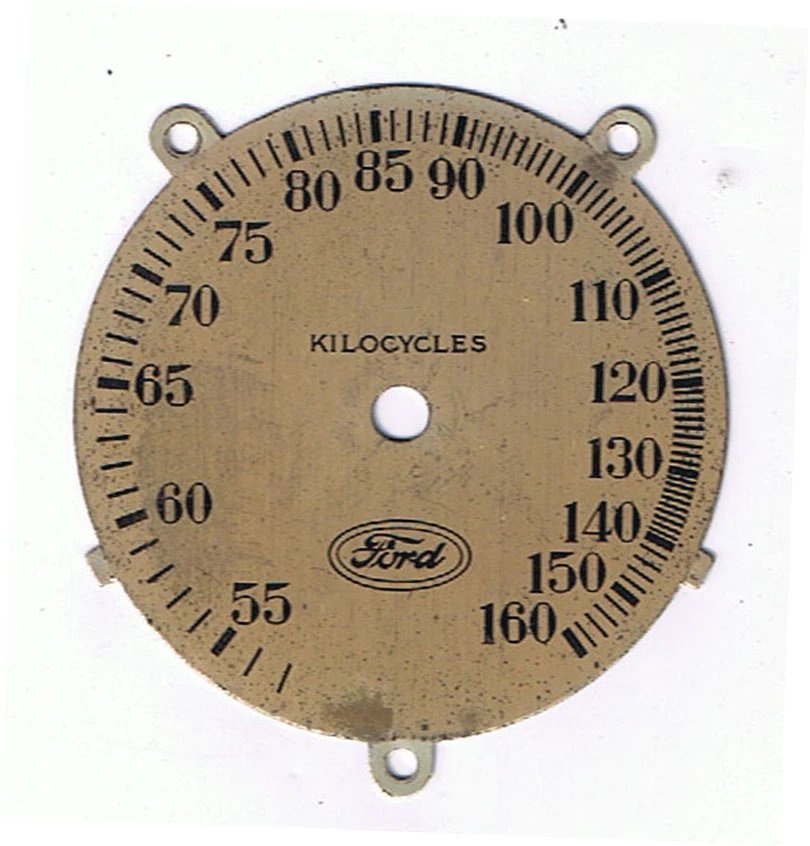
I now need to recreate the hash marks for this 1934 Ford Radio Dial.  My problem is the gap between each and every single hash mark being different.  I don't know how to make the usual method of drawing circles and creating one main hash mark then transform/copy to get all the hash marks.  How can I digitally recreate this so that the hash lines are exactly as shown?  Any ideas would be greatly appreciated. (this dial is 2 3/16 diameter)
This topic has been closed for replies.
Correct answer JETalmage

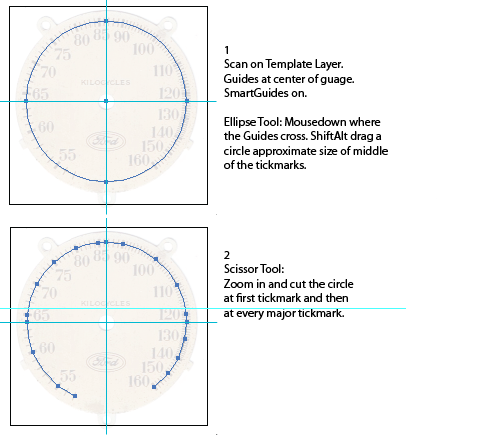
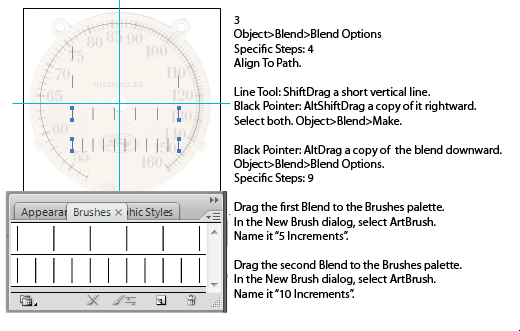
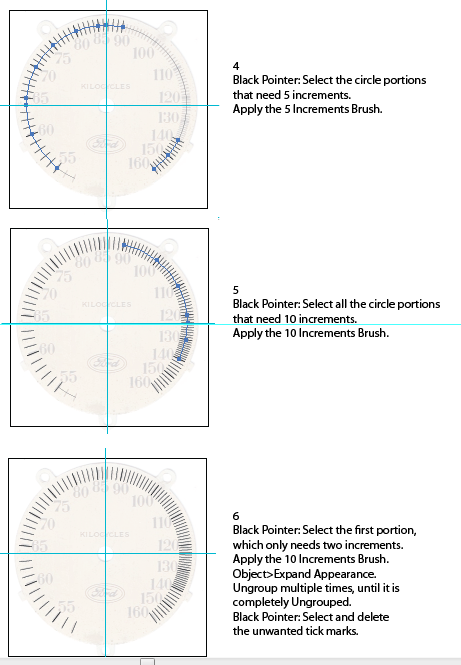
dsaf

After the above:

1. Select All.

2. Expand Appearance

3. Ungroup completely

4. Use Object>Transform>Transform Each to scale the tickmarks to the proper length, all at once.

5. Select the major tickmarks and increase their stroke weight.

If you need to move the tickmarks further/nearer from the center, use the Scale Tool, setting the center of transformation at the intersection of the two Guides.

JET

1 reply

Jacob Bugge
Community Expert
Community Expert
May 23, 2012

Jber,

You may:

0) Place a locked image of the original in the back, maybe on its own layer,

1) Determine the centre and widths (diameters) of the two circles corresponding to the inner and outer ends of the hash marks, yoiu may keep the outer circle with no stroke/nofill,

2) Create a stroked path corresponding to the length and thickness of the original thick hash marks maybe along with a nostroke path,

3) You may create a nostroke path ending at the centre and group it with 2), and/or group 2) with the outer circle,

4) Repeat 2) and 3) for the thin hash mark,

5) Rotate each kind of hash mark round the centre (maybe using the nostroke path) and either click the centre to have it as the key point for rotation or just rotate using the outer circle until it covers the first hash mark of its kind on the original image,

6) Rotate copies in the same way to cover the subsequent original hash marks.

Jber505Author
Known Participant
May 23, 2012

Thanks Jacob, I'm really new to using Illustrator so forgive me for being dense.  I'm going to give this try using your instructions but I'm a bit muddled on the rotation part.  I just can't visualize how rotating all the thick lines together and then going back and rotating all the thin lines together will get the property spacing.  Perhaps it's something I just need to do before it makes sense to me. 

Much appreciated.

JETalmage
JETalmageCorrect answer
Inspiring
May 24, 2012

dsaf

After the above:

1. Select All.

2. Expand Appearance

3. Ungroup completely

4. Use Object>Transform>Transform Each to scale the tickmarks to the proper length, all at once.

5. Select the major tickmarks and increase their stroke weight.

If you need to move the tickmarks further/nearer from the center, use the Scale Tool, setting the center of transformation at the intersection of the two Guides.

JET