Participant
October 31, 2023
Answered

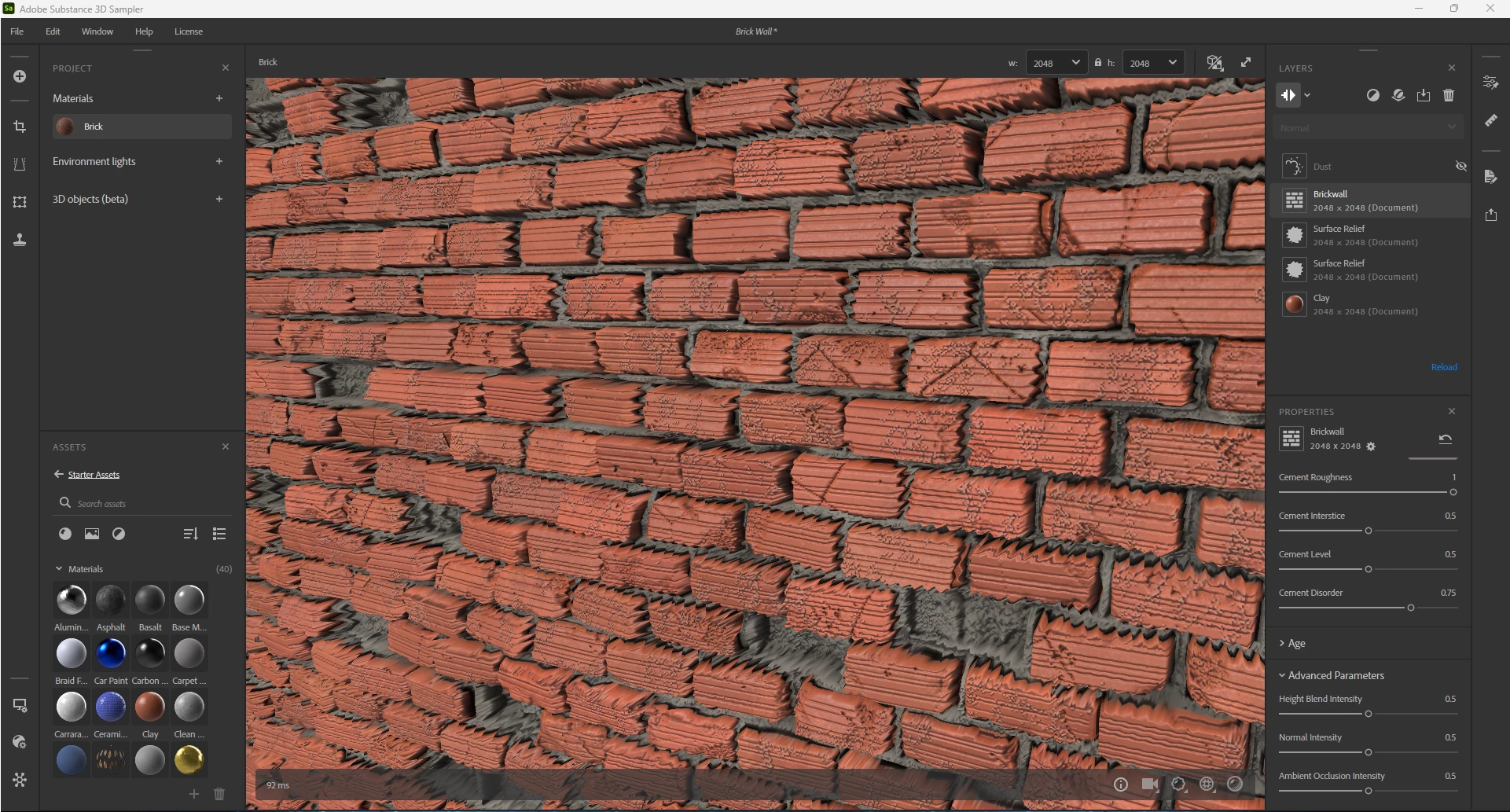
Bricks all jaggy and buggy
  • October 31, 2023
  • 2 replies
  • 230 views

How do I fix this??? My goal is to have the some bricks missing, about 75% of all of the bricks to be poking out of the cement, and to not look like this >D

This topic has been closed for replies.
Correct answer Cyril Dellenbach

This jaggy looks is due to the Height map of the material. The Height is too sharp for the Displacement Quality, that'y why I advised you too increase its value.


However, if this doesn't help, you can also add a Blur layer, switch its Input Channel to Height and increase the value to smooth the Displacement.


Best regards,


2 replies

Cyril Dellenbach
Community Manager
Cyril DellenbachCommunity ManagerCorrect answer
Community Manager
November 1, 2023

This jaggy looks is due to the Height map of the material. The Height is too sharp for the Displacement Quality, that'y why I advised you too increase its value.


However, if this doesn't help, you can also add a Blur layer, switch its Input Channel to Height and increase the value to smooth the Displacement.


Best regards,


Cyril Dellenbach (Micro) | QA Support Artist | Adobe
Participant
November 1, 2023

That made it all better, thank you so much for the advice >D

Cyril Dellenbach
Community Manager
Community Manager
October 31, 2023

Hello @Cap_StutterBoi17,


Try increasing the Displacement Quality value.


In addition, under the Advanced Parameters of the filter, you can also increase the Height Blend Intensity value.


Best regards,


Cyril Dellenbach (Micro) | QA Support Artist | Adobe
Participant
October 31, 2023

 Hi @Cyril Dellenbach 

That didnt work, neither did the hieght blend intensity