Inspiring
March 2, 2022
Answered

Crop without stretching?

  • March 2, 2022
  • 1 reply
  • 1604 views

Hello,


I'd like to use a trim sheet, and crop out about 90% of the texture. However, I see the Crop tool here stretches the texture to fill the window. Using Transform on top of that can squish it back, but then it repeats.

Is there a method of achiving a "Crop" that excludes everything outside of the crop area, more like in Photoshop?

This topic has been closed for replies.
Correct answer LoryAline


Hi,


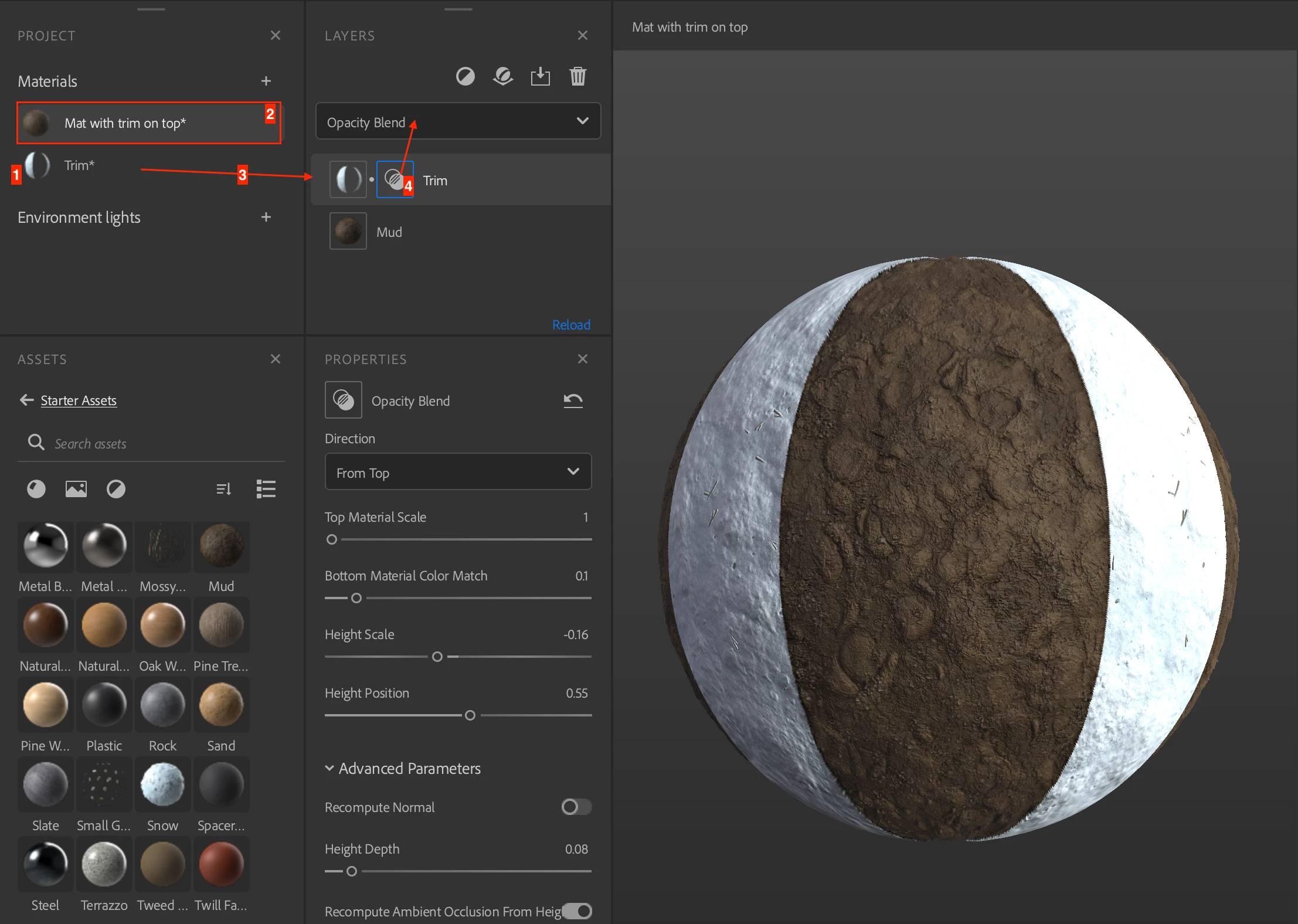
Keep in mind that the layer order is important and that you can work with the materials in the project panel.

Here's how you can achieve your goal:

  1.  Create your trim as a material.
  2.  Create your other material.
  3. Drag and drop the Trim material in the other material's stack.
  4. Select the blend mask and use the opacity blend option.
  5. Tweak the properties at your convenience.


Regards.

1 reply

LoryAline
Community Manager
Community Manager
March 2, 2022

Hi,
The crop tool in 3D Sampler doesn't behave like this, but that's surely a great input to add the possibility to not tile or stretch!

The only way I see to achieve this will be to use the Fill filter and add custom opacity, using the paint brush; hold shift to trace straight lines: 


Regards.

Inspiring
March 3, 2022

Thanks! 

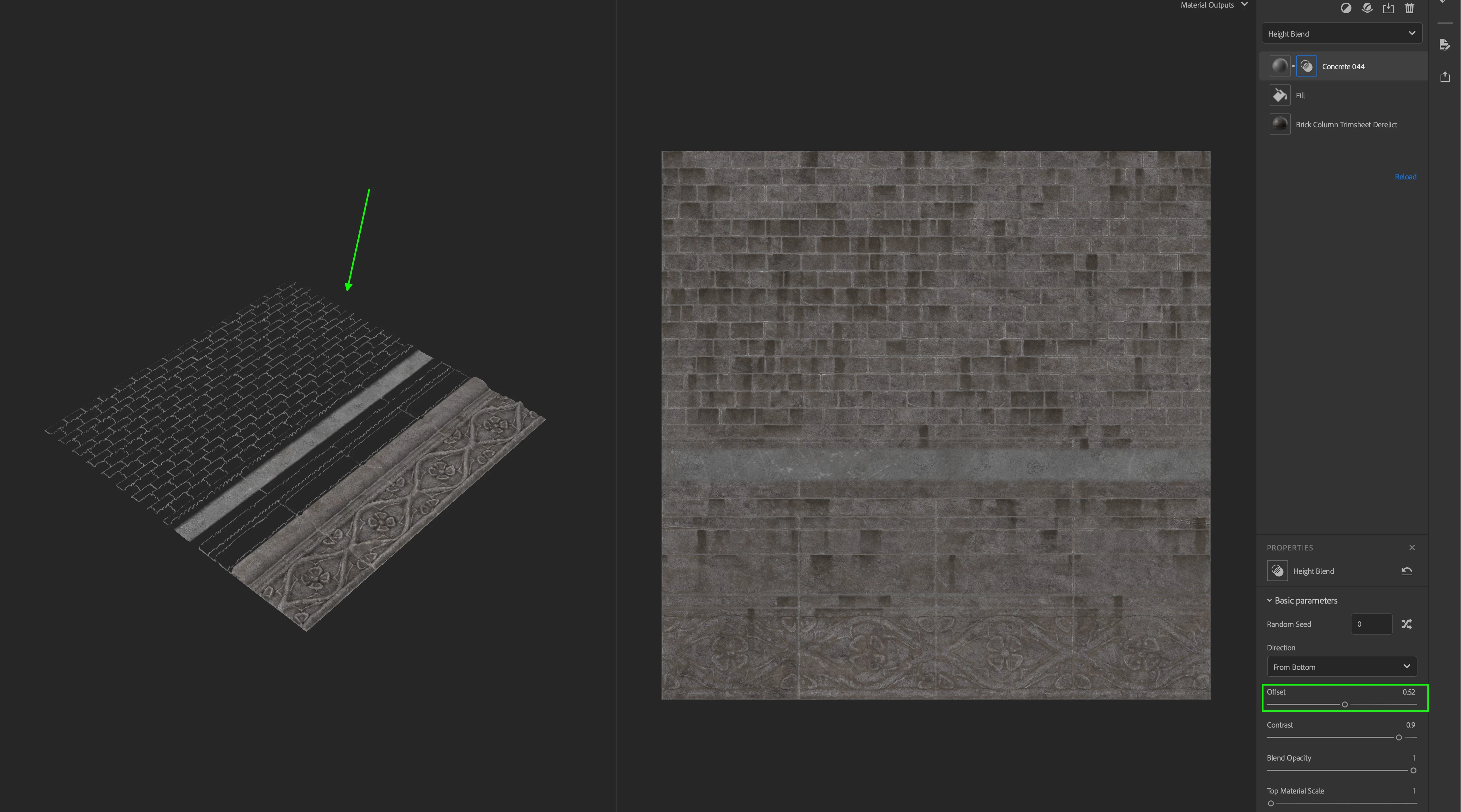
I'm getting stuck figuring out how to mix these -- the opacity works, but it doesn't actually remove the data, so the heigh mixing still plays a role. Either the other texture is also removed, or it mixes with the "cleared" portion, before eventually covering up the portion I'd like to have on top.

Is there a way to accomplish this?

Or a way to have the "fill" only affect one layer, and somehow not block the others?

Inspiring
March 3, 2022