michaelp78008416
Participating Frequently
November 16, 2023
Answered

Substande 3D Sampler Photogrammetry Bad UV

  • November 16, 2023
  • 1 reply
  • 526 views

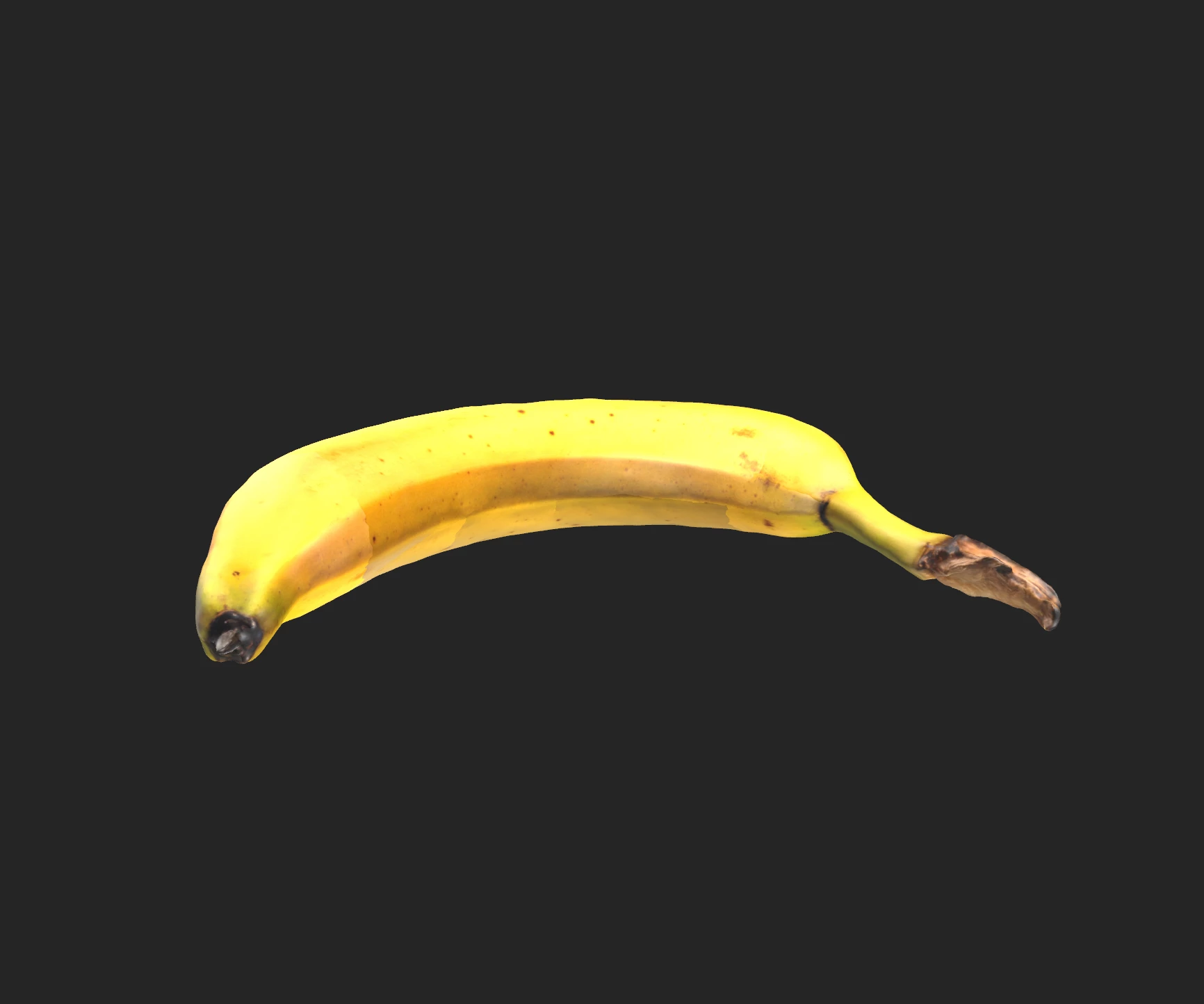
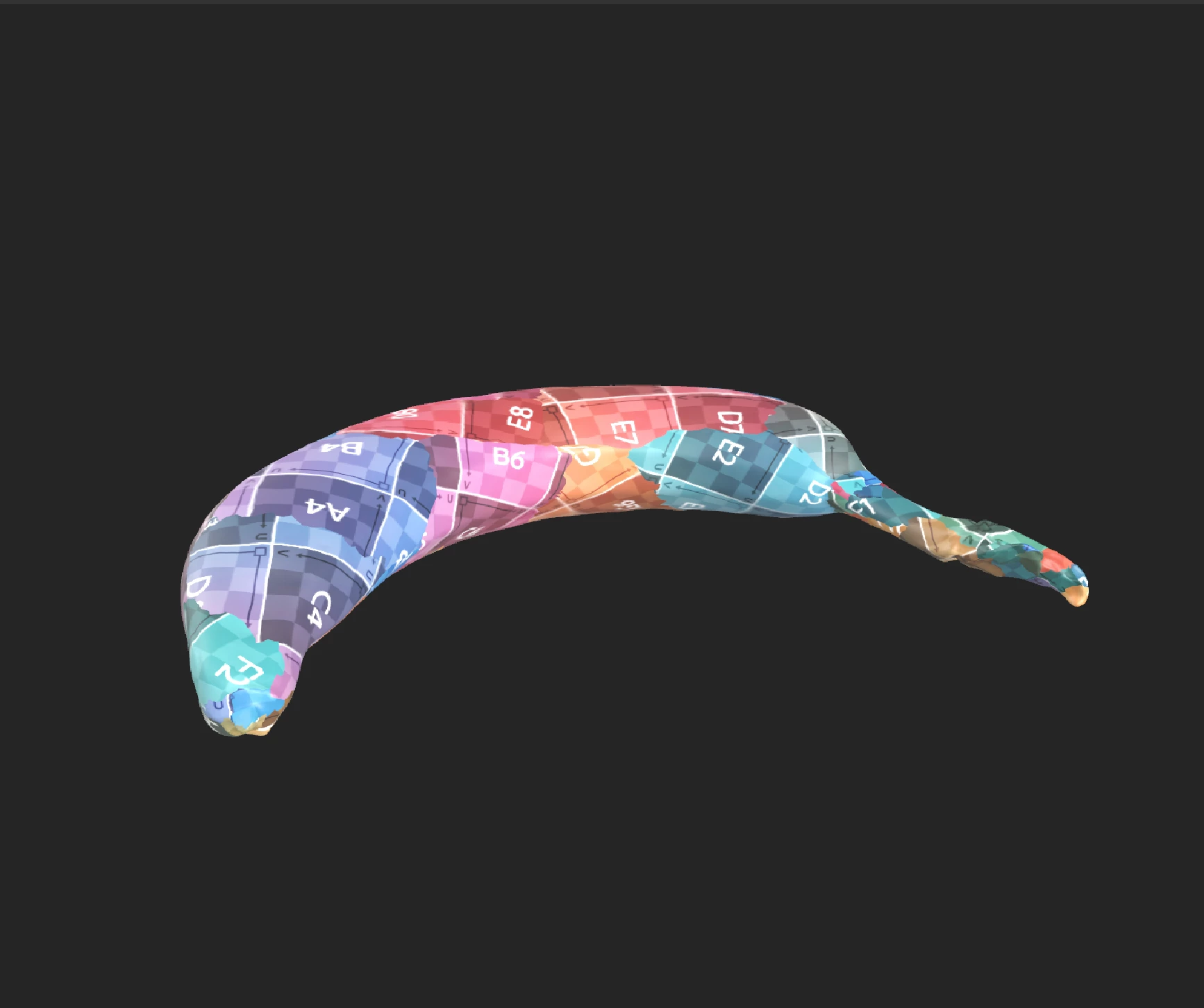
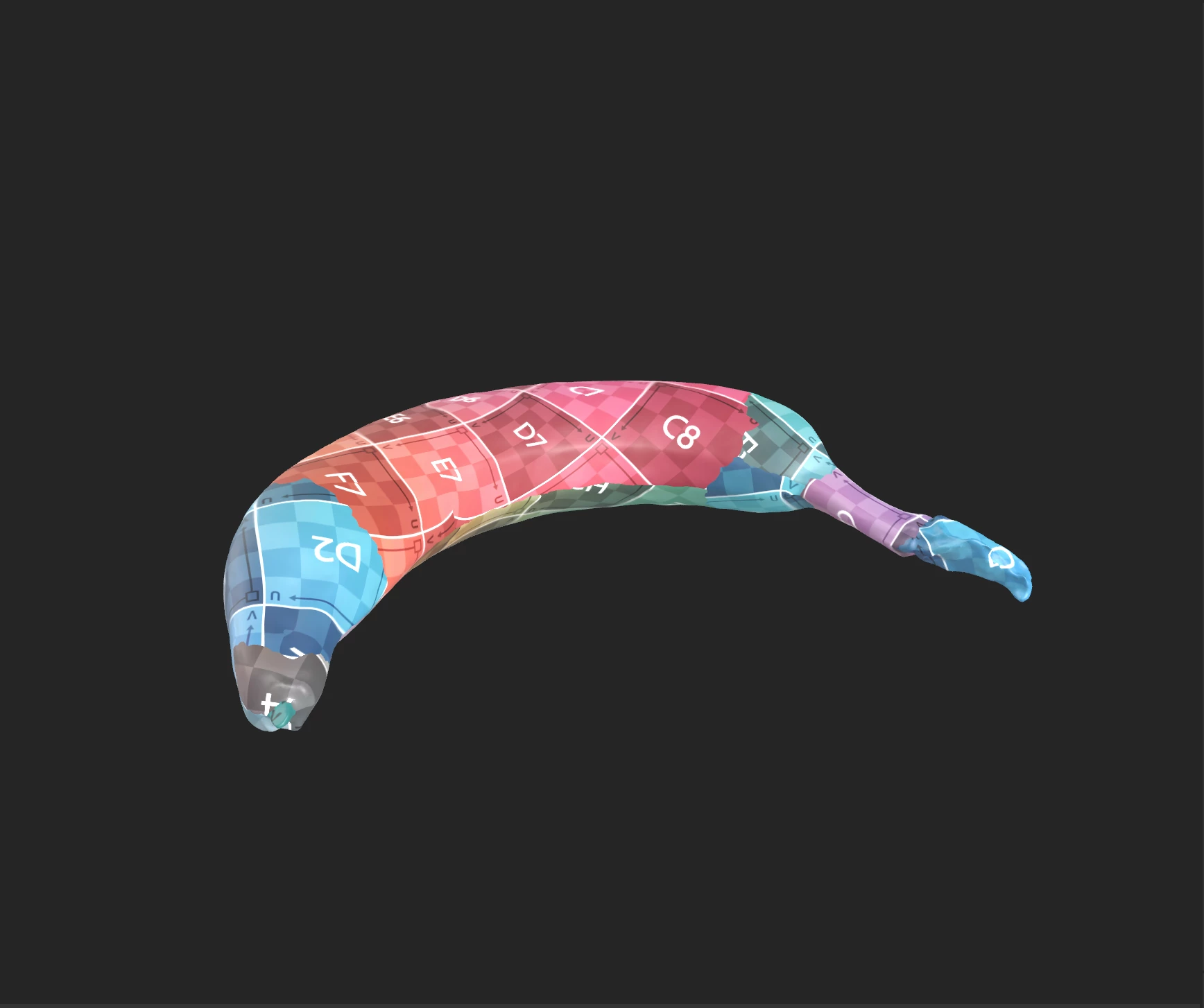
Just started playing with the photogrammetry portion of of Sampler.  My question is how do you correct bad UV layout.  I am a professional photographer and I captured in studio 120 images on turntable setup with high DOF.  The model looks good and masked out perfectly but the UV layout has bad seems.  I changed Advanced Texture reproduction and got new result but UV seems are still bad.  Is there a way to correct this or do I need to try another capture
This topic has been closed for replies.
Correct answer Ares Hovhannesyan

Please review this referance. 3D Capture | Substance 3D Sampler (adobe.com)

The most valuable parameters that can imporove UV map are: 

Post-processing

The post-processing helps you to adapt and optimize your mesh and textures to your needs and how you want to use it.

The result of the reconstruction can generate a mesh with millions of polygons and up to 16K textures. This often won’t be optimized for rendering, realtime or AR experience.

You will need to post-process the result to reduce the number of polygons without losing details.

The post-processing step chains 4 steps automatically:

  • Decimation: Reduce the number of polygons by defining the number of faces you want
  • UV unwrap: Automatically defines seams, unwrap and package UVs of the decimated mesh
  • Reprojection: Reproject the color texture of the photogrammetry mesh onto the decimated mesh
  • Baking: Bake normal, height and AO details from the photogrammetry mesh onto the decimated mesh. This will ensure to transfer all mesh details lost during the decimation into texture maps.

1 reply

Ares Hovhannesyan
Community Expert
Ares HovhannesyanCommunity ExpertCorrect answer
Community Expert
November 16, 2023

Please review this referance. 3D Capture | Substance 3D Sampler (adobe.com)

The most valuable parameters that can imporove UV map are: 

Post-processing

The post-processing helps you to adapt and optimize your mesh and textures to your needs and how you want to use it.

The result of the reconstruction can generate a mesh with millions of polygons and up to 16K textures. This often won’t be optimized for rendering, realtime or AR experience.

You will need to post-process the result to reduce the number of polygons without losing details.

The post-processing step chains 4 steps automatically:

  • Decimation: Reduce the number of polygons by defining the number of faces you want
  • UV unwrap: Automatically defines seams, unwrap and package UVs of the decimated mesh
  • Reprojection: Reproject the color texture of the photogrammetry mesh onto the decimated mesh
  • Baking: Bake normal, height and AO details from the photogrammetry mesh onto the decimated mesh. This will ensure to transfer all mesh details lost during the decimation into texture maps.