


amy durocher
Community Manager
Community Manager
March 7, 2025
Question

Adjust Colors Ready for Beta Testing

  • March 7, 2025
  • 17 replies
  • 10231 views

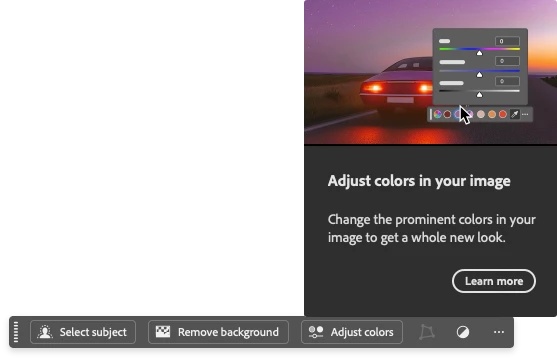
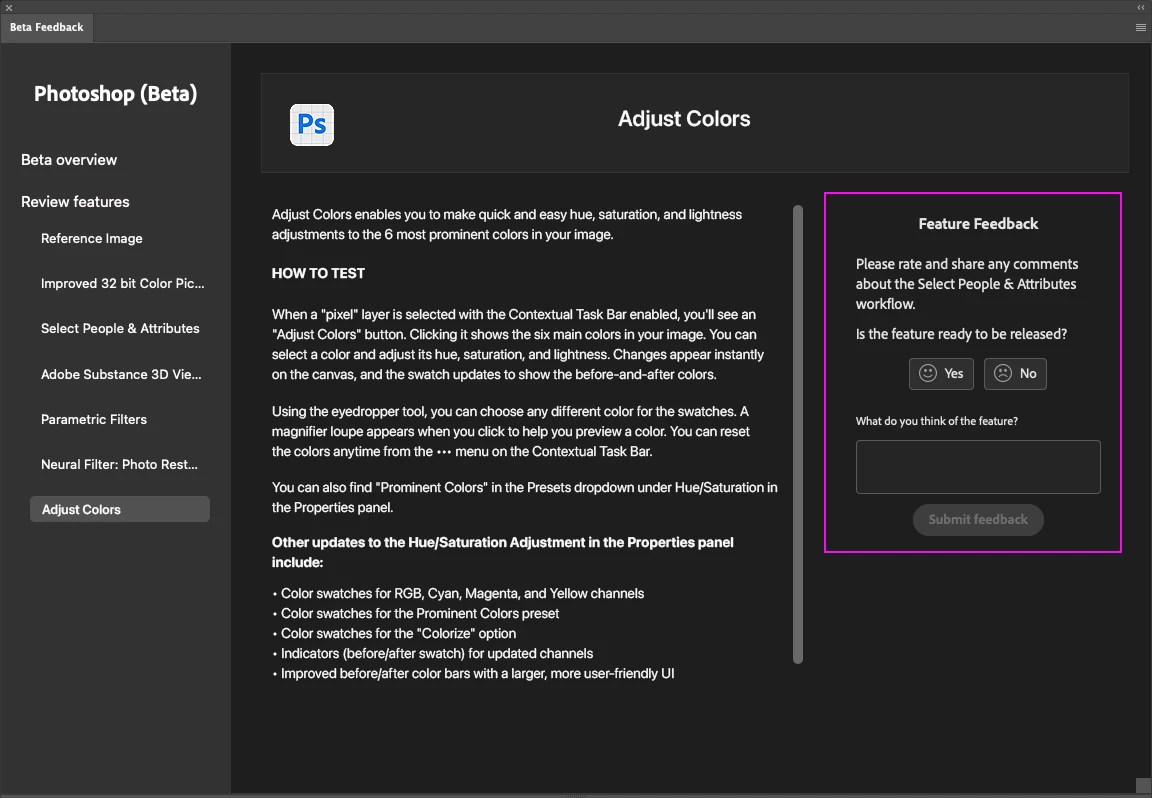
Adjust Colors enables you to make quick and easy hue, saturation, and lightness adjustments to the 6 most prominent colors in your image.


HOW TO TEST

When a "pixel" layer is selected with the Contextual Task Bar enabled, you'll see an "Adjust Colors" button. Clicking it shows the six main colors in your image. You can select a color and adjust its hue, saturation, and lightness. Changes appear instantly on the canvas, and the swatch updates to show the before-and-after colors.
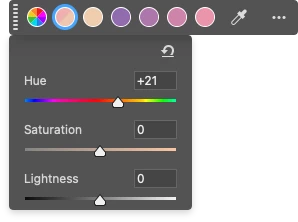


Using the eyedropper tool, you can choose any different color for the swatches. A magnifier loupe appears when you click to help you preview a color. You can reset the colors anytime from the ••• menu on the Contextual Task Bar.


You can also find "Prominent Colors" in the Presets dropdown under Hue/Saturation in the Properties panel.


Other updates to the Hue/Saturation Adjustment in the Properties panel include:

  • Color swatches for RGB, Cyan, Magenta, and Yellow channels
  • Color swatches for the Prominent Colors preset
  • Color swatch for the "Colorize" option
  • Indicators (before/after swatch) for updated channels
  • Improved before/after color bars with a larger, more user-friendly UI

PROVIDE FEEDBACK

1. Click on the Beaker Icon in the upper right of the Photoshop application:

 

2. Find "Adjust Colors" in the left panel, and provide YES ready to be released or NO not ready to be released. Leave a comment if you have one...

3. Or you can leave a comment in the Beta Forum post.


17 replies

Participant
March 11, 2025

Amazing work Amy!

Participant
March 11, 2025

This sounds like a really nice feature, but as a partially color blind person, the old way in which the colors were also labeled with text, was very reassuring for me (and i'm sure the rest of people with this problem). So i guess what i'm saying is that if you guys decide to go this "visual" way, it would seriously need a label somewhere around those bubbles, so that people with (partial) color blindless would know what they are adjusting.

Inspiring
March 11, 2025

As someone who is also colour blind, I would also like to see colour labels

Participant
March 10, 2025

Great explanation. Looking forward to this being promoted to the release version. I will practice and patiently wait.

Participant
March 10, 2025

Hi Amy - I've loaded a photo in via Lightroom as a TIFF and the Adjust COlors does not show up in the contextual bar. It does show up when I open directly in Photoshop e.g. from a JPG.  Is there some color spaces or modes that prevent me seeing it when I launch via Lightroom Classic?  Thanks.

amy durocher
Community Manager
Community Manager
March 10, 2025

@Paul26231103atwu Yes there are modes where Adjust Colors does not work (because the Hue/Saturation Adjustment is not supported): Grayscale, Multichannel, Bitmap, and Duotone. 


I tested both LIghtroom and Lightroom Classic with the following steps and saw the Adjust Colors option on the Context Bar. Let me know if I have the steps wrong...


1. Open the image in Lightroom Classic > Right-click on the image > Edit in Photoshop

2. Tif image opens in Photoshop > Background layer is selected > Context Bar with Select Subject, Remove Background, And Adjust Colors is visible. If the Context Bar is not visible > Go to Window > Contextual Task Bar.


You could test to see if your Lightroom file has the Hue/Saturation adjustment available. If so, you can see the Adjust Colors feature by selecting the "Prominent Colors" preset.


Participant
March 10, 2025

Amazing Amy 👑

March 10, 2025

For Hue/Saturation adjustment layer, when I add a new one, the red color swatch it is selected by default, not the first one(the one for all), it is a bug or a feature?, because now I have to give 1 click more to do same job that I did before(change saturation for all colors).

amy durocher
Community Manager
Community Manager
March 10, 2025

Hi @324453 this is currently a bug, we will fix the issue soon!

Participating Frequently
March 16, 2025

Regarding the default selection, would this affect existing Photoshop Actions that use the Saturation adjustment layer? For instance, I have actions that desaturate all colors in a selection, and other actions that desaturate certain color ranges in a selection. Will these actions using the Saturation adjustment layer continue to perform as they have?

Participant
March 10, 2025

Great work Amy! Will a file saved with the new panels open in previous versions? Thanks!

ClaudiaR99
Community Manager
Community Manager
March 10, 2025

Beta is an early feature release app and as such, we recommend that it’s used with test files only. For the most part, the Hue and Saturation adjustment layer is largely compatible with earlier releases of Photoshop.
You can open documents and modify the “Default” color channels, as well as use presets other than “Prominent Colors”.


I included screen capture of how the Prominent colors will show in earlier versions of Photoshop.


Prominent Colors is a new preset that allows color swatches to display both the original and modified colors, capturing Hue, Saturation, and Lightness.


When a Hue and Saturation adjustment layer using Prominent Color preset is modified in the latest release (as of today 26.4.1) or an older version of Photoshop, the changes will be applied and retained on the imaged when the document is opened in Beta. However, the swatch colors will show the Hue at 100% saturation.