
Participant
April 23, 2024
Answered

Bug en tamaño del texto

  • April 23, 2024
  • 4 replies
  • 584 views

Buen día,

Desde la ultima actualización del Beta ocurre un bug con el texto cuando sobrepasa ciertos puntos de tamaño, se crea como una especie de borde alrededor del caracter que lo hace más grueso y deforma la anchura de la fuente
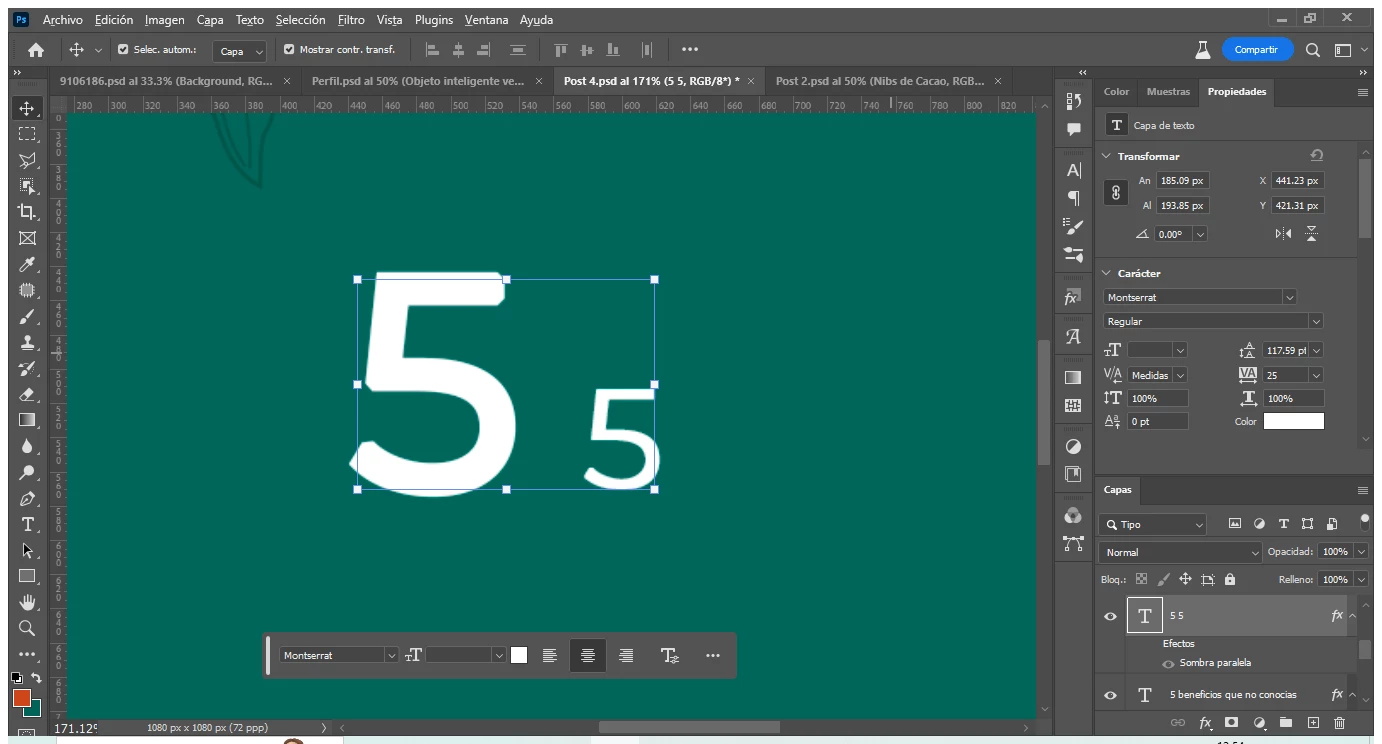
Por ejemplo, es la misma tipografía (Montserrat) con el mismo estilo (regular), sin embargo al sobrepasar los 120 pts, el caracter se deforma y se ve más ancho de lo que debería, por lo que no puedo trabajar con el grosor que yo necesito.

Sin embargo, esto solo ocurre algunas veces en cajas separadas de texto o dentro de un párrafo.
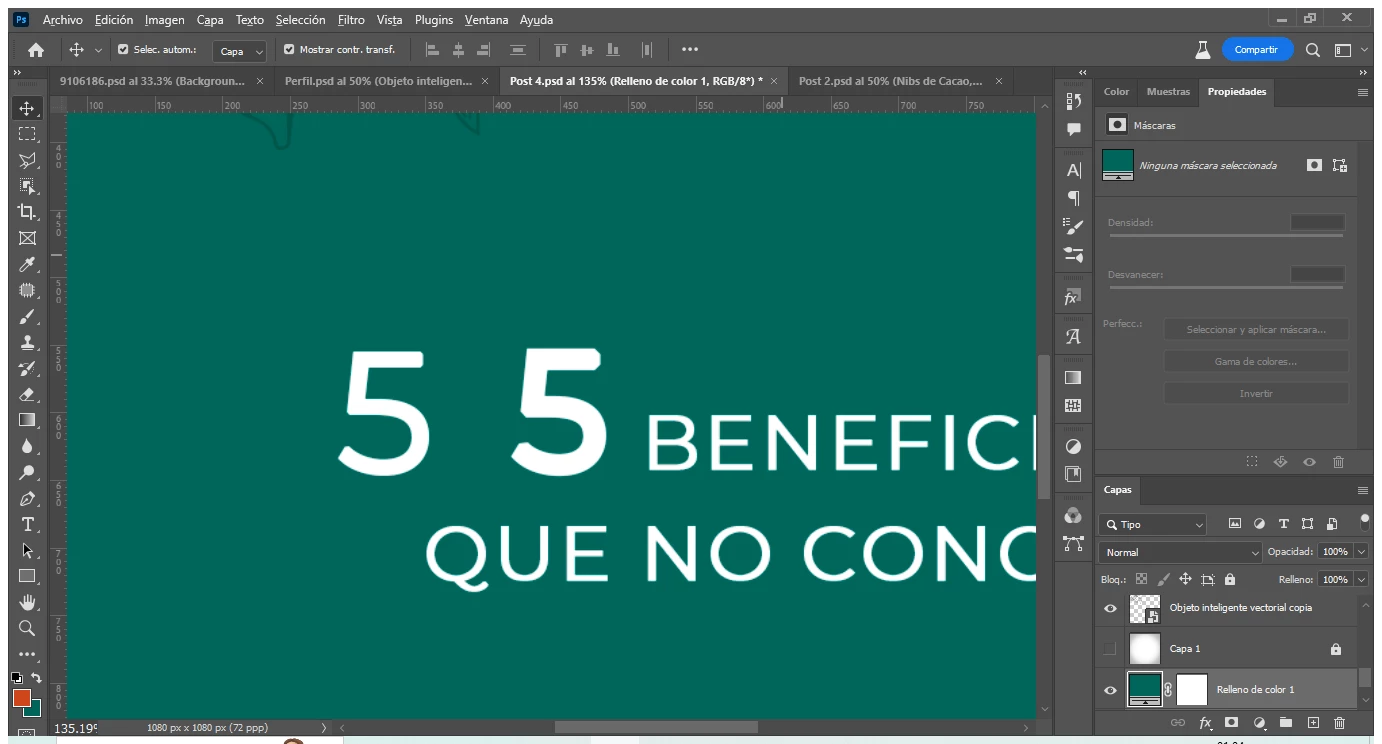
Es el mismo tamaño y estilo de fuente, pero uno se deforma y el otro no.

Y si bien podría trabajar en este caso con cajas de texto separadas, ya me ha pasado que no importa de que tamaño ponga el texto, este se deforma, y sale así en las impresiones. 
This topic has been closed for replies.
Correct answer Pete.Green

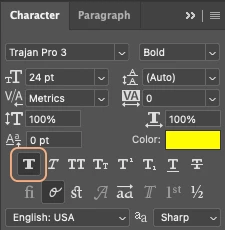
@Lizbeth del C36938289ik3c --- I think I've figured it out -- Are you using Faux Bold?


Try turning Faux Bold off as depending on the quality of the font, it can produce results like you're seeing. You can turn it off by clicking the button in the Character panel. Here's a screenshot with it turned on, click it again to turn it off.


Regards,

Pete

4 replies

Pete.Green
Community Manager
Pete.GreenCommunity ManagerCorrect answer
Community Manager
April 23, 2024

@Lizbeth del C36938289ik3c --- I think I've figured it out -- Are you using Faux Bold?


Try turning Faux Bold off as depending on the quality of the font, it can produce results like you're seeing. You can turn it off by clicking the button in the Character panel. Here's a screenshot with it turned on, click it again to turn it off.


Regards,

Pete

Pete.Green
Community Manager
Community Manager
April 23, 2024

Another thing to try aside from Preferences, is to reset the font cache for Photoshop and/or your system font cache. 

More info in this article: https://helpx.adobe.com/photoshop/kb/troubleshoot-fonts-photoshop.html


Let us know how it goes

Pete.Green
Community Manager
Community Manager
April 23, 2024

Hi @Lizbeth del C36938289ik3c ,


Curious how it goes after resetting preferences as Cory suggests.


I've tried on my system and not able to see these text deformities as you're seeing with larger point sizes: 


CShubert
Community Manager
Community Manager
April 23, 2024

Hi @Lizbeth del C36938289ik3c sorry to hear this.


Try resetting Prefs for the Beta:
/Users/yourname/Library/Preferences/ Photoshop Beta Settings (Mac Ventura)
/Users/yourname/Library/Preferences/Adobe\ Photoshop\ \(Beta\)\ Settings (Mac)


C:\Users\user name\AppData\Roaming\Adobe\Adobe Photoshop (Beta)\Adobe Photoshop (Beta) Settings )Win)
Launch BETA Photoshop While Pressing The Keyboard Shortcut
With Photoshop closed, press and hold Shift+Ctrl+Alt (Win) / Shift+Command+Option (Mac) on your keyboard and then Launch Photoshop the way you normally would.
https://helpx.adobe.com/photoshop/using/preferences.html#Manually  


Thanks,

Cory - Photoshop Product Manager