



Adobe Employee
March 17, 2023
Answered

Contextual Task Bars Now in Photoshop (Beta)

  • March 17, 2023
  • 70 replies
  • 102148 views

We’re excited to announce that new contextual task bars are now available in Photoshop Public Beta. We know that finding the right tool, at the right time, can sometimes slow down a great workflow. Our new contextually aware task bars aim to help by providing common tools, actions and next steps right on the canvas where you’re working. We are currently launching five bars for importing new documents, making selections and using the Type Tool. Learn more below: 


Open Image or File

  • This bar will appear when you open an image or file in Photoshop (i.e. not a new, empty document)

 

New Document Workflow

  • This bar will appear if you open a new, blank document from the Photoshop home screen

  • If you choose to select “import image”, your image will be placed in the document as a Smart Object and the Free Transform bar will appear to help finalize placement

 

Type Tool Workflow

  • This bar will appear when you select the Type tool from the tool bar and draw a text box on the canvas

 

Selections Workflow

  • Once a selection is made, a selection edit bar will appear with options to refine the selection or create a mask

 

Tips and Other Menu Functionality
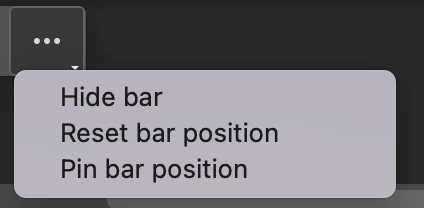
 

  • Pin bar position
    • You can pin and un-pin any bar from the “more menu”. Pinning will hold your bar (and all subsequent bars) where it was placed on the canvas until un-pinned from the “more menu” performed
  • Reset bar position
    • The context bar moves with you as you work on the canvas, keeping relevant tools at your finger tips. If you would like to reset the position, you can do so from the “more menu”
  • Hide bar
    • You can always hide the bar if you’d like to remove it completely, or temporarily, from the canvas. If you’d like to re-open the bar at any point, go to Window > Contextual Task Bar


We need your feedback!

Please let us know what you think and how we could improve the new Contextual Task Bar.

Correct answer danielm77292327

OMG just fixed it!! 


  • You can always hide the bar if you’d like to remove it completely, or temporarily, from the canvas. If you’d like to re-open the bar at any point, go to Window > Contextual Task Bar


And this is the link to where I found how to fix that:


https://community.adobe.com/t5/photoshop-beta-discussions/contextual-task-bars-now-in-photoshop-beta/td-p/13658736

70 replies

PetraMHG
Participant
June 6, 2023

This thing is annoying, i tried pinning it so it doesnt pop out like crazy all the time but nope, it just keeps resetting and popping everywhere i dont want it. Had to turn it off as i had no use for it at all.

Participant
June 6, 2023

I wish you could dock it on the bottom left of the screen, esp on Mac. Good Lort.

Maxwelp3
Participating Frequently
June 5, 2023

Mainly this thing gets in my way. I pin it to the menu bar off to the right and it seems to come back. The position does not save as part of my workspace. Every time I start something new it is back in the way AGAIN.

Maybe I should hide it but then I will never know if it can be of any use to me.

Participant
June 3, 2023

I've been using the Photoshop Beta version for two days. Yesterday, there was a little task bar at the bottom of the window for generative AI. That is gone now. How do I get it back? Now I have to make a selection then right click to get to generative fill. I'd like to use that.

Participant
June 3, 2023

Same thing happened to me, but in my case, I pressed the hide button that appeared in the contextual taskbar and now it wont show up again automatically after making a selection 😞 Can't seem to find how to make it show up each time I make a selection like it used to each time I made a selection.

Participant
June 2, 2023

I don't get this. The contextual menu bar is absent from the canvas. 

Known Participant
June 3, 2023

window menu and bottom of the menu and contextual task bar, display it that way 

Participant
June 1, 2023

Hi! I don't have the contextual tool bar on my version of Photoshop, and I cheched on Adobe and there are no updates available. Am I missing something? Can you help? Thanks. 

Known Participant
June 1, 2023

You need 24.5 Photoshop (or 24.6 beta) and then go to the window menu and right at the bottom, contextual task bar

Participant
May 31, 2023

I aminly use shortcuts in photoshop so I'm not sure about it. It would be nice if there was a shortcut to hide and unhide it so when I wanted to use it I could get it quickly rather than going to the the menu bar 

Michael

Known Participant
May 31, 2023

Create a shortcut for it via the edit menu and keyboard shortcuts (I use command and [ as I have run out of shortcuts) and then you can quickly hide or remove it

Participating Frequently
May 31, 2023

Most of the time it gets in the way. The program already has a contextual Option bar so perhaps expand on that or have the option to "append" this new contextual task bar to the Option bar.

Participating Frequently
May 30, 2023

Okay, I am working with 3 screens. I have put the bar on an other screen as my main screen. I pinned it there. But it keeps on jumping back on my main screen. Please make it that when I 'pin' the bar on a location, it keeps on that place. Even if it's on a different screen.

Known Participant
May 29, 2023

Please add this excellent feature to the gradient tool as well as many other tools, and add more options to the bar. Since getting this tool, made it a whole lot easier to use Photoshop

Participating Frequently
May 29, 2023

Please add a way to switch this off as the defualt. It's quite annoying when it just appears regardless of whether or not it is wanted or useful.

Known Participant
May 29, 2023

You can remove it by going to window and turning it off via the contextual etc or just go to the three dots on the bar and hide it.