



Generative AI in the Remove Tool for Photoshop (Beta)
Hello Beta Testers!
We're excited to announce the release of an improved Remove Tool in Photoshop (Beta), and we need your help to make it even better. As a valued beta tester, your feedback is crucial in helping us refine and perfect this feature before its official launch.
We're unleashing the power of Firefly inside the Remove Tool – designed to enhance your experience by seamlessly replacing pixels with the best-possible results.
The Remove Tool already has a virtual toolbox of multiple technologies available; it analysis your image and decides which is best to replace pixels you want to remove. Now we're adding generative AI as an option to ensure great results even with a large area or complex background.
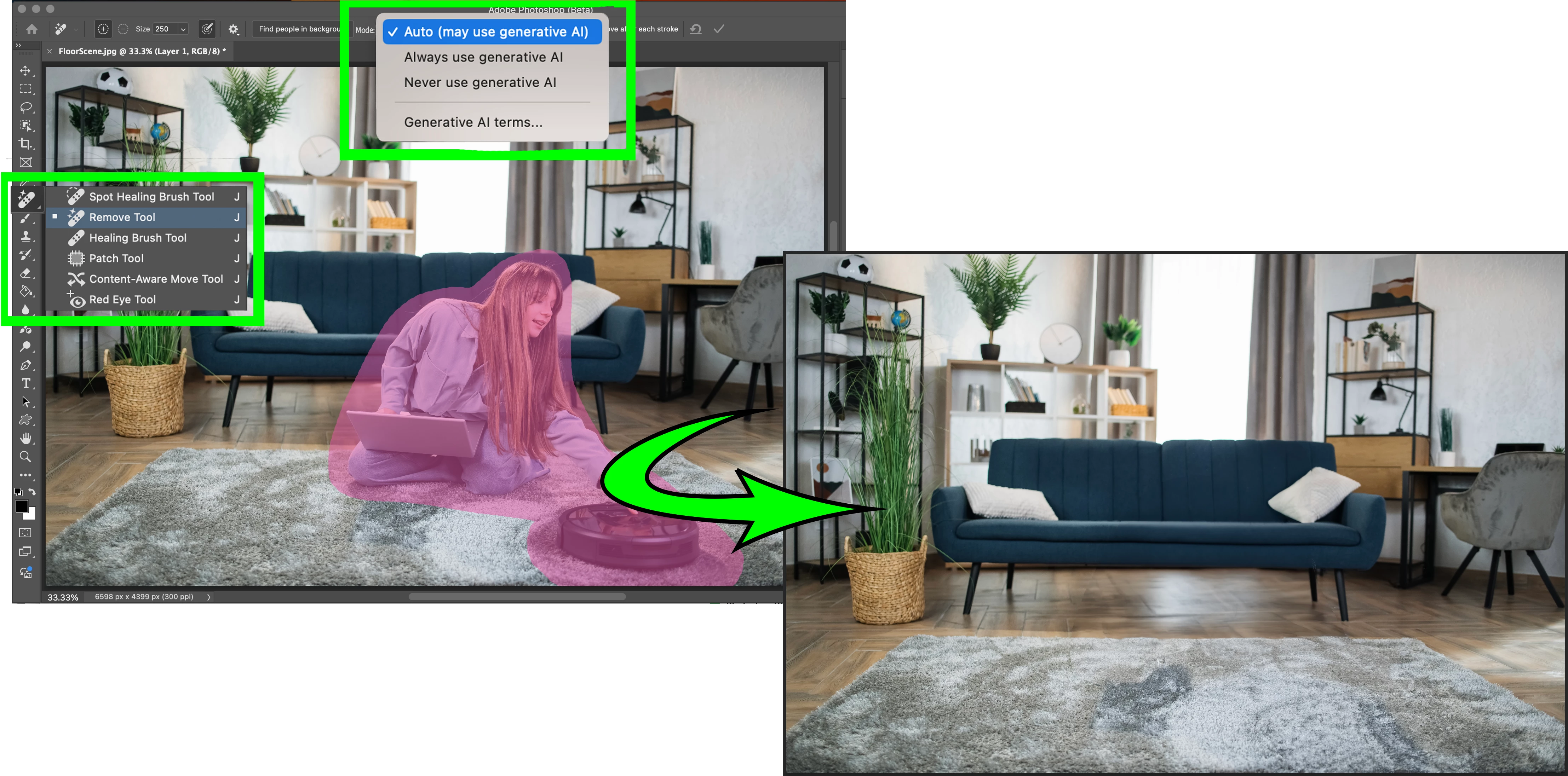
Here's how you can get started:
- Update Photoshop (Beta) Make sure you have the latest version installed.
- Explore the Remove Tool: Navigate to the Remove Tool in the Toolbar.
- Accept the Firefly Terms of Use: If you haven't already, agree to the Firefly Terms of Use that appears.
- The Mode setting in the Remove Tool is set based on the Terms of Use acceptance.
Manually change the Mode setting in the options bar as needed:
• Auto (May use generative AI) - default if TOU was accepted
• Always use generative AI
• Never use generative AI - default if TOU was declined
- The Mode setting in the Remove Tool is set based on the Terms of Use acceptance.
- Use the Remove Tool as usual; it will choose from the best technology to fill each area.
- Share Your Feedback: Let us know what you think!
Reply to this forum thread
or
Give it a thumbs up or thumbs down in the Beta Feedback panel.
Things to note:
• The Firefly model in Auto can be triggered for a fill area of any size, based on object analysis. Firefly will also be triggered by fill-area size; used for areas greater than 1000px.
• No variations provided - a curating technology decides the best result.
• The results are returned as pixels on the current, selected layer - the way the Remove Tool has previously worked.
Tip: Use the Remove Tool non-destructively; create and target a new blank layer and turn on "Sample all Layers" from the Options Bar.
We appreciate your time and effort in helping us improve Photoshop. Thank you for being an essential part of our beta testing community. We look forward to hearing your thoughts!
Best regards,
Meredith Stotzner
Sr. Product Manager
Photoshop Team
 AdChoices