
New feature: OpenColorIO and 32-bit Editing now available in Photoshop Beta
Photoshop Beta now natively supports OpenColorIO (OCIO). In addition to OCIO support, we have expanded the tools available for editing in 32-bit mode.
Tools with new 32-bit functionality:
|
|---|
|
|---|
About OCIO:
OCIO is an open-source color management system that allows teams and productions to define a single set of color spaces and Color transforms for consistency across vendors and artists for a single project. Native OCIO implementation in Photoshop has been a long-time request from our customers in the VFX and Film industries. It is essential to their workflows and allows easy interoperability with their OCIO workflows. OCIO also provides built-in support for the ACES color management system.
Learn more about OCIO here: https://opencolorio.readthedocs.io/en/latest/
Learn more about ACES here: Academy Color Encoding System (ACES)
Setting up OCIO:
Note: OCIO must be explicitly enabled in the Photoshop Beta preferences under “Technology Previews.” The GPU should also be enabled in the “Performance” preferences.
❶ Ensure Preferences > Technology Previews > Precise Color Management for HDR Display and OpenColorIO Color Management are checked. If you have an HDR display, it is enabled in the OS, and you will use HDR output with OCIO.
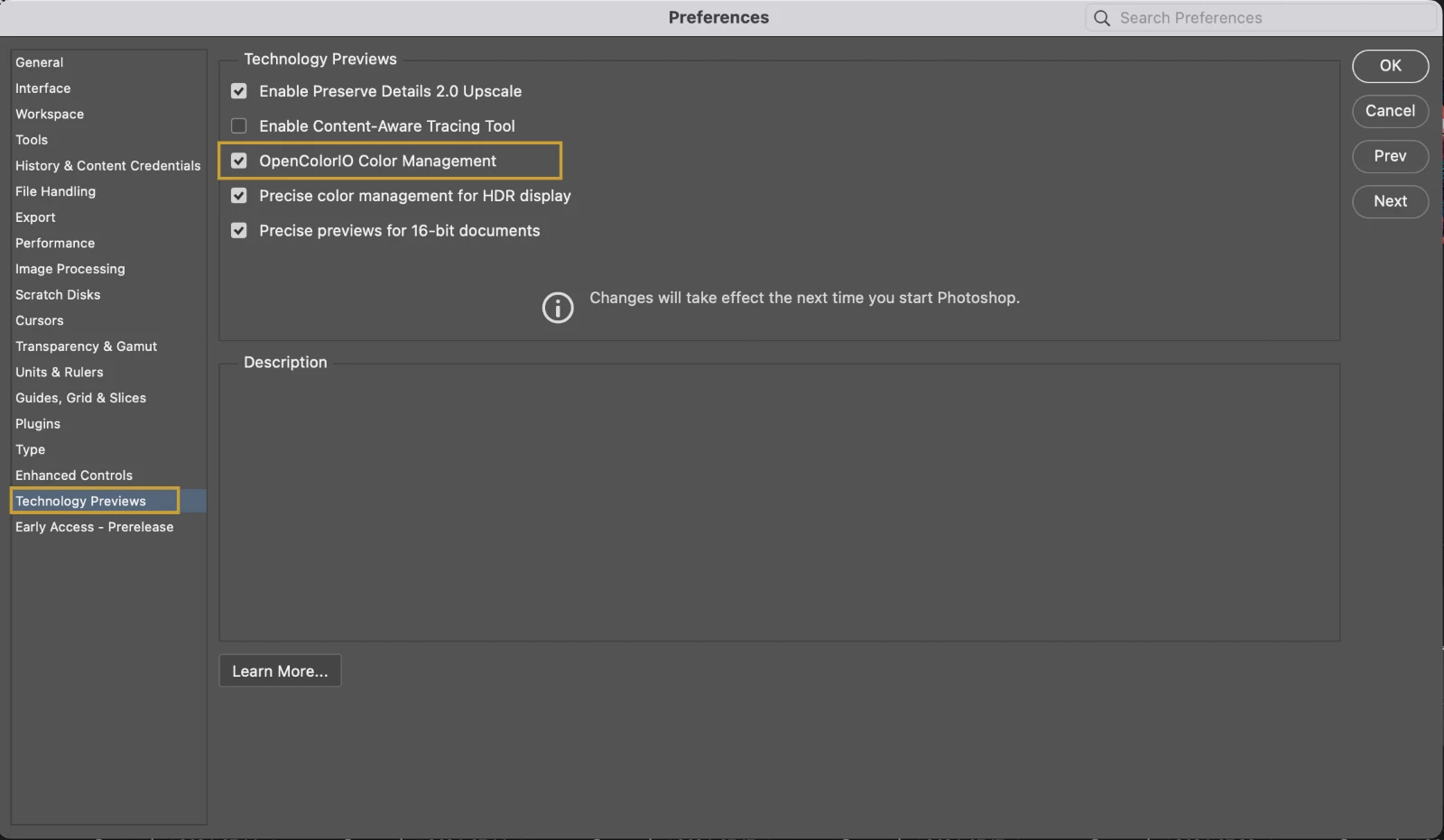
❷ Select “Ok” to exit out of preferences and then restart Photoshop Beta
❸ Upon relaunch, you can now edit your OCIO settings in Edit > OpenColorIO Settings.
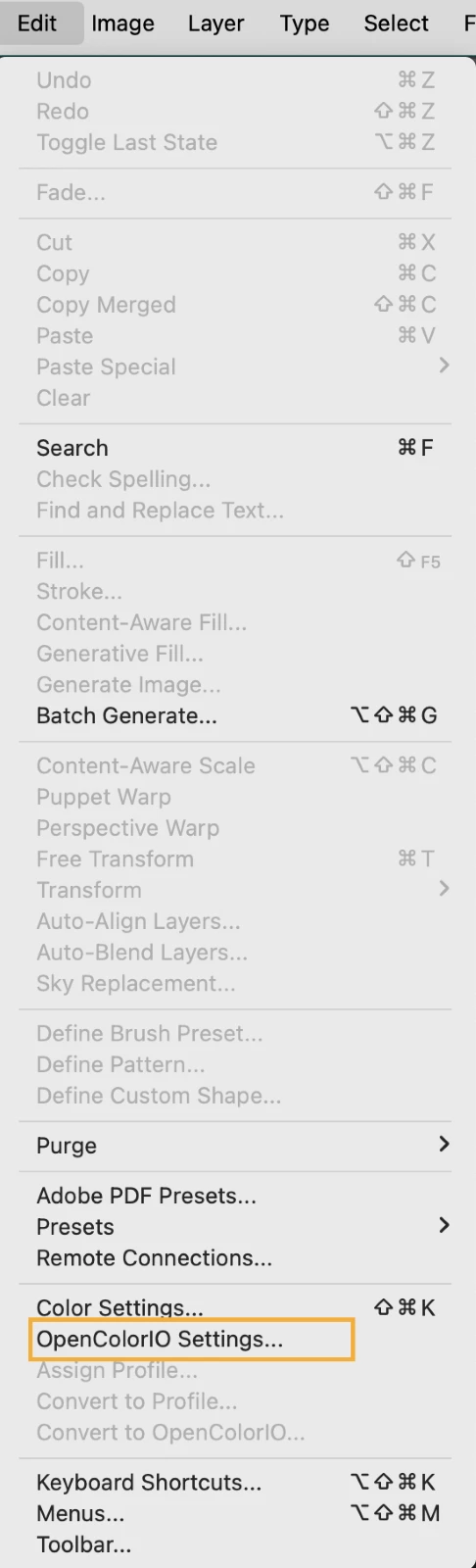
❹ In the File menu, documents can now be opened as an OCIO document, or created as New documents:
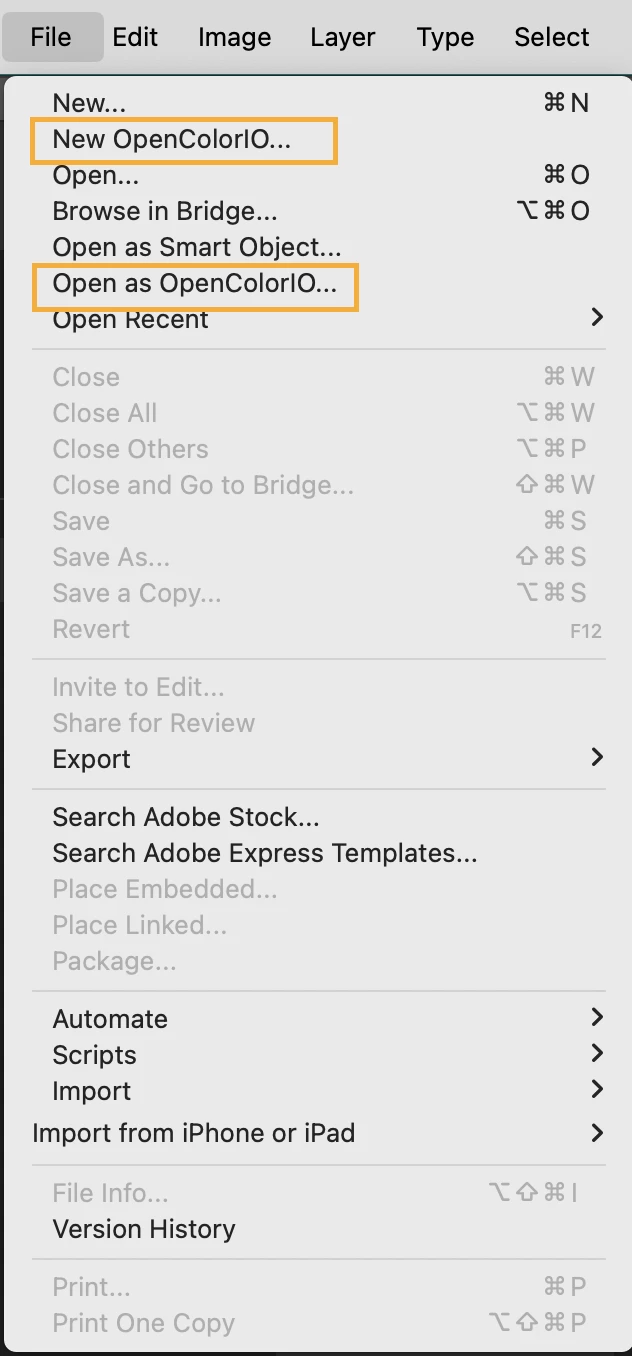
❺ When OCIO is enabled, you will see the following new UI items:
- "Open Color IO Settings” menu item in the Edit menu.
- “Duplicate to Profile” in the Edit menu. This is available when working on an OCIO document.
- "Open Color IO” panel in the Windows menu.
- “Convert To Open Color IO” in the Edit menu
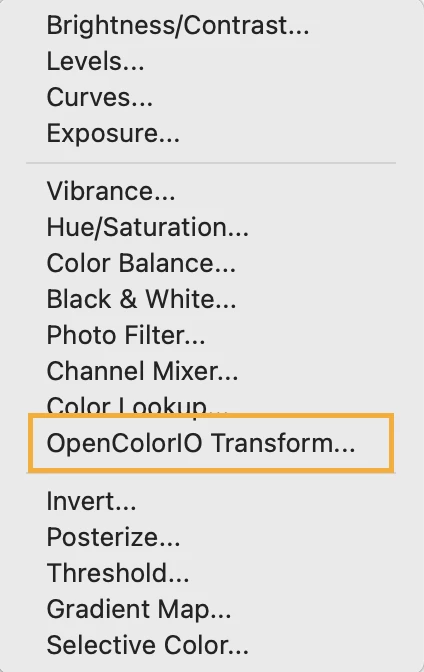
- Layer > New Adjustment Layer > Open Color IO Transform
❻ When you create a new document, you are presented with the legacy “New document” dialog. This dialog has a checkbox for enabling OCIO on the new document.
❼ Color transforms for files placed into an OCIO document can be set via the Properties panel when the placed layer is selected.
Configuration
Photoshop will locate OCIO configuration from the following locations:
- Environment (using the OCIO environment variable)
- One of the available built-in ACES configurations.
- Presets folder
MacOS location: /Applications/Adobe Photoshop (Beta)/Presets/OCIO/Configurations
Windows location: C:\Users\some-user\AppData\Roaming\Adobe\Adobe Photoshop (Beta) \Presets
These configurations are displayed in the “Configuration” popup controls in the Open Color IO Settings dialog and the “Open Color IO panel.
The Open Color IO Settings dialog sets the default configuration and working space.
The Open Color IO panel is used to manage the settings for the current document.
Placed Layer Content
Files placed into smart object layers can have their own OCIO source color space individually assigned to them.
Upon placement a file into an OCIO color-managed document, the layer will initially be assigned a color space based on the file rules found in the document’s OCIO configuration. If a suitable rule is not found, the default source space will be chosen based on any embedded color management the placed file may have (such as an embedded ICC color profile).
The source color space for a placed layer can be changed anytime by opening the OCIO Input Color Space popup menu in the Properties panel.
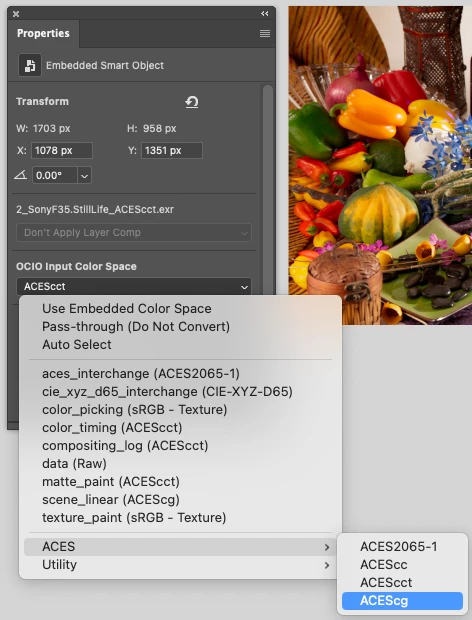
There are three standard items at the top of the menu, followed by a list of common roles-based color spaces. Following that, at the bottom of the menu are additional submenus with more color spaces grouped by category. When converting them to the document's working space, these spaces determine what colors are assigned to the placed file’s pixels.
The first three standard items have specific functionality.
- Use Embedded Color Space: This is the default color conversion method used when there is no known OCIO color space to assign to the placed layer. This method will use any embedded color management in the placed file. This will typically be an ICC profile, but it could be an OCIO color space if the placed file is an OCIO-based Photoshop document (PSD or PSB).
- Pass-through (Do Not Convert): No color conversion is applied at all when this item is selected. The exact pixel values in the placed file are copied unchanged into the document’s working space. This would also be equivalent to what would happen if the placed layer’s color space is the same as the document’s working space.
- Auto Select: Selecting this item causes the placed file’s name and path to be examined for a matching color space using the file rules found in the document’s OCIO configuration. Any matching color space is then assigned to the layer. This is the same selection process that occurs when the file is initially placed, but with one exception: The color space associated with the default file rule is honored in this case, whereas the “Use Embedded Color Space” option is the default upon initial placement.
Duplicate To Profile
This command is available from the Edit menu when the active document uses OCIO.
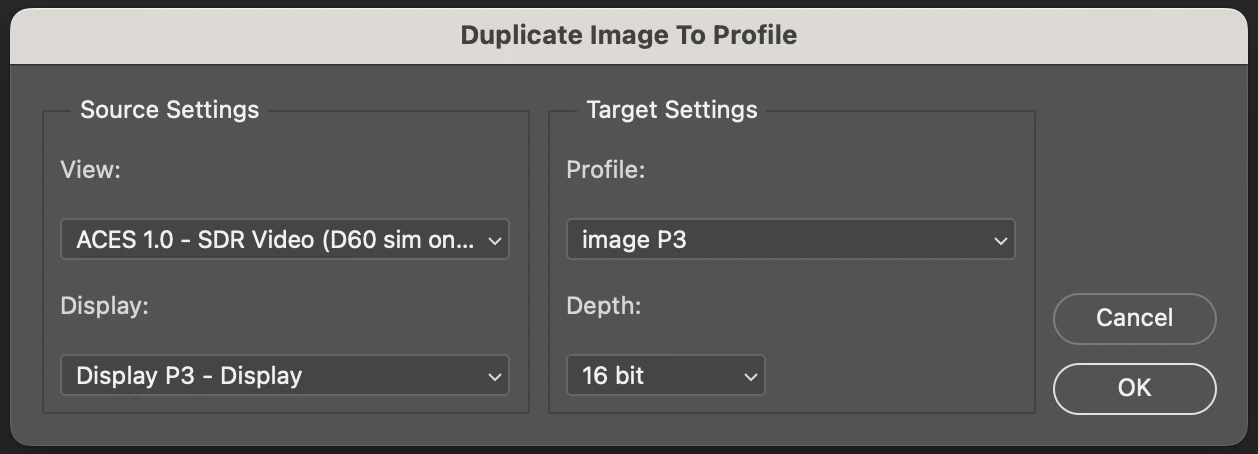
This command creates an ICC-based document from the current OCIO document. The new document is flattened and contains one layer.
The command allows the user to specify the display/view transform to use on the source document and determine the created document's bit depth and ICC profile.
If the chosen source display is a non-virtual display, the display/view transform result is used directly as the pixel data in the target document. These pixels are tagged with the selected profile, which should match the selected display to ensure an accurate result.
If the chosen display is a virtual display, the OCIO transformation will create pixels matching the selected target profile. Regardless of the selected target profile, you will get an accurate result.
Log files
OCIO-related log entries are written in the general Photoshop log file.
- MacOS location: /Users/some-user/Library/Logs/Adobe/Adobe Photoshop (Beta)
- Windows: C:\Users\some-user\AppData\Roaming\Adobe\ Adobe Photoshop (Beta)\Logs
You can search for entries beginning with “OCIO:”
Example:
- 2024/01/22_12:06:22.342(+00.000)[...] OCIO: OCIO is available
- 2024/01/22_12:06:23.560(+01.218)[...] OCIO: No root folder.
The OCIO log level can be set in the following way:
Create a text file called PSUserConfig.txt and place it into the Photoshop settings folder:
- MacOS location: /Users/some-user/Library/Preferences/Adobe Photoshop (Beta) Settings
- Windows location: C:\Users\some-user\AppData\Roaming\Adobe\Adobe Photoshop (Beta)\Adobe Photoshop (Beta) Settings
Add this line of text to the file:
OCIOLogLevel "warning"
The following options are supported “debug,” “info,” “warning.”
Known issues
- Windows with “Advanced Color” turned on does not correctly display OCIO data (virtual display recommended)
- The Navigator is OCIO-managed but currently does not show over-range pixel values.


 AdChoices