
MeredithStotzner
Community Manager
Community Manager
April 23, 2024
Question

Reference Image (beta) for Generative Fill & Generative Expand

  • April 23, 2024
  • 7 replies
  • 5076 views

Today we are releasing Photoshop (Beta) on the desktop 25.9 with a sneak peek at an under-construction feature; Reference Image.

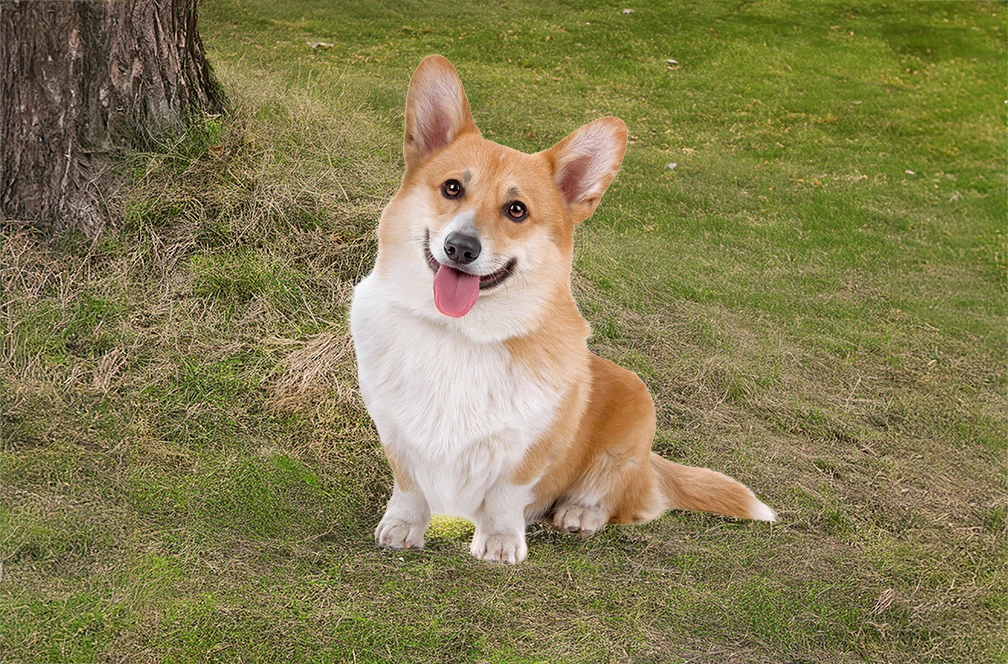
Reference Image for Generative Fill and Generative Expand allows you to upload an image of your choice, then Generative Fill uses the content of this visual input as a reference to influence the generated results. This means that the output takes inspiration from the content of your provided image in addition to - or - instead of your prompt. A picture is worth 1000 words!
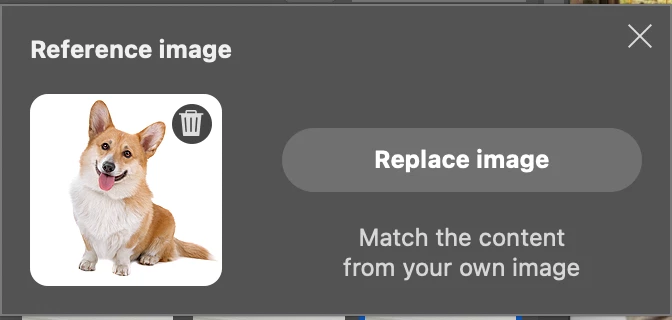
 

Reference Image for Generative Fill/Expand works differently than the style-based Reference Image in Generate Image (our new beta Firefly text-to-image feature in Photoshop (Beta) on the desktop 25.9); Generate Image uses Style for references, Generative Fill & Generative Expand use Content.

Follow these steps to generate variations using Reference Image:

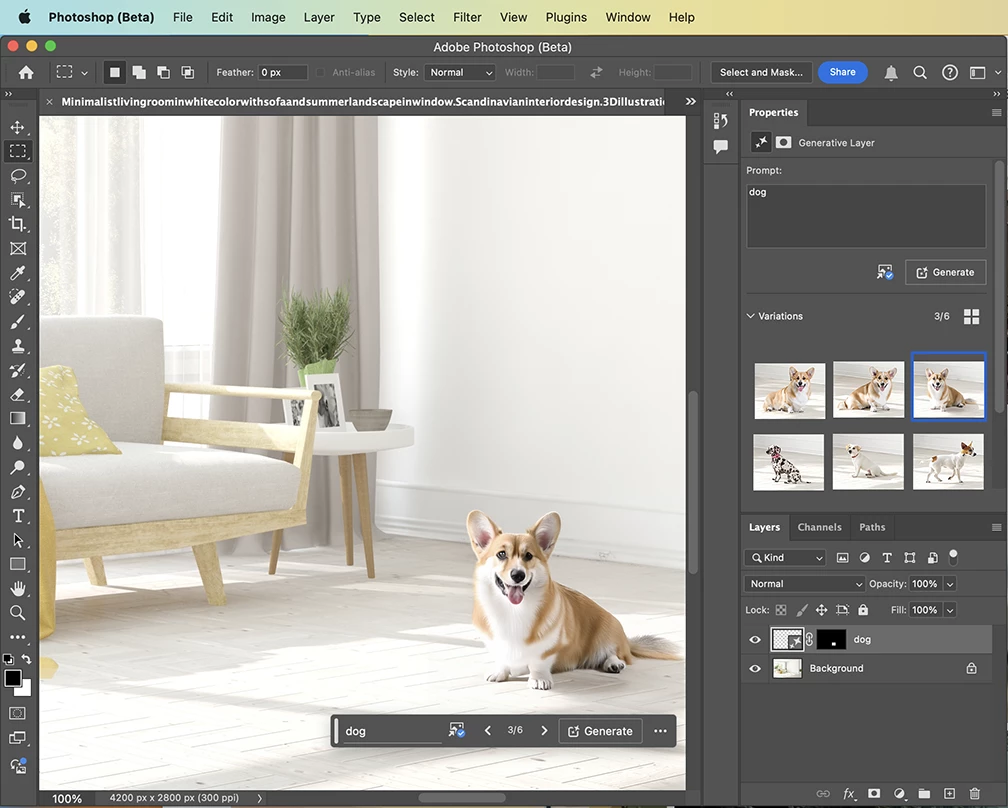
  1. Generate an object or scene using Generative Fill or Generative Expand workflows.
  2.  Select the Reference Image icon  from the Contextual Task Bar or the Properties panel then Choose image to upload your desired image.
    Pair this image with descriptive text prompts, if necessary.
  3.  Click Generate.


Feedback request:

  • Please tell us your thoughts on the results.
  • Let us know how your are using this feature in your workflow.
  • It’s helpful for us to see 1. the original image 2. the source Reference image and 3. the result.
    Respond in this thread or provide input via the Beta Feedback Panel; click the beaker, next to the blue Share button, in the Photoshop Options Bar

      

Tips & Tricks:

  • The Reference Image icon gains an indicator when a Reference Image is being used. 

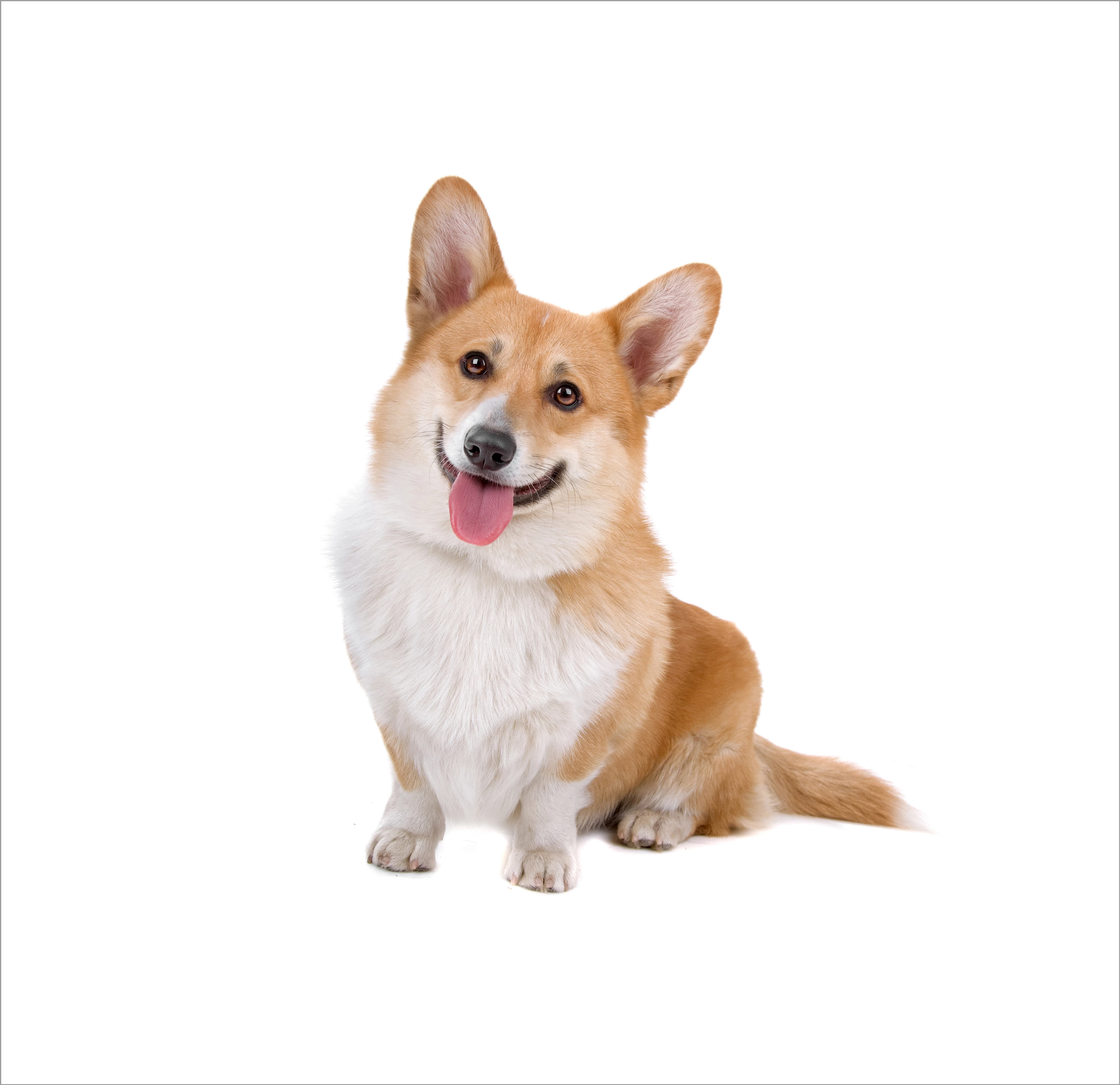
  • Isolate the subject of your source reference image and remove the background for a clean result without unexpected objects or transferred background.  
    Like this:                                                                                       Not this:


Known Issues:

  • Background of source file is visible in result. The current workaround is to remove background of source image.
  • Use a black or white background to isolate the subject in the source Reference Image. Do not use transparencty.
  • Make your reference image Canvas Size a 1:1 square ratio (Image>Canvas size) if the results are unexpected and misshapen.
  • Reference Image results are larger in scale (fill the selection) than non-reference image results.


Thank you for providing information so we can keep building this feature to better enhance your control and creativity.


7 replies

Participant
September 8, 2025

Old version was better, we need an option to do backgrounds 

Participant
August 29, 2025

HI! I just download the newest beta, but the reference image part is grey out. Why?

Participant
September 4, 2025

I use MacBook Pro and Photoshop BETA version 26.11 and the same thing happens, the icon is grayed out.

MeredithStotzner
Community Manager
Community Manager
August 14, 2025
Thanks so much for sharing your feedback and for using the beta feature.
Since this is an early beta release, changes and some issues are expected as we continue active development.. We understand this can be disruptive, and we truly appreciate your patience. Your input is helping shape the final product, and you’ll see more updates as we work toward a polished release. In the meantime, there has been a small UX change. (No functionality change.)
  • "Replace Image" removed. - to use a different reference image, use the trashcan icon to remove the current one. Then you'll be prompted to add a reference image.
  • A new section title, "INTENT" to help make it more clear that you are not swapping, which reference image you were using.
  • Replace Object radio button is now "Swap the selected area"
  • Insert object radio button is now "Place into the selected area"

Thank you again for helping us build this feature.
Peter Villevoye
Community Expert
Community Expert
August 8, 2025

The Content Reference feature was in the Beta for a while, then it vanished for a while, but returned in Beta version 26.11 !


The panel now offers an option to perform Background Removal, if you think it's not too difficult for the AI to figure it out. In case of more difficult backgrounds, it might be wiser to prepare the reference image beforehand.

Participant
July 31, 2025

The feature is currently unusable as it arbitrarily attempts to remove the background from the reference image, generating random and totally undesireable results. 

Participant
November 25, 2024

not showing Reference Image (beta) for Generative Fill & Generative Expand

Participant
February 9, 2025

Image references in Generative Fill are only available in Photoshop Beat, this option is not available in regular Photoshop.


mwdrop
Participant
May 28, 2024

Hi - I am using the latest PS version but am not seeing the Reference Image icon 


I am still only seeing this 

Known Participant
October 16, 2024

Just downloaded PH2025. The Reference image/icon is not showing. on the bar, or, once the Gen fill menu after an object has been filled to start


Mac OSX 14.4.1

PH 2025 26.0.0