MeredithStotzner
Community Manager
Community Manager
March 31, 2023
Question

Remove Tool in Beta for Photoshop Desktop

  • March 31, 2023
  • 67 replies
  • 158362 views

Hello Beta Team,
The Remove tool replaces areas of your image with realistic and relevant content.
 Use this tool to remove any distracting regions or elements, no matter how small or large.

Simply brush this artificial-Intelligence-powered tool over objects and people to make them disappear… as if they were never there. 

Complicated backgrounds and structures, such as fences or edges are seamlessly completed.



What we want for you:
This should seem like the magic you expect out of Photoshop!

For our experienced users and those with a discerning eye, our goal is to reduce or eliminate the clean-up after the fill. You should be spending less time repeating a fill for better results. You should also not need to clean-up by switching to another tool, such as the Clone Stamp.


What we want from you:

If you have multiple systems, please try this tool on all of them. Hardware will make a difference.

Please compare the results to your usual method of removing/filling objects. Let us know…
Was it like magic?
Did this save you time?


Let us know by clicking on the Beaker and giving the results a thumbs-up or a thumbs-down.



How to use the Remove Tool in Photoshop Desktop Beta
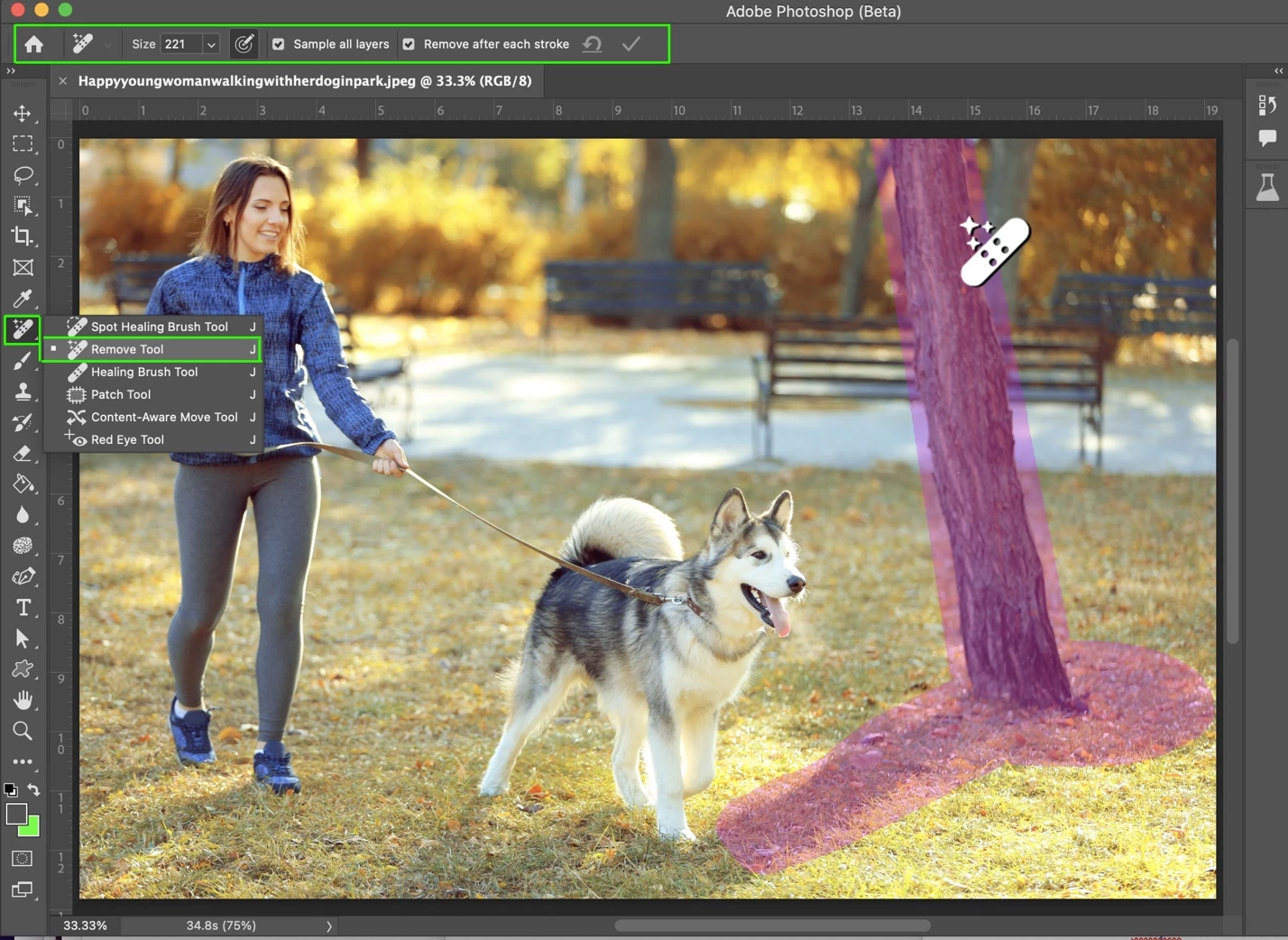
 

  1. Select the Remove tool from the toolbox.
    Find it in the Healing brush tool group. Expand the group by clicking on the Spot Healing Brush tool, Patch tool, or Red Eye tool to show the Remove Tool.

    Note: You may see a “Installing required components…” dialog the first time you use the tool after installation. Don’t worry, that’s normal.

  2. Choose a brush size in the options bar.
    • Choose a brush size that lets you brush over the entire object – with a little extra for good measure – so you don’t have to do a lot of brushing!
    • Brush hardness and brush opacity settings are not used by this tool
             
  3. (Optional) If you want to make multiple brush strokes to cover the large or complex object, turn off Remove after each stroke in the options bar.
    • Remove after each stroke = ON  will apply the fill as soon as you complete a single stroke with the tool.
    • Remove after each stroke = OFF will apply the fill after clicking the apply button; allowing for multiple strokes of the brush on the object before applying the fill.  
         
  4. (Optional) Turn on Sample All Layers in the options bar to sample data from all visible layers.
    Note: The new pixels will be created on the current, selected layer.
    Hint: Create & select a new layer, then turn on Sample All Layers for a non-destructive workflow.

  5. Click and drag over area you want to remove.
    • Be sure to cover the entire area. Results are better if a bit of the background behind the object or person is also covered.

    If Remove after each stroke = ON is selected, the new pixels will be appear after completing the stroke. Skip the next step. You’re done!


  1. If Remove after each stroke = OFF, continue to stroke of the area(s) to be removed, then click Apply in the Options bar or  Enter/Return on the keyboard.
    • Use Reset all Brush Strokes to clear all the strokes and start over.


We are looking forward to hearing from you!
Thank you,
The Remove Tool Team


This topic has been closed for replies.

67 replies

Known Participant
June 18, 2023

Remove Tool does not work in Beta 24.7 Rosetta Mode. It used to work - can you fix that?

Known Participant
June 16, 2023

i would have expected more efficient and quick reaction from Adobe regarding problem with "remove tool" that many clients here are dealing with...

Participating Frequently
June 16, 2023

I think Adobe has adopted Microsoft's attitude and is using its paid subscribers as fault finders.

Known Participant
June 17, 2023

Pretty much, I had sent emails during the beta to the lead and another dev at Adobe. They've ghosted after letting them know the issue still remains that the tool doesn't work after the public release.


Last time I spend time on their bugs, wasting my time, especially if it doesn't even get resolved.  


Participant
June 16, 2023


can someone explain this issue?

c

Known Participant
June 15, 2023

Remove tool still doesn't work.  I'm running Beta 24.7 on Mac Studio Apple M1 Max Ventura 13.4


owenwoytowich
Participant
June 18, 2023

Ditto. Any luck yet?

Participant
June 10, 2023

The industrial ellipse makes it easier to use a lot of tools inside Photoshop


Rene-Buko
Participant
June 15, 2023

What CPU do you need for the removal tool? The tool is very CPU intensive. My CPU directly hits 100% with over 4 GHZ. My CPU: Intel i7-12700.
Graphics card: RTX3060

Participant
June 8, 2023

Hello! 


When I select a function ( Remove Tool ) - an error pops up 


How to solve this problem?


Participating Frequently
June 8, 2023

Oh ! Another topic about Remove Tool program error ! Few people confirmed, including me, that Remove Tool is working on Photoshop Beta 24.5. We are getting close to a solution. All Adobe people have to do now is compare betas 24.5 and 24.6 and we''ll have working PS 2050 software

CShubert
Community Manager
Community Manager
June 8, 2023

@Joli30374138cdn5 are talking about the Remove Tool in beta or release? The Remove Tool is available in the general release and am curious if you are seeing the same issues there or just in beta?


Participant
June 2, 2023

The remove tool is not working on my pc. It's working on the other computer, which is an older build. I'm using version 24.5. I also tried resetting the preference and re-installing the program and the more stable option. All did not work. I still get the "Could not complete your request because of a program error.". I also tried installing the beta version. same problem.

Participant
June 2, 2023

I can access the remove tool under Ps beta, but a messsage pops up saying "Can only use this tool with Mac OS 13 and higher"

I am running Big Sur. Every else works flawlessly under 'regular' Ps and the beta, EXCDPT the remove tool.

Participating Frequently
June 2, 2023
I am using Mac mini with the m1 chip and Ventura is the os.
The remove tool problem is not with Microsoft. I do not use Microsoft only
use apple Mac with the M1 chip. Kindly reply with instructions for
repairing the tool use in the mac mini. Thank you.
Participating Frequently
May 22, 2023

how can you use remove tool to remove under eye shadows on the face

Participant
May 22, 2023

I eagerly wonder when is the remove tool going to join the non-beta photoshop version?