
Participant
August 17, 2023
Answered

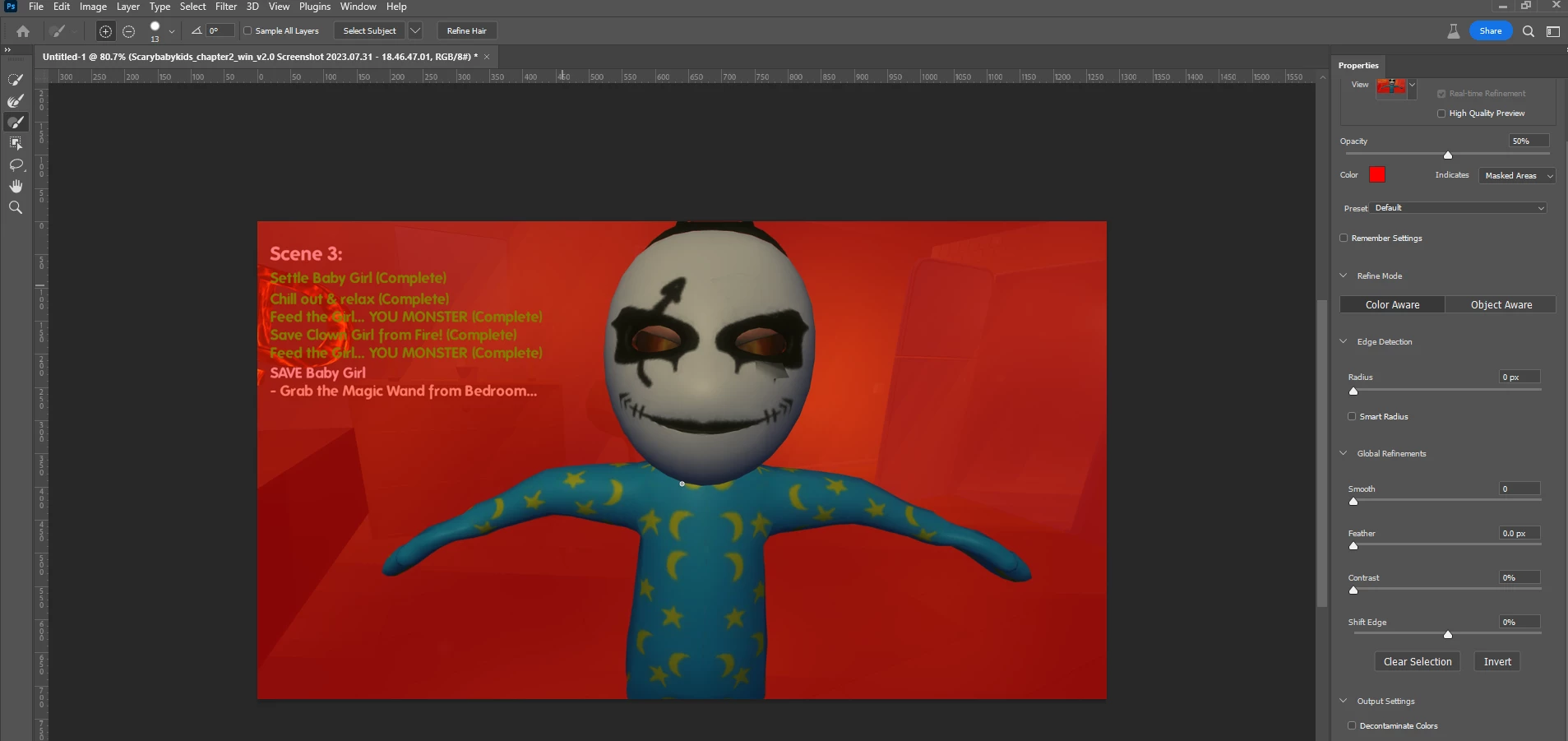
Select & Mask Brush Icon/Cursor Missing after Update 25.0.0

  • August 17, 2023
  • 1 reply
  • 596 views

I updated Photoshop Beta today 25.0.0 , when I go into Select and Mask, I'm not able to see the brush circle. I only see my mouse. 
The quick selection tool, refine edge brush tool, the brush tool all work when I click the mouse. I just don't see any circle around my mouse.

After forcing us to update to the latest beta, you still haven't solved the problem? Shame on you !!!
 

This topic has been closed for replies.
Correct answer CShubert

Hi @16250334 S. Ammar this issue was fixed in the recent update: Adobe Photoshop Version: 25.0.0 20230817.m.2290 15dfc21 x64


Try resetting Prefs for the Beta:

/Users/yourname/Library/Preferences/ Photoshop Beta Settings (Mac Ventura)

/Users/yourname/Library/Preferences/Adobe\ Photoshop\ \(Beta\)\ Settings (Mac)
C:\Users\user name\AppData\Roaming\Adobe\Adobe Photoshop (Beta)\Adobe Photoshop (Beta) Settings )Win)

Launch BETA Photoshop While Pressing The Keyboard Shortcut

With Photoshop closed, press and hold Shift+Ctrl+Alt (Win) / Shift+Command+Option (Mac) on your keyboard and then Launch Photoshop the way you normally would.

https://helpx.adobe.com/photoshop/using/preferences.html#Manually 


It may help if we could see your Photoshop System Info. Launch Photoshop, and select Help >System Info...and copy/paste the text in a reply.  


1 reply

CShubert
Community Manager
CShubertCommunity ManagerCorrect answer
Community Manager
August 18, 2023

Hi @16250334 S. Ammar this issue was fixed in the recent update: Adobe Photoshop Version: 25.0.0 20230817.m.2290 15dfc21 x64


Try resetting Prefs for the Beta:

/Users/yourname/Library/Preferences/ Photoshop Beta Settings (Mac Ventura)

/Users/yourname/Library/Preferences/Adobe\ Photoshop\ \(Beta\)\ Settings (Mac)
C:\Users\user name\AppData\Roaming\Adobe\Adobe Photoshop (Beta)\Adobe Photoshop (Beta) Settings )Win)

Launch BETA Photoshop While Pressing The Keyboard Shortcut

With Photoshop closed, press and hold Shift+Ctrl+Alt (Win) / Shift+Command+Option (Mac) on your keyboard and then Launch Photoshop the way you normally would.

https://helpx.adobe.com/photoshop/using/preferences.html#Manually 


It may help if we could see your Photoshop System Info. Launch Photoshop, and select Help >System Info...and copy/paste the text in a reply.