
Participant
August 13, 2026
Answered

There is an issue with the 'Eyedropper Tool' in Photoshop Beta

  • August 13, 2026
  • 2 replies
  • 30 views

HOW CAN I FIX THIS PROBLEM?

The Eyedropper Tool in Photoshop Beta is not working properly. When I move the cursor over a specific color, it detects and displays a different shade than the actual color.

For example, when I click on a dark blue color, the Eyedropper Tool may select a different shade of blue. As I move the cursor around the same area, it continues to show different shades instead of accurately detecting the color under the cursor.

I have been experiencing this issue for a long time, and it makes it difficult to accurately pick colors from an image. 
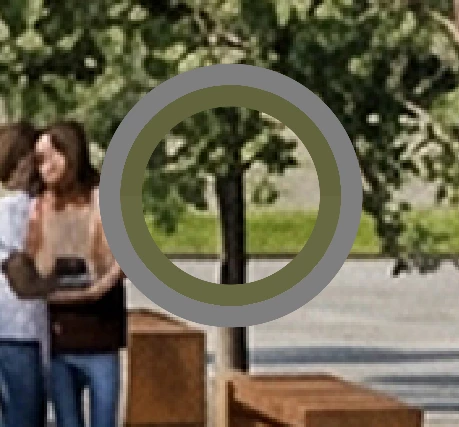
example: eyedropper tool is in the center of the circle but a lighter shade of green than it should be.😫


    Correct answer rowly23

    I had a similar issue with the Eyedropper Tool in Photoshop Beta. One thing I would check first is the Sample setting in the options bar. If it is set to something like All Layers, the tool can pick a color from another layer instead of the exact pixel you are expecting.

    Try setting Sample to Current Layer and test it again. Also check whether Point Sample, 3x3 Average, or 5x5 Average is selected, because the averaging option can make the selected color look different from the pixel directly under the cursor.

    If the problem continues, try temporarily disabling GPU acceleration in Preferences > Performance and test the Eyedropper again. If it works normally after that, the issue may be related to GPU rendering rather than the image itself.

    2 replies

    Participant
    August 13, 2026

    thanks a lot. it is working now.😊

    rowly23
    rowly23Correct answer
    Participating Frequently
    August 13, 2026

    I had a similar issue with the Eyedropper Tool in Photoshop Beta. One thing I would check first is the Sample setting in the options bar. If it is set to something like All Layers, the tool can pick a color from another layer instead of the exact pixel you are expecting.

    Try setting Sample to Current Layer and test it again. Also check whether Point Sample, 3x3 Average, or 5x5 Average is selected, because the averaging option can make the selected color look different from the pixel directly under the cursor.

    If the problem continues, try temporarily disabling GPU acceleration in Preferences > Performance and test the Eyedropper again. If it works normally after that, the issue may be related to GPU rendering rather than the image itself.