PFF MarComm Team
Participant
May 24, 2021
Question

100% View is not accurate after export

  • May 24, 2021
  • 3 replies
  • 1493 views

Hi there,


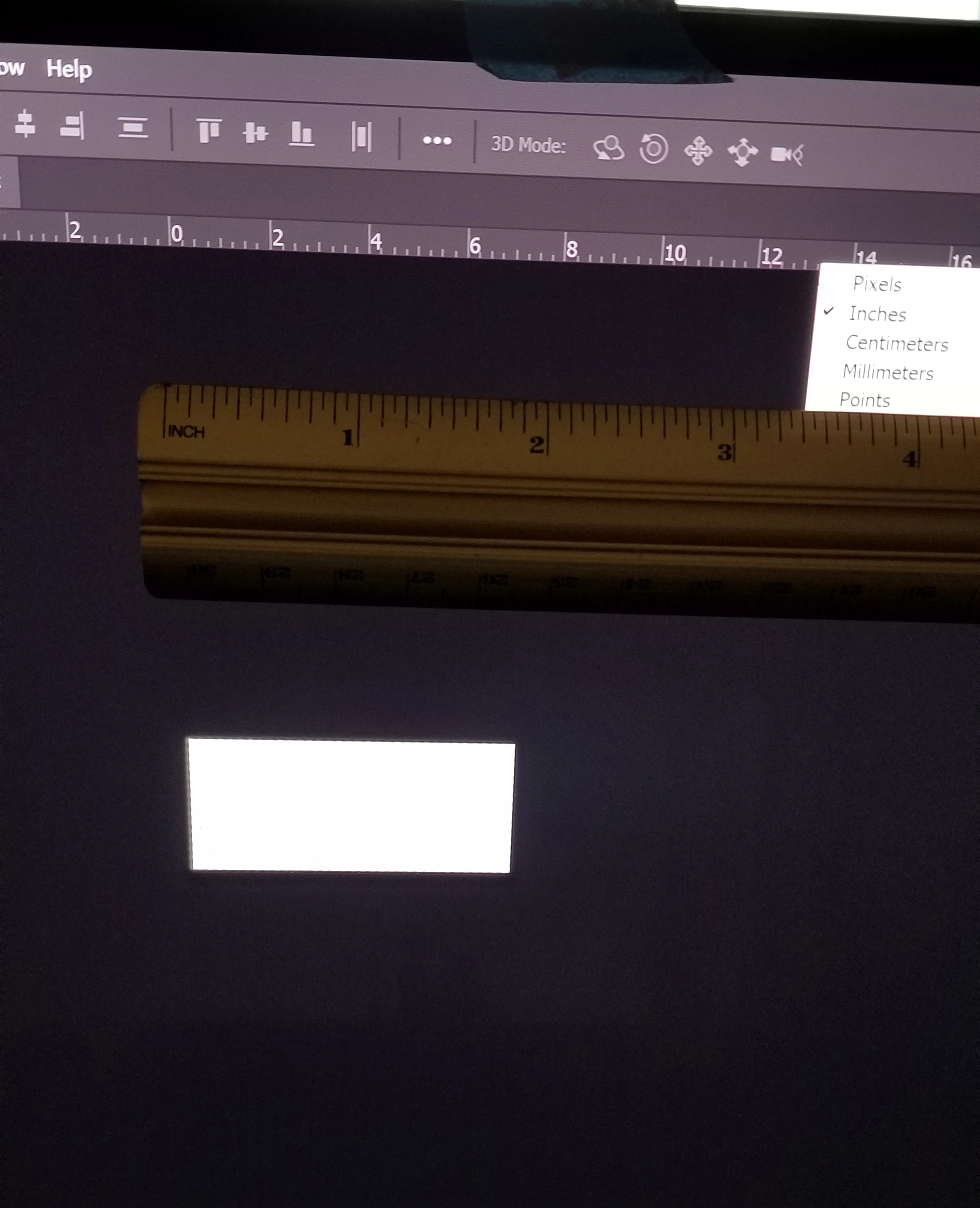
When I open/create images to edit them, the size is not accurate. Even when I have 100% view selected, the final image (after export to PNG/JPEG) is significantly larger. You'll see I'm holding up a ruler to my screen to show the innacuracies in Photoshop's inches vs. real inches.


How I can I fix this? I'm on a Dell XPS 15 laptop. It's new, and my older computer never did this. Tried Googling but I'm stumped!
 

This topic has been closed for replies.

3 replies

davescm
Community Expert
Community Expert
May 24, 2021

Read carefully the answers by thedigitaldog and D Fosse


If you want the image to appear onscreen at the size it will be printed, do not use 100% zoom. Use View -Print Size and ensure that the screen resolution is set as per thedigitaldog 's description above.


Dave

TheDigitalDog
Inspiring
May 24, 2021

@davescm wrote:

Use View -Print Size and ensure that the screen resolution is set as per thedigitaldog 's description above.


Dave


Right. On this end, using my 109ppi value, I can make a 3x3 inch document and using Print Size, I measure it as exactly 3 inches. 

Author “Color Management for Photographers" & "Photoshop CC Color Management/pluralsight"
D Fosse
Community Expert
Community Expert
May 24, 2021

You have a high-resolution screen. That has some implications.


In Photoshop, 100% has nothing to do with physical size. It means one image pixel is represented by exactly one screen pixel. This is the only absolutely accurate way to view the full pixel data. But it also means that on a high-density screen, the image will be very small compared to a traditional screen.


Other consumer-oriented viewers don't need to display accurately. To those applications, it's expected that they show the image at roughly the same size across all screens. So when these applications detect a high-density screen, they scale up. They use four screen pixels to display one image pixel.

TheDigitalDog
Inspiring
May 24, 2021

Its a good idea to find out what the true, native resolution of your display is (they are NOT all 72PPI!).
Measure the width of your display and divide that by the number of pixels its displaying.
For example,on my NEC PA271Q, the width is 23.5 inches. Its resolution is 2560x1440. 2560/23.5=109PPI.

This must be entered into the PS preferences as seen below for PS to work correctly using "View>Print Size". 

Author “Color Management for Photographers" & "Photoshop CC Color Management/pluralsight"
PFF MarComm Team
Participant
May 24, 2021

Thank you for the reply! My screen width is 14", and my resolution 3840x2160. Surprisingly though, my laptop scale in general is at 250% -- Not sure if that matters? When I changed it to 100% my whole computer screen was so so small it was unreadable.


I did the calculation you provided and entered in 274 under Preferences but it didn't seem to do the trick. I closed and re-opened Photoshop, but it's still having the same issue. Any other ideas?


Thank you again!

TheDigitalDog
Inspiring
May 24, 2021

You need to measure horizontally, did you? 

Is the document at 100% or are you using the Print Size command? 

It matters what resolution you set the display of course. 

Author “Color Management for Photographers" & "Photoshop CC Color Management/pluralsight"