
Known Participant
November 14, 2025
Answered

2 part question... What is this thing called and why don't my 2025 settings import to 2026?

  • November 14, 2025
  • 4 replies
  • 267 views

Unk here. Mac user... upgrading from 2024 to 2026...


With regards to the image... what is this gd stupid "frame" called and how to I banish it to the deepest darkest pits of hell?
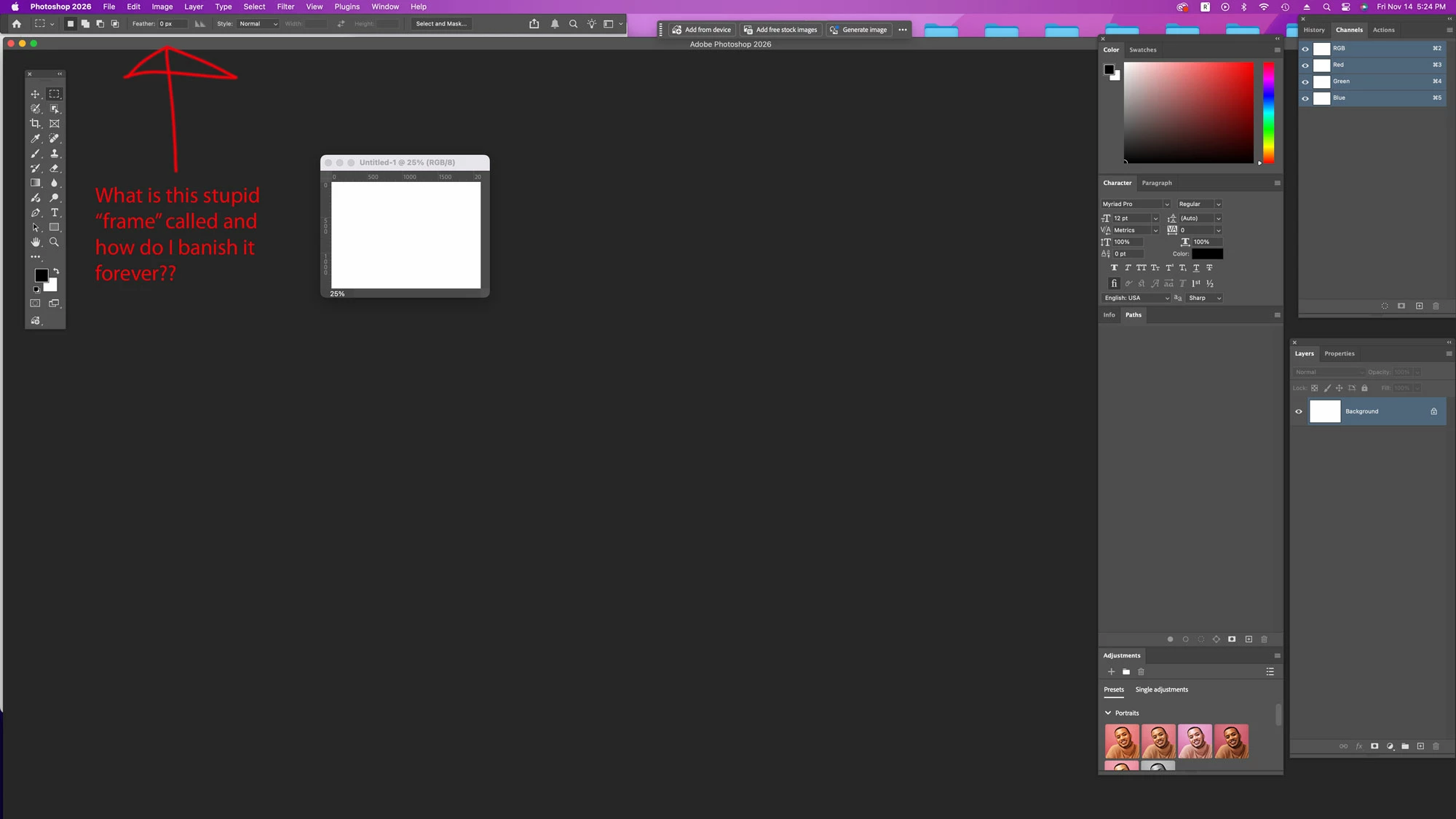
I'm an OG Photoshop user and this sort of nonsense drives me crazy.


I feel I should even have to ask this question... but... here we are... Second question, why won't Photoshop automatically import my previous settings when I install the latest version? 

Correct answer jane-e

@Sittle 


If you mean the Application Frame, there is a checkbox in the Window menu to disable it. It's been around for a while, but is on by default.

https://www.oreilly.com/library/view/photoshop-cc-the/9781491905593/ch01s01.html


I don't know why your settings were not imported. When I updated my Adobe apps to 2026, all of them asked if I wanted to import my settings. 


How did you update to 2026? (Exact steps)


Jane

4 replies

Trevor.Dennis
Community Expert
Community Expert
November 15, 2025

Are we looking at an Application Frame issue here guys?  I'm a Windows user so have almost no experience with the Mac AF, but it looks to me that the main Photoshop window is not maximised, and that's why the OP is seeing the desktop (my green chevrons) behind the Photoshop background.


That sliver of grey (my yellow highlight) might be part of the Select & Mask panel, but I'm thinking probably not because it is slight offset  from the S&M panel, and that panel should be in front of the PS window — so it is likely unrelated.


Does the OP just need to maximise the PS window to fix things?

SittleAuthor
Known Participant
November 17, 2025

Thank you! No, it's the application frame. I hate it, it drives me nuts.

Conrad_C
Community Expert
Community Expert
November 15, 2025

Because you’re a Mac user, it might help to recognize that the Application Frame in Photoshop is more consistent with how macOS apps work today. All of the current Apple productivity apps (Photos, iMovie, Keynote, Pages, Numbers…) use an application frame by default: Everything happens in a “parent” application window, and with few exceptions panels must be docked to that frame and cannot float.


Because Photoshop was originally released in 1990, it started out using the old Mac paradigm where there is no application frame and all windows and panels float. In today’s Photoshop, you can still get that by disabling Window > Application Frame.


In the screen shot you attached, it looks like Photoshop is operating in sort of a hybrid mode, where the Application Frame is on, but all the panels are floating. It’ll be less confusing if you either use the Application Frame enabled with all panels docked (the current Mac standard), or the Application Frame disabled with all windows and panels floating (the old 1980s standard).


The interesting thing about this is that for Apple’s own current Mac productivity apps, you generally don’t have a choice: Their “application frame” is permanently on. Photoshop actually gives you the choice to turn it off, and run Photoshop like in the old days.

SittleAuthor
Known Participant
November 17, 2025

Good points! Thank you!

Legend
November 14, 2025

Without a frame, an artist 's canvas will collapse.  One holds the canvas by the frame.

The canvas is the workspace [aka Jane's proper name is Application Frame] for creating and editing images or designs.

The canvas/Application Frame is no accident; it's how you set up the appropriate dimensions and resolution of your workspace.

One can have multiple canvasses on the screen, in order to switch between them, layer them, manipulate them...


Sittle, your screenshot shows a white/blank canvas. But one can create a transparent canvas -- how would you represent that; how would you find it to work with it?


---

Q2:


Migrate presets, actions, and settings

Read the sections

  • Migrate presets
  • Migrate presets while updating Photoshop
  • Migrate presets after installing/updating Photoshop


"By default, when you update to the latest version of Photoshop using the Creative Cloud desktop app, your presets, settings, and preferences are migrated from the earlier version of Photoshop. Also, when you launch Photoshop for the first time, you're prompted to migrate all available presets from the most recent version of Photoshop installed on your computer."


Although you missed the chance to update and migrate presets, all is not lost. Just follow the section, 

Migrate presets after installing/updating Photoshop.


Larry
SittleAuthor
Known Participant
November 17, 2025

Thank you Larry. Yeah, I simply don't need a frame... I've been using Photoshop without a frame longer than I have with one. I find it wholly unneccessary and it interrupts how I work.


I will look into the Migrate Presents and Actions, thank you for sharing that information!

SittleAuthor
Known Participant
November 17, 2025

Larry... the Migrate past Photoshop Presets isn't working for me, it gives me the message "No older Photoshop to migrate presets from"... so maybe it doesn't like that I've jumped from 2024 to 2026... I don't normally do that.


Thank you for pointing it out to me, but it doesn't work in this instance.

jane-e
Community Expert
jane-eCommunity ExpertCorrect answer
Community Expert
November 14, 2025

@Sittle 


If you mean the Application Frame, there is a checkbox in the Window menu to disable it. It's been around for a while, but is on by default.

https://www.oreilly.com/library/view/photoshop-cc-the/9781491905593/ch01s01.html


I don't know why your settings were not imported. When I updated my Adobe apps to 2026, all of them asked if I wanted to import my settings. 


How did you update to 2026? (Exact steps)


Jane

SittleAuthor
Known Participant
November 17, 2025

I should mention that I am so old school that the school got torn down and turned into a shopping plaza.


"Application frame", thank you! That's the phrase I was looking for!


To update I just clicked up Photoshop 2026 Update and off it went. I've always had this issue in Photoshop... Illustrator and InDesign appear fine.

jane-e
Community Expert
Community Expert
November 17, 2025

Hi @Sittle 


I'm glad this is working for you now. It's good that you haven't had the issue in Illustrator or InDesign, but for the record, they both have an Application frame too. In all three applications, it can be toggled from the Window menu.


Your comment about being old school makes me laugh! 😆 


Jane