March 8, 2017
Answered

360 drone pano - missing part of sky

  • March 8, 2017
  • 2 replies
  • 2688 views

Hi,

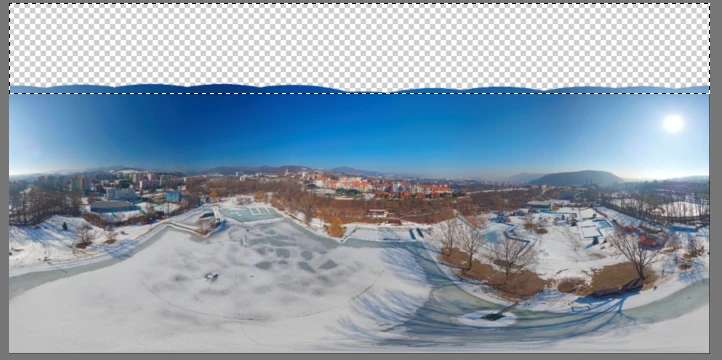
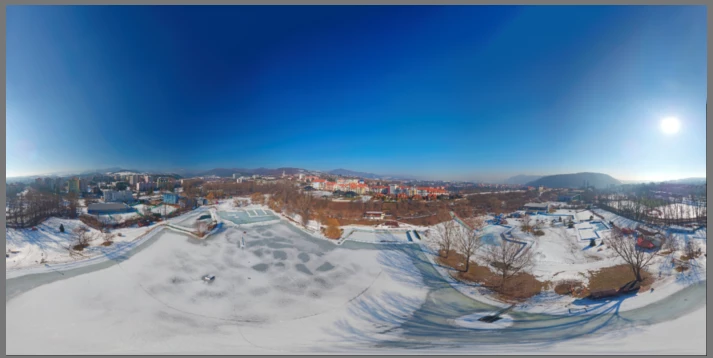
Im making 360 panoramas from drones. Drones however can't capture top part of sky. What do yo suggest would be the most straightforward solution for creating the rest of sky? If possible, I would like to avoid replacing existing sky with a fake one, as I work with quite big files (might be up to 10 GB per panorama). Ideal would be  some gradient tool that takes the top part of existing sky and "extend it" to the rest? Obviously, thats when no clouds are present. And the left and right edge need to be similar, as they will be stitched together in 360 view...

Any advice would be much appreciated.

Thanks,

Matej (PS beginner...)
This topic has been closed for replies.
Correct answer davescm

Hi

Matching left and right is straightforward.

1. Take you layer and make a selection round the top

2. Use content aware fill to fill the selection

3. Duplicate the layer and move the bottom layer to the left and the top to the right

So you can see the join

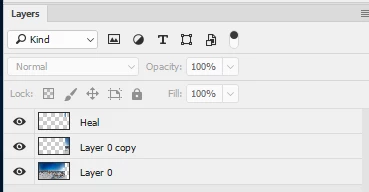
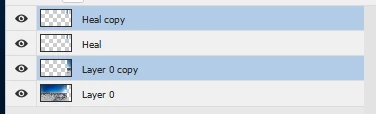
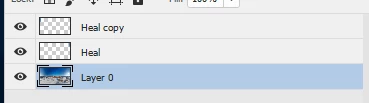
4. Add a new layer and use the healing brush to heal the join onto the new layer

5. Duplicate the healed layer

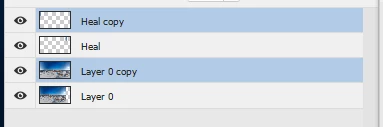
6. Select the copy image layer and the heal copy and move them to the left so that the image layer is back in it's original position (it will snap and the pink guidelines will appear when back)

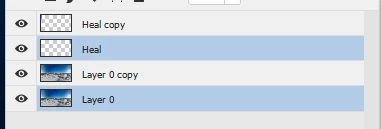
7. Select the bottom image layer and the heal and move them to the right so that the image is back in its original position

8. You can now delete the image layer copy and your are left with the two healing layers positioned correctly to cover the join.

9 If required - flatten the image

Dave

2 replies

May 10, 2020

Simply copy paste on top part thats it. I am made so many 360 images with same technique. You can check my 360 images

davescm
Community Expert
Community Expert
March 8, 2017

Content aware fill may help:

Dave

March 8, 2017

HI Dave,

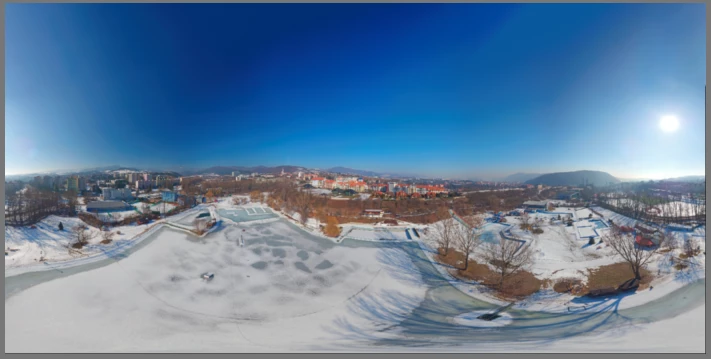
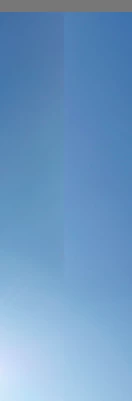
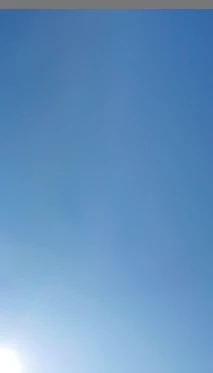
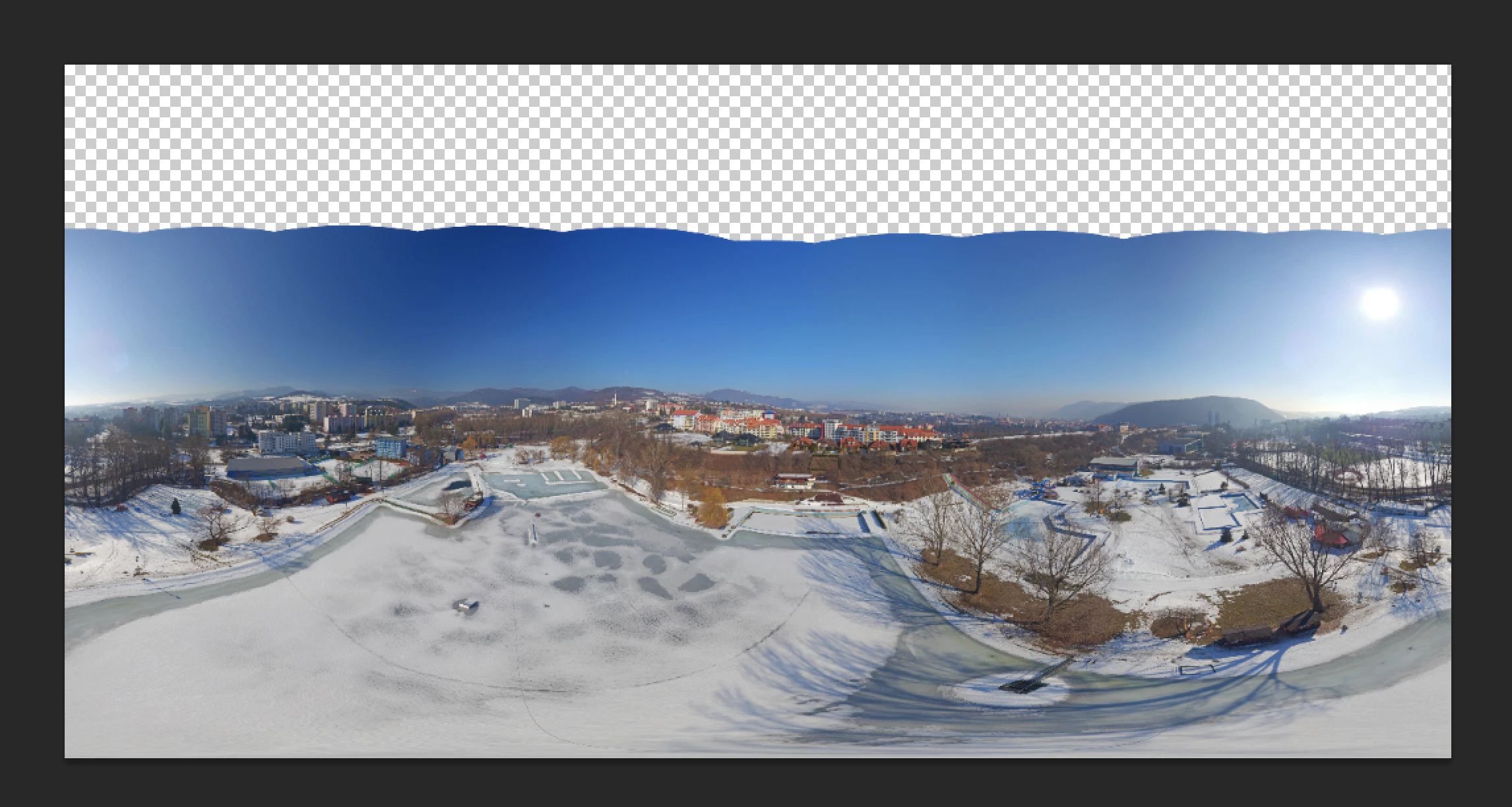
hmm, tried before, but didn't get what I needed - see below. Plus it doesn't solve the left-right border, as they need to match. I masked the empty space, expanded it by 20px and used "blending-normal", and got this:

S_Gans
Community Expert
Community Expert
March 8, 2017

Content Aware is all about the initial selection. Try experimenting with keeping your selection depth further from the scenery. Also, you can use the Clone tool (I recommend doing it on a separate layer, and be sure to choose Sample All Layers in the option bar). If you choose your samples well, it can cover the duplicate pixels.

Adobe Community Expert / Adobe Certified Instructor