Participating Frequently
June 17, 2020
Question

3d text wont render transparency

  • June 17, 2020
  • 3 replies
  • 1282 views

I've been trying to render these 3d text files to display with the proper transparency for about 4 hours now but every time I render, they come out with a solid fill. I've tried every possible thing I can imagine: rendering each file as a smart object, rendering the scene vs. rendering individual layers, only rendering the layer with the transparency, rendering in 3d mode, rendering in essentials mode. I removed all of the backgrounds. I converted them back into layers from smart objects before rendering. Nothing fixes the problem.


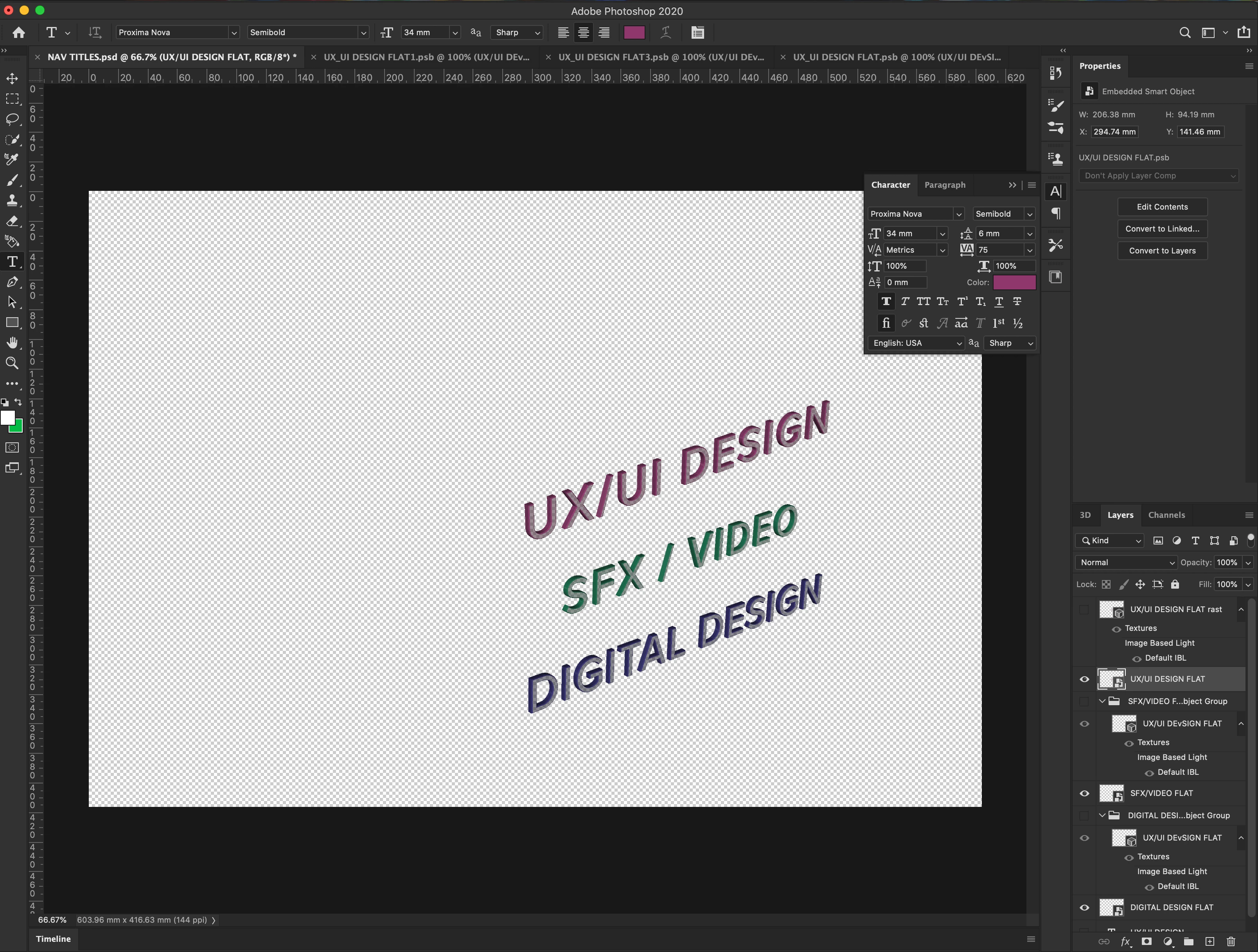
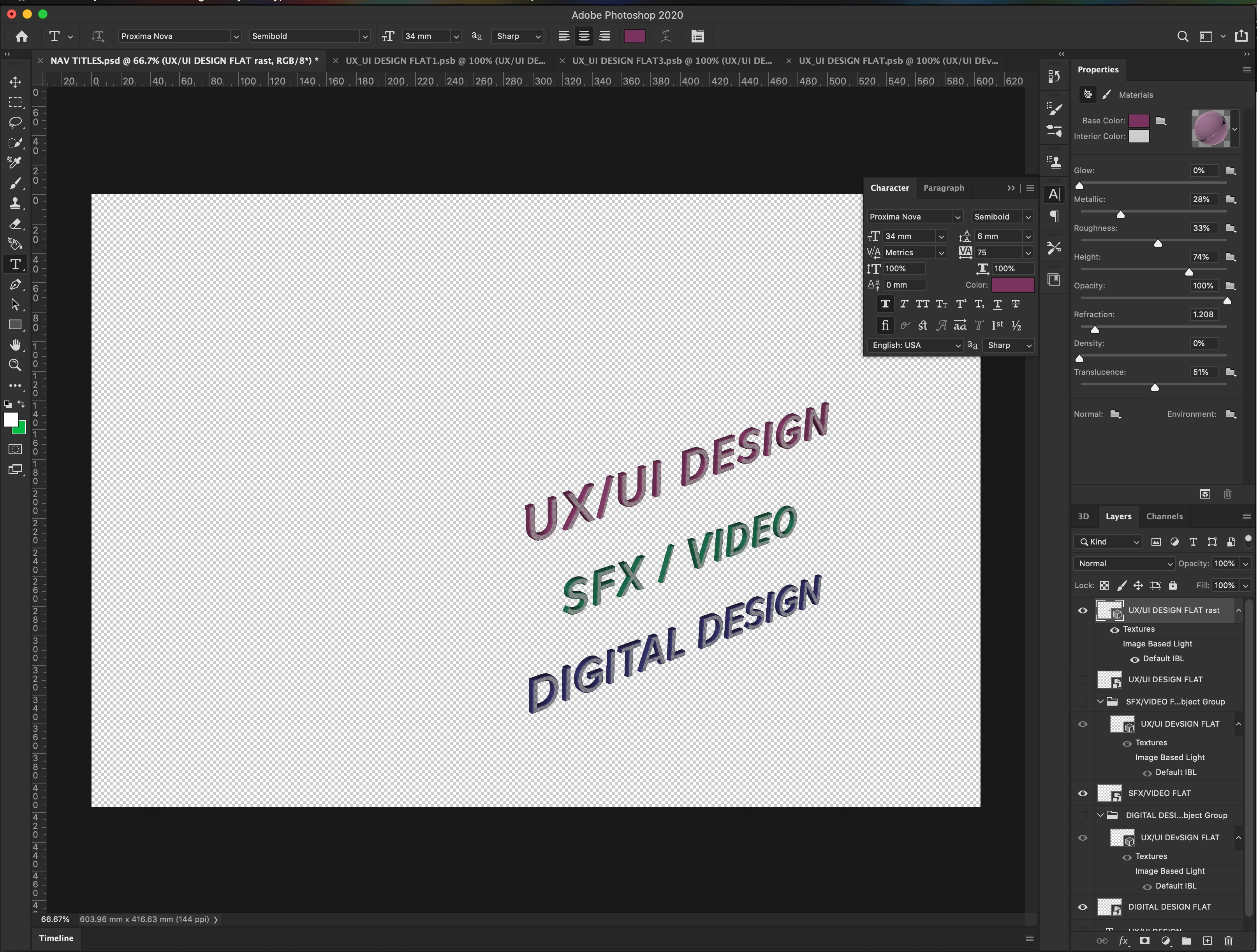
I've attached a photo of the main project file that contains both versions (the smart object version and the 3d layer version) of each text element.


After rendering the smart object:
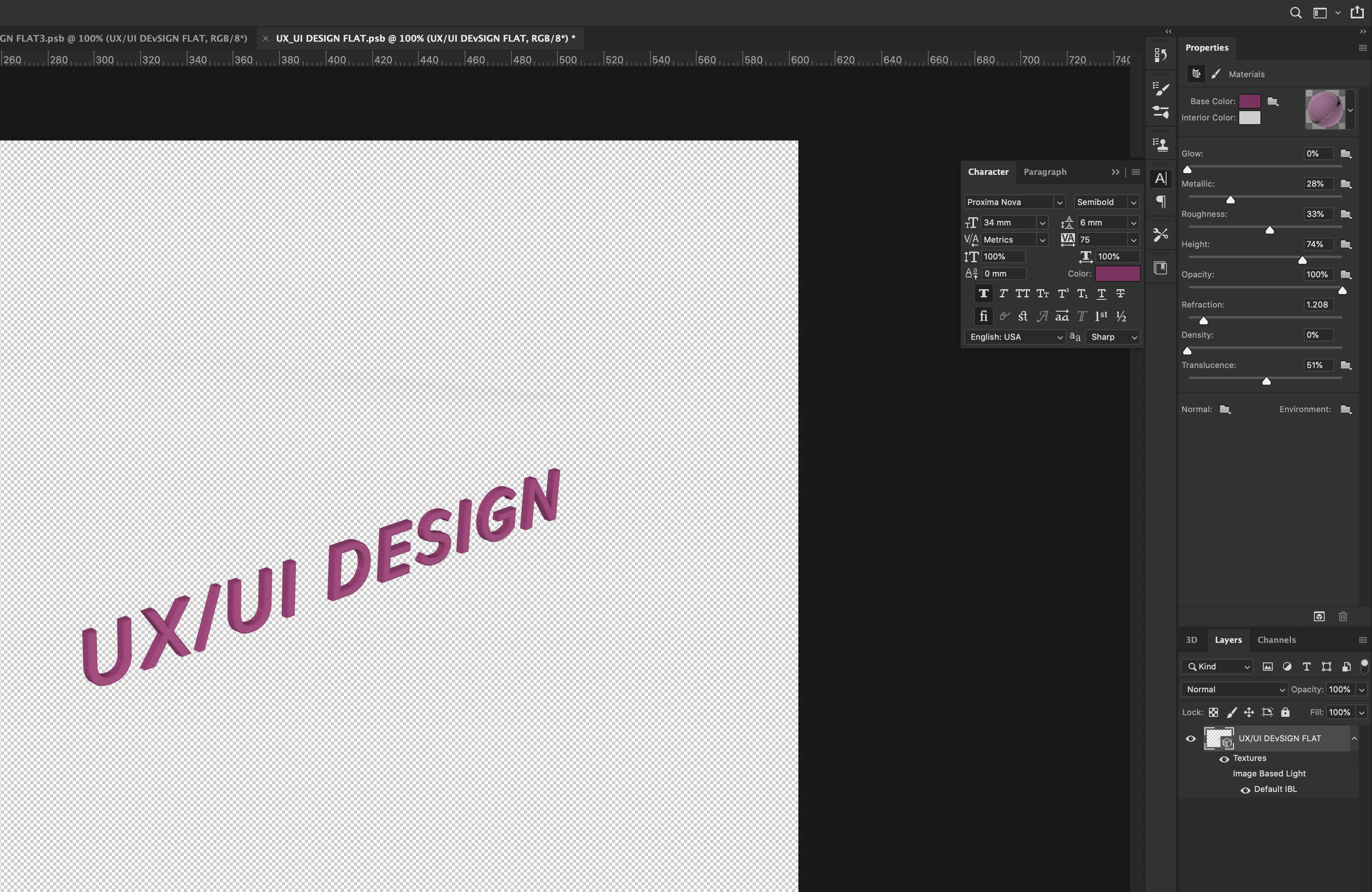
^This is how I want the text to look once rendered, I wasnt to maintain the transparency.


I'm using the latest version of Photoshop on an iMac os/Catalina


I set the color of my source text to be the same color because there wasn't an option to set the flat source text with a transparent fill. Could this be the issue? Any help would be greatly appreciated.


This topic has been closed for replies.

3 replies

davescm
Community Expert
Community Expert
June 17, 2020

Hi

3D in the current Photoshop is buggy and translucence does not render correctly.

Instead, for the front and back materials, reduce the opacity - that will not give you a volume/density effect but should get you what you need in your example.


If you need genuine translucence try a 3D application (Adobe's Dimension handles it correctly)


Dave


cbrownncgAuthor
Participating Frequently
June 18, 2020

Hey Dave,


Thanks for the input. I actually tried setting the translucence of the anterior/posterior layers to 100% amidst all of my attempts but it made no difference  I think I found a work-around for the time being:

When I selected the 'Lighting Only' style option in the drop down menu of the scene properties and rendered, the object maintained the translucence. 

Side note: The element rendered abnormally fast, almost instantaneously. I'm not sure what the trade-off is there but the output doesn't look terrible. I've attached a photo of the rendered (top words in pink) above the pre-rendered (bottom words in green) that show the difference. 

I'd never heard of Dimension until now, thank you for the recommendation.


I'm going to report this to adobe because I think it's something they should really fix.

Michael J. Hoffman
Community Expert
Community Expert
June 17, 2020

Reading your problem statement again, I'm not sure I answered correctly. Are you trying to have the stroke of the text extruded, but have the fill invisible? Something more along these lines? Here I've set the inflation materials to 0% opacity but left the extrusion materials and bevel materials at 100%:


If I were aiming for this, I'd probably convert the text to outlines, set the thickness of the outline and then extrude that.


If you do want the front surface to show slightly transparent, set the inflation material to have transparency. Here I've set the front and back inflation to 20% opacity, while the extrusion and bevel materials are at 100%:


cbrownncgAuthor
Participating Frequently
June 18, 2020

Hello Michael, 


Unfortunately that wouldnt really work for me because outlines would adjust the spacing and appearence.


I did try messing with the opacity vs. the transparency of the antrior/posterior layers but using opacity instead of transparency compromised the refraction and metallic effects which I wanted to retain.


Thank you for the suggestion though!

Michael J. Hoffman
Community Expert
Community Expert
June 17, 2020

I can't say for sure because you aren't showing your 3D panel. However, go to the 3D panel, select your materials, and within the Properties oanel, adjust the opacity to something less than 100%. This is a snapshot from your image above showing the Properties panel with opacity at 100%: