
Participating Frequently
May 11, 2019
Answered

4K screens : Double the scale's render of the work plan?

  • May 11, 2019
  • 1 reply
  • 1184 views

Hi,

I hope you'll get my issue : I'm working on a Dell laptop which has a 4K screen, so my current resolution is 3840px wide.

My screen display scale is already set on 200% obviously in the Windows settings, in order to render the OS UI and all the softwares UI as if I have a 1920px screen.

On Photoshop, the UI is well displayed with the good scale.

However, I want to create a web mockup with a classic desktop size, so 1920px wide, but when I create a new document with a size of 1920x1080 for example, I got the real size on the screen... so it appears tiny. All the fonts, images, logo... also appear half the size they should get.

You'll tell me "just zoom at 200% on the document and you'll get the correct size", okay, but if I do that, all the elements (vectorial or not) become blurred. Because it is a zoom, not a scale.

I wonder if it is possible on the last version of Photoshop CC (currently v.20.0.4), to manage this problem by asking Photoshop to render a 1920px wide document on a 3840px screen as if the screen was actually 1920px wide (so rescale to 200% the render of the fonts, image, the ruler and mark etc.).

Here's an illustrated explanation :

What I have :

What I want :

Thank you in advance.
This topic has been closed for replies.
Correct answer D Fosse

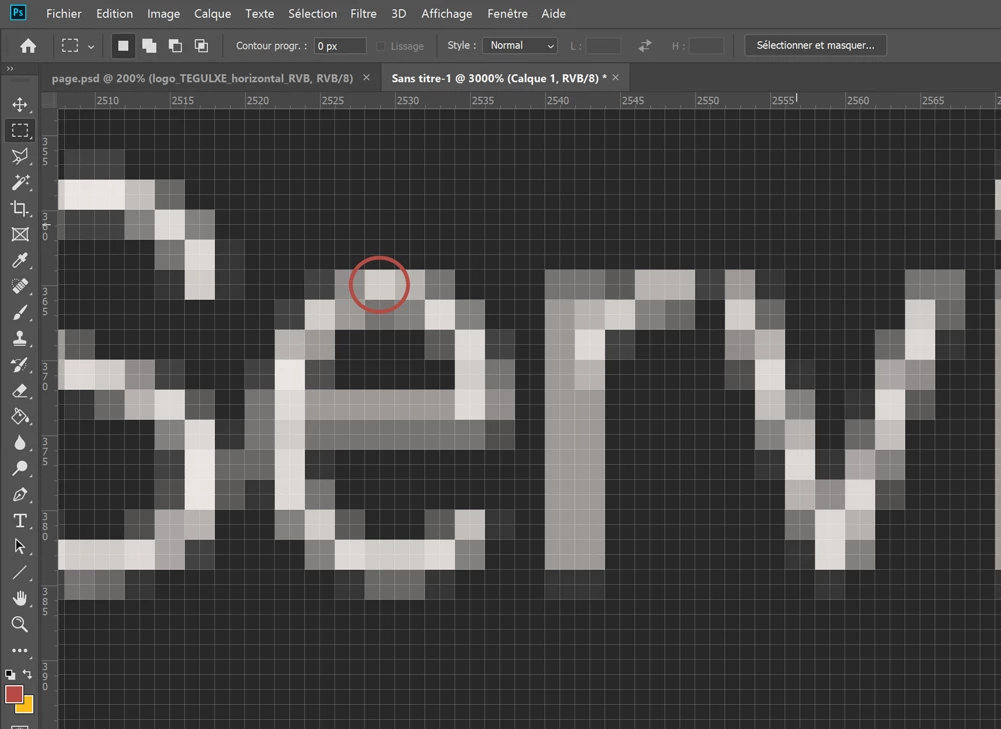
I tried, I presume you're right. I took a screenshot on 200% and paste it, then zoom to see pixels.

The pixels are indeed doubled. I don't know what it's rendered so bad...

So, if there's no solution to get the Illustrator behaviour on vectorial rendering with Photoshop, I've two solutions then : maybe I should try Adobe XD to create mockup, which seems to natively meet the OS scale settings. Alternatively I can try to compose with a 3640px document and double size fonts on Photoshop, then use the tool "Image > Image Size" to reduce by two the size of the document (I tried, it keep vectorial layers like texts and give them correct values).

Thank you for your help anyway !


As I said, vector is a different animal. No matter how much you zoom in, what you see is rendered at native screen resolution. There are no pixels in vector artwork or live text.

But Photoshop is a pixel editor. Everything is rendered at document resolution. Even vector content (and text) is rendered as pixels to the base document pixel grid. The vector tools are secondary in Photoshop - it still remains a pixel editor and that's what it works with.

100% means different things in Illustrator and Photoshop. In Illustrator it simply means print size. In Photoshop it has a different meaning - it means a 1:1 relationship between document pixels and screen pixels. 100% means one image pixel is mapped to one screen pixel, which is the most accurate screen rendering possible for a raster file based on discrete pixels.

So naturally, when you view at 200%, the optical resolution just dropped to half. That's what you see. It's not blurred, just lower resolution - 2K instead of 4K. In other words - that's the way to turn your 3840 pixel screen into a 1920 pixel screen. You would see exactly the same thing if you swapped your 4K screen for a 2K one.

Bottom line: This has nothing to do with Photoshop. It is about how vector content vs. raster content is represented on displays of different pixel densities.

1 reply

D Fosse
Community Expert
Community Expert
May 11, 2019

At 200% Photoshop should do a perfect pixel doubling of the image. It should output one image pixel to exactly four screen pixels, no more and no less. There should be no softening whatsoever.

It should be easy to make screenshot tests.

NoxonAuthor
Participating Frequently
May 11, 2019

Hi,

It should output one image pixel to exactly four screen pixels.

I don't really know the behaviour but it seems really blurred, I don't think that is just a pixel doubling.

I took a fullsize screenshot, see here.

There are vectorial logo and text (written with the text tool). They are vectorial so I presume they can be rendered clearly. Also this is currently the behaviour when we are zooming in Adobe Illustrator.

D Fosse
Community Expert
Community Expert
May 11, 2019

Illustrator is a different animal. It always resolves down to the native resolution of the display - as is the nature of vector.

In Photoshop the image pixel is the indivisible atom.

Make screenshots at 100% and 200%. Find an area that cleanly defines an image pixel. Blow up the screenshots to 1600 or 3200% (where screen pixel size is out of the equation) and compare. If one of them shows blurred pixels I'll take it all back