
Participant
May 17, 2020
Answered

Accidentally double-tapping pen while drawing makes brush stroke max size/opacity?

  • May 17, 2020
  • 1 reply
  • 3966 views

(I've already uninstalled/reinstalled Photoshop and I've restarted my computer so it's not that)


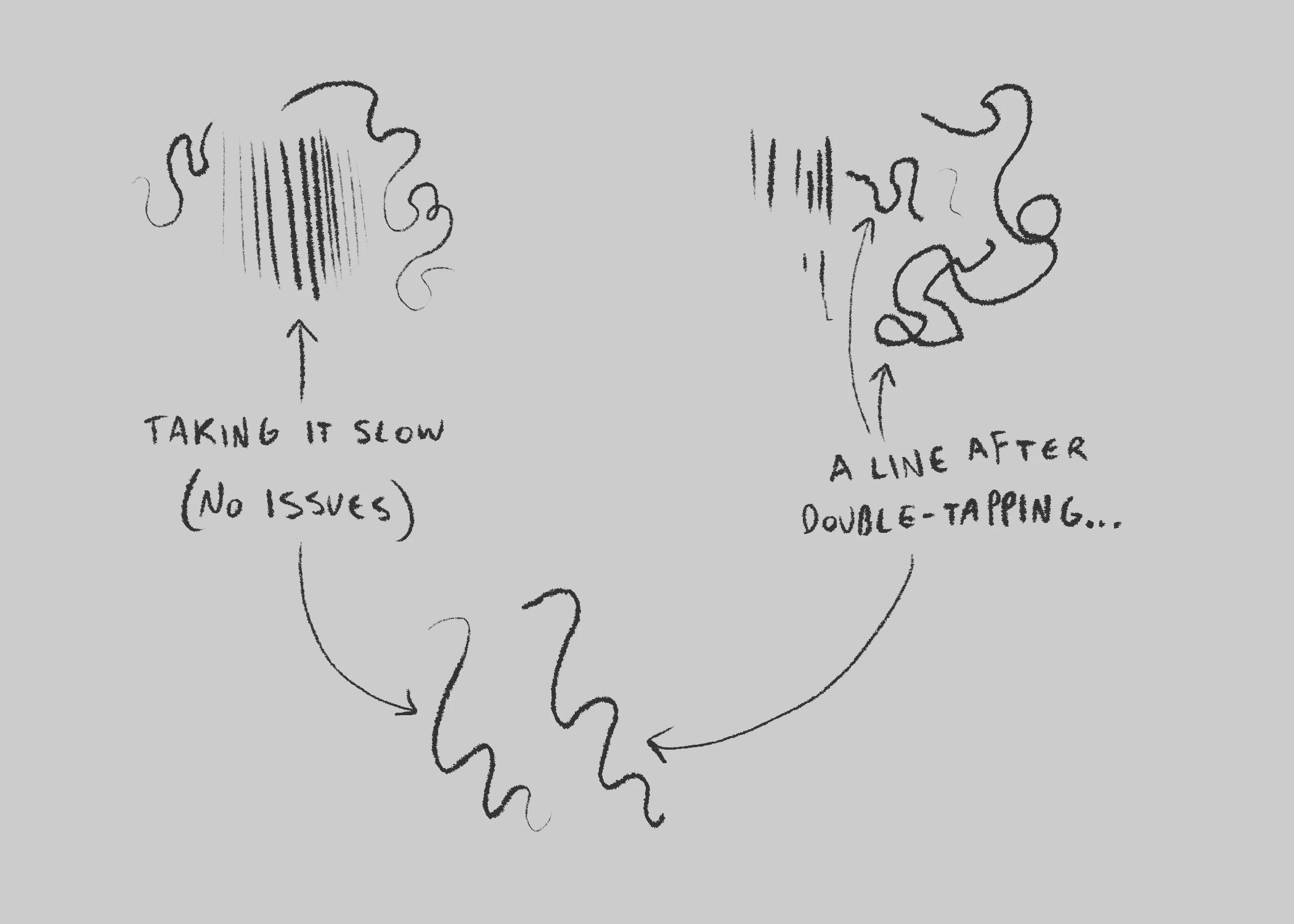
So, everything works fine while sketching with my HUION pen and tablet, but occasionally, perhaps while crosshatching, I will tap the pen twice too quickly which will activate some sort of double-tap function. This makes it so the brush stroke that activated said function no longer responds to pressure sensitivity input. The stroke becomes the maximum size/opacity of the brush being used, no matter how lightly I press.

I've attached a photo demonstrating this.
 

The only other instance I've found online of this happening was with a WACOM and it was fixed by turning off the double-click function of the pen. Mine is a little different being a HUION and it seems like the double-click function I have isn't related at all to this issue.

I should also note that this is only happening in Photoshop, not any other software, which is why I came here for help.


Is there a function in Photoshop itself that I need to disable? I can't find it if so... Please help!
This topic has been closed for replies.
Correct answer Kodus

The same thing happened to me when switching drivers from my Huion to my Wacom. I even found that it persisted even after once again switching drivers back to my Huion. I have no idea what setting might be causing this, but fully resetting my settings back to factory default (Preferences → General → "Reset Preferences On Quit") completely fixed it for me, no need to reinstall anything. Hope this helps!
    E D I T
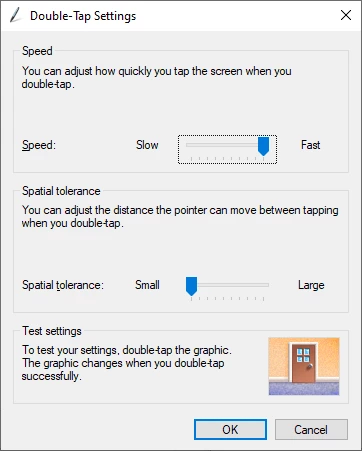
What I wrote about actually didn't seem to completely work, having used PS a bit more afterward. So after looking around a bit more, I think I've found something that has. Go to Control Panel, Pen and Touch, then change the Double-Tap settings so that the two sliders are set all the way to "Fast" and "Small." After about an hour of drawing after that, the issue seems to have been reduced significantly, however it does still occasionally happen.


1 reply

Kodus
KodusCorrect answer
Participant
May 19, 2020

The same thing happened to me when switching drivers from my Huion to my Wacom. I even found that it persisted even after once again switching drivers back to my Huion. I have no idea what setting might be causing this, but fully resetting my settings back to factory default (Preferences → General → "Reset Preferences On Quit") completely fixed it for me, no need to reinstall anything. Hope this helps!
    E D I T
What I wrote about actually didn't seem to completely work, having used PS a bit more afterward. So after looking around a bit more, I think I've found something that has. Go to Control Panel, Pen and Touch, then change the Double-Tap settings so that the two sliders are set all the way to "Fast" and "Small." After about an hour of drawing after that, the issue seems to have been reduced significantly, however it does still occasionally happen.


valkyrie_Author
Participant
July 16, 2020

Hey, sorry I'm so late to reply. This was a bit disheartening for me and I haven't been back on Photoshop in a while...

I tried both things you listed here for good measure, and the second thing you listed really does help! I wish there were a way to simply just DISABLE what's causing the issue, rather than making it harder to activate, but this does help immensly regardless. Thanks so much!