james_dean1986
Inspiring
March 15, 2019
Answered

Actions - Automate saving for web

  • March 15, 2019
  • 3 replies
  • 5422 views

I have an action I run which opens an image, allows me to position a crop area, crops, resizes, saves and closes.

Rather than it just saving, I want it to save optimised for web, in the same area the original version came from, ideally without clicking any extra buttons.

Every mehtod Ive tried so far seem to have a flaw.  Like no matter what file I select, it keeps saving it back to the folder that was used when the action was created, rather than the folder of the soruce file.

Thanks.
This topic has been closed for replies.
Correct answer Bojan Živković11378569

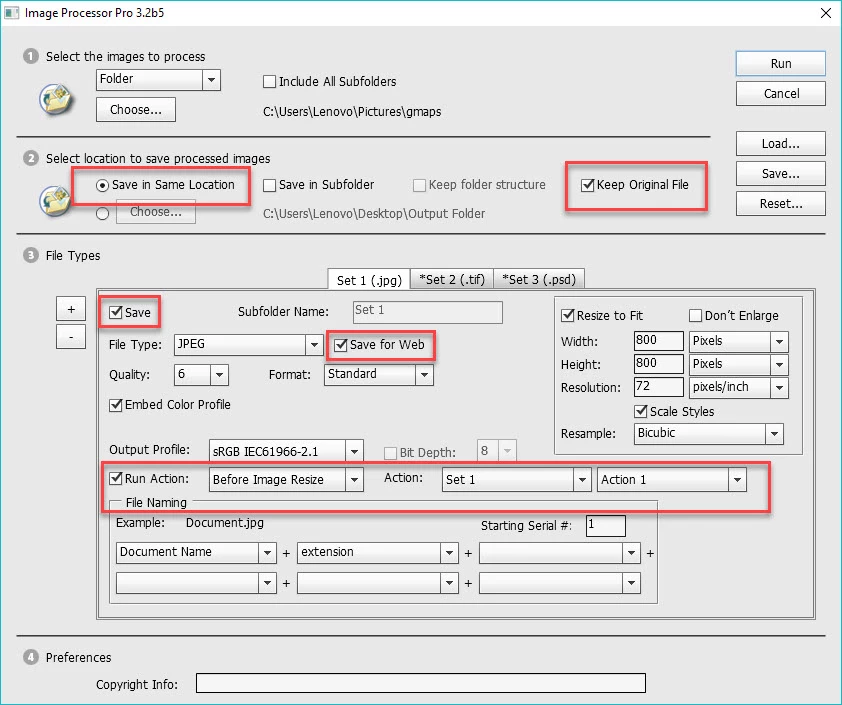
There is already correct answer by Stephen, I will add my $0.02. Below is how configuration should look like in Image Processor Pro. I have highlighted important areas. There are and other options but lets skip them. Your files will be saved as filename_01.ext without any additional setup which can be done inside IPPro window, lets skip and that to avoid confusion and too much info.

I have tested with Photoshop CS6 and version of Image Processor Pro is in the top left corner.

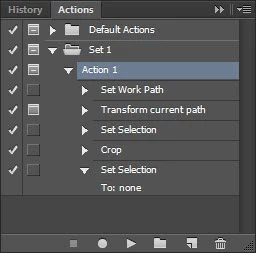
And by the way, do not record any additional step, I believe I know which action is in question. You do not need save step, just steps to insert path, transform path with modal turned on, make selection from path and crop image based on selection and lastly to set selection to none (optional step).

3 replies

Bojan Živković11378569
Community Expert
Community Expert
March 16, 2019

There is already correct answer by Stephen, I will add my $0.02. Below is how configuration should look like in Image Processor Pro. I have highlighted important areas. There are and other options but lets skip them. Your files will be saved as filename_01.ext without any additional setup which can be done inside IPPro window, lets skip and that to avoid confusion and too much info.

I have tested with Photoshop CS6 and version of Image Processor Pro is in the top left corner.

And by the way, do not record any additional step, I believe I know which action is in question. You do not need save step, just steps to insert path, transform path with modal turned on, make selection from path and crop image based on selection and lastly to set selection to none (optional step).

Stephen Marsh
Community Expert
Community Expert
March 15, 2019

I would use the Image Processor Pro script.

There are two options… First and foremost, it is a batch processor and it can also use an action (not sure how it would go with your manual crop step).

Secondly and less obviously, you can record it into an action as a single step (the step will be shown as blank but it does work), this will allow you to save for web into the source directory from within your action.

In this example, it saves a copy to the source folder with the original filename and an added suffix.

Although I don’t like saving over the originals, it can be configured to do so and be used in lieu of a standard save step (you would need to add steps to the action to close the current file without saving as IPP has handled that):

JJMack
Community Expert
Community Expert
March 16, 2019

Actually an interactive action will work with scripts like the Image processor scripts it just brakes the batching aspect of the batch processing by turning it into an interactive process.  The pro version can overwrite None RAW original files. Photoshop can not write RAW files.   The Image Processors normal process is to write out new files. I will not overwrite tiles that exist.  You can run the process over and over again with the same setting and files. Output file will be new files with unique names.

here is the code ine the images processor for file names.

// Function: CreateUniqueFileName

// Usage: Given a folder, filename, and extension, come up with a unique file name

// using a numbering system

// Input: string for folder, fileName, and extension, extension contains the "."

// Return: string for the full path to the unique file

///////////////////////////////////////////////////////////////////////////////

function CreateUniqueFileName( inFolder, inFileName, inExtension ) {

   inFileName = inFileName.replace(/[:\/\\*\?\"\<\>\|]/g, "_");  // '/\:*?"<>|' -> '_'

   var uniqueFileName = inFolder + inFileName + inExtension;

   var fileNumber = 1;

   while ( File( uniqueFileName ).exists ) {

      uniqueFileName = inFolder + inFileName + "_" + fileNumber + inExtension;

     fileNumber++;

    }

   return uniqueFileName;

}

JJMack
JJMack
Community Expert
Community Expert
March 15, 2019

You Action saved step most likelt recorded the desternation folder path into thesave for web steps setting so it will always save into that folder. If the document was opened from an image file you can script what the action does save for web but first retrive the path of the document backing files save for web into that folder  but may want to at least change the save files name first if you are saveing the same file type if you do not want to replace the source file.

JJMack
james_dean1986
Inspiring
March 15, 2019

Thanks.

The photos being edited are duplicates anyway, so Im happy for it to save over them.

Unfortunately I do not do any scripting

JJMack
Community Expert
Community Expert
March 15, 2019

To save over the file  change the save for web step to a Save step.  The only real difference you will see is  the files metadata will be not be stripped. Save for web was most likely recorded with save for web default setting not to save metadata.

JJMack