

bartonlew
Legend
February 4, 2020
Answered

Actions not generating files upon export

  • February 4, 2020
  • 3 replies
  • 1961 views

I am trying to batch export files using a new Action I wrote and they aren't appearing.  I can see the Action running but when I go to the destination folder, no files are there.  Attached is a screen shot of the batch export screen.  I tried runnning Actions I had run successfully in the past and they also did not generate files.  I have tried running multiple Actions within a file and then as a Batch and no Actions are generating files in the designated destination folder.  Does anyone have any idea why this could be happening? 
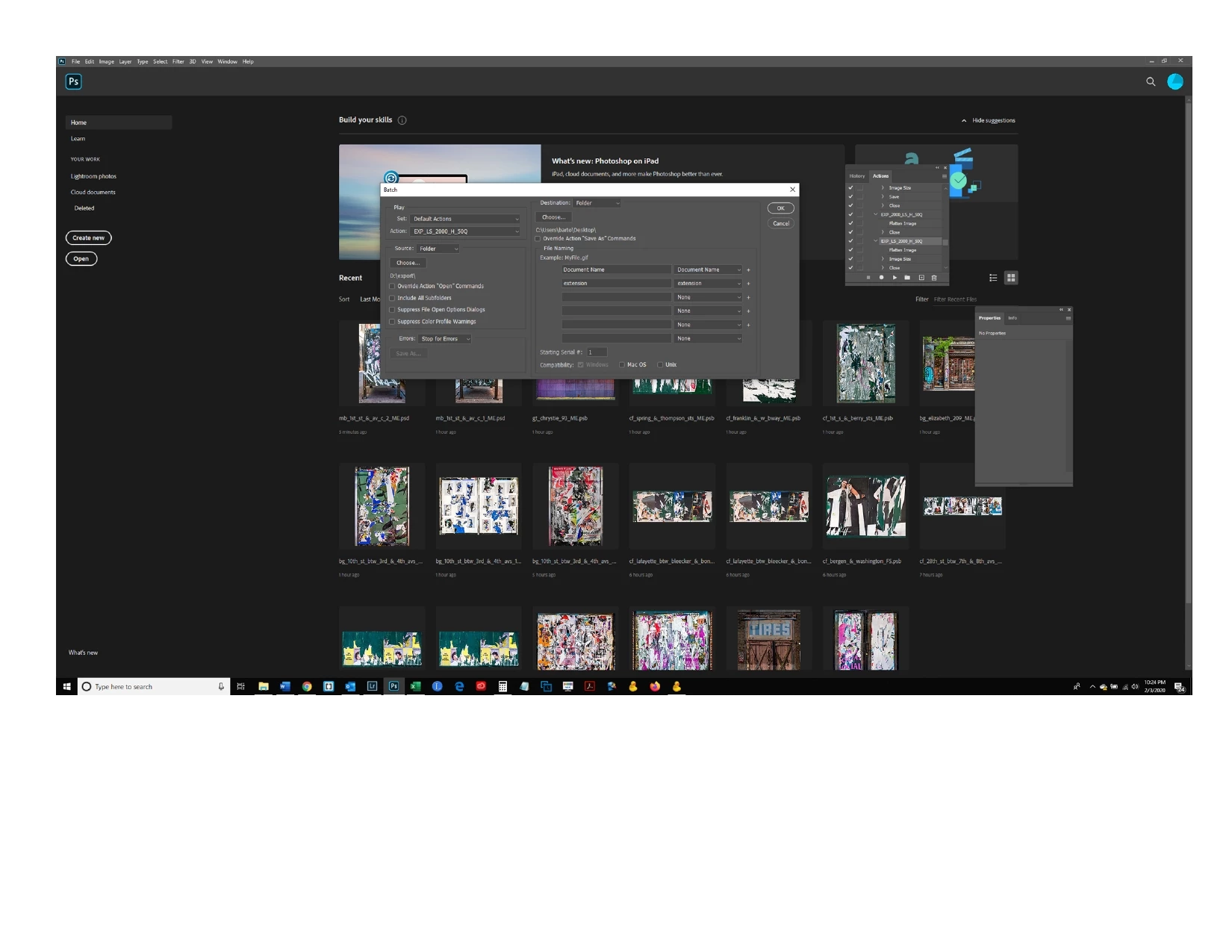
This topic has been closed for replies.
Correct answer Stephen Marsh

Can you show a cropped screenshot of the action with the steps expanded?


For example, it appears that you have a close command, would you happen to be closing without saving? If so disable or remove the close step.


As there is no explicit save format in the action, the output would be the same format as the input.

3 replies

Stephen Marsh
Community Expert
Stephen MarshCommunity ExpertCorrect answer
Community Expert
February 4, 2020

Can you show a cropped screenshot of the action with the steps expanded?


For example, it appears that you have a close command, would you happen to be closing without saving? If so disable or remove the close step.


As there is no explicit save format in the action, the output would be the same format as the input.

bartonlew
bartonlewAuthor
Legend
February 5, 2020

I think I have identifede the problem.  The Action I created incldued the steps


1.  Flatten image

2.  Fit Image

     W:  2000px

     H: 30000px

3.  Export As 

     W: 2000px


I remembered that in prior Actions instead of Export As, I had used Export>Save for Web (Legacy).  When I rewrote the Action to substitute the Export As with Save for Web (Legacy), the Action exported the files to the specified folder.


Thanks for your input and the links to Adobe's batch processing steps.

JJMack
Community Expert
Community Expert
February 5, 2020

You also do not need to have an action to do that.  Menu File>Scripts>Image Processor... can  do the withour an action and name output file better and can save more then one type of output image file.  The Image processor Pro Plug-in download is  even more powerful. Menu File>Automate>Image Processor Pro...  You can save up the 10 output image files for each image file processed. They can all be different size Jpeg files if that is what you need.  You can also include an action to help edit each output file.


JJMack
Stephen Marsh
Community Expert
Community Expert
February 4, 2020

More info on the batch command here:


https://helpx.adobe.com/photoshop/using/processing-batch-files.html#batch_and_droplet_processing_options


That being said, both the Image Processor and Image Processor Pro scripts can batch save with built-in file format options: and the ability to run an action:


https://helpx.adobe.com/photoshop/using/processing-batch-files.html#convert_files_with_the_image_processor

https://sourceforge.net/projects/ps-scripts/files/Image%20Processor%20Pro/v3_2%20betas/

JJMack
Community Expert
Community Expert
February 4, 2020

If in the Batch dialog you set the destination option to folder and selected a folder does the Action have a save as step and are you overriding it in the Batch dialog so Batch will set the file name.  If the Action does not have a save step you may want to set the Batch dialog destination to save and close to overwrite the files opened by batch

JJMack