
Known Participant
October 4, 2016
Question

Actoin for resize different size images to one specefic size

  • October 4, 2016
  • 3 replies
  • 845 views

I'm very new in action scripting and struggling to achieve an action currently doing batch image process, Okey i will tell you form start i have psd file a sofa set and above sofa set an image frame, I just wanting an action to replace image above sofa set but problem is i have different size images so if i change all images to one size in my case 12 x 5.5in than some of images will just go very small and not resize according to my requirements.
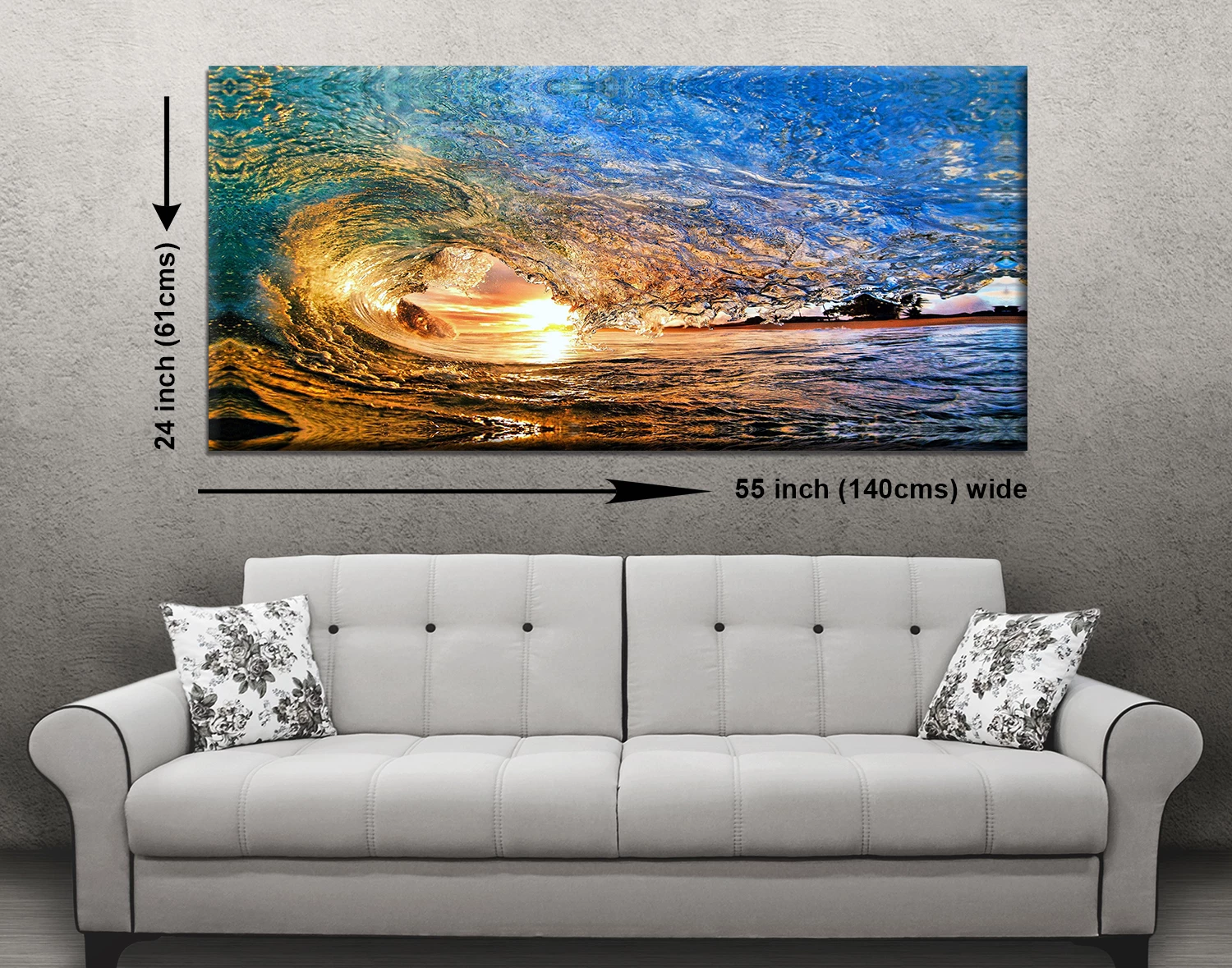
I want to resize all images than i creating an action script via clipping mask to auto replace image of above sofa set.?

I have attaching action file and screen shot of my psd file please help me.

action file

Thank you.

Jenny

This topic has been closed for replies.

3 replies

JJMack
Community Expert
Community Expert
October 5, 2016

Crafting Actions Package UPDATED Aug 10, 2014 Added Conditional Action steps to Action Palette Tips.
Contains

Example
Download

Photo Collage Toolkit

Photoshop scripting is powerful and I believe this package demonstrates this A video showing a 5 image collage PSD template  being populated with images:

The package includes four simple rules to follow when making Photo Collage Template PSD files so they will be compatible with my Photoshop scripts.

  1. Size the photo collage templates for the print size you want - width, height and print DPI resolution.
  2. Photo collage templates must have a Photoshop background layer. The contents of this layer can be anything.
  3. Photo collage templates must have alpha channels named "Image 1", "Image 2", ... "Image n".
  4. Photo collage templates layers above the background layers must provide transparent areas to let the images that will be placed below them show through.

There are fifteen scripts in this package they provide the following functions:

  1. HelpPhotoCollageToolkit.jsx - Online Help
  2. TestCollageTemplate.jsx - Used to test a Photo Collage Template while you are making it with Photoshop.
  3. CollageTemplateBuilder.jsx - Can build Templates compatible with this toolkit's scripts.
  4. LayerToAlphaChan.jsx - Used to convert a Prototype Image Layer stack into a template document.
  5. InteractivePopulateCollage.jsx - Used to interactively populate Any Photo Collage template. Offers most user control inserting pictures and text.
  6. ReplaceCollageImage.jsx - use to replace a populated collage image Smart Object layer with an other image correctly resized and positioned.
  7. ChangeTextSize.jsx - This script can be used to change Image stamps text size when the size used by the populating did not work well.
  8. PopulateCollageTemplate.jsx - Used to Automatically populate a Photo Collage template and leave the populated copy open in Photoshop.
  9. BatchOneImageCollage.jsx - Used to Automatically Batch Populate Collage templates that only have one image inserted. The Collage or Image may be stamped with text.
  10. BatchMultiImageCollage.jsx - Used to Automatically Batch Populate Any Photo Collage template with images in a source image folder. Easier to use than the interactive script. Saved collages can be tweaked.
  11. PasteImageRoll.jsx - Paste Images into a document to be print on roll paper.
  12. BatchPicturePackage.jsx - Used to Automatically Batch Populate Any Photo Collage template with an image in a source image folder.  Images Rotates for best fit.
  13. BatchPicturePackageNoRotate.jsx - Used to Automatically Batch Populate Any Photo Collage template with an image in a source image folder.
  14. PopulatePicturePackage.jsx - Used to Automatically populate a Photo Collage template Fill with the same single image and leave the populated copy open in Photoshop.
  15. PCTpreferences.jsx - Edit This File to Customize Collage Populating scripts default setting and add your own Layer styles.

Documentation and Examples

JJMack
JJMack
Community Expert
Community Expert
October 5, 2016

I took a quick look at the first action in your action set. After readings I few steps I did not want to read more.  You know  your files better than me.  However the action is not well crafted and will have all sort of problem  unless the user knows exactly what is required. I include you action and add a few comments.

Set: Set 1

  Action: Artworks Action

  Edit Contents <---- editing a smart opject you may know the size of ? opens a work file created by Photoshop into a document

  Crop   <-- What would happen here if if the  current was a 5" x 7" document

  To: rectangle

  Top: 3.278 Inches

  Left: 2.986 Inches

  Bottom: 16.861 Inches

  Right: 32.528 Inches

  Angle: 0°

  With Delete Cropped Pixels

  <unknown>

  false

  Open  <---- What would happen if the file does not exist on the E: drive

  E:\infographics and graphics elements\3D infographic2_p.jpg

  915

  Image Size  <--- how distorted would a portrait image become when distorted to this landscape image

  Width: 29.8 Inches

  Height: 13.8 Inches

  Interpolation: automatic

  Set Selection

  To: all

  Copy

  Select previous document <---back to the first document perhaps the smart object work document

  901

  Delete current layer  <------ What was the current layer in the object  document and why is it being deleted you may know what the object  structure the action does not know either do i

  67

  Paste   <--- past in the distorted image

  Anti-alias: none

  As: pixel

  Move current layer

  To: 0 Inches, -0.083 Inches <--- why are you  moving the layer top slightly off the the canvas

  Save

  Update Smart Objects < work document still open

  Select previous document  <-- document expected? the smart object layer played the action on ?

  816

  Select next document <--- forward to the work document why did you go to the previous document just to go forward again?

  901

  Select next document   <---- forward to the document to the distorted image copied to the clipboard

  915

  Close    <-- close the distorted document with out saving should now be back in work document after close completes

  Saving: no

  915

  true

  Close  <close and save the document you played the action on i think or perhaps the work you had already saved to update the smart object  and are now saving it to your desktop. In which case the original document is still open with an updated smart object layer

  901

  true

  Save

  As: JPEG

  Quality: 12  <--- Save some space and use quality 10 you will not see any difference in image quality between quality 10 and quality 12

  Matte: none

  In: C:\Users\Mirza Abdul Rahman\Desktop\

  816

  With Copy  <-----The prior document or the work file created for the smart object  onto you desktop as a jpeg??.

  Action: Sofaset Action

  Edit Contents

  Open

  E:\infographics and graphics elements\?????????????.jpg

  1645

  Select previous document

  1642

  Select next document

  1645

  Image Size

  Width: 12.8 Inches

  Height: 5.8 Inches

  Interpolation: automatic

  Set Selection

  To: all

  Copy

  Select previous document

  1642

  Make New: guide

  New: guide

  Position: 0 Inches

  Orientation: vertical

  <unknown>

  Guide Target: Canvas

  Make New: guide

  New: guide

  Position: 12 Inches

  Orientation: vertical

  <unknown>

  Guide Target: Canvas

  Make New: guide

  New: guide

  Position: 0 Inches

  Orientation: horizontal

  <unknown>

  Guide Target: Canvas

  Make New: guide

  New: guide

  Position: 5.587 Inches

  Orientation: horizontal

  <unknown>

  Guide Target: Canvas

  Paste

  Anti-alias: none

  As: pixel

  Select next document

  1645

  Image Size

  Resolution: 300 per inch

  Interpolation: automatic

  Set Selection

  To: all

  Copy

  Select previous document

  1642

  Paste

  Anti-alias: none

  As: pixel

  Move current layer

  To: -0.42 Inches, -0.16 Inches

  Delete Background

  1

  Save

  Update Smart Objects

  Select previous document

  1605

  Select next document

  1642

  Close

  1642

  true

  Select next document

  1645

  Close

  Saving: no

  1645

  true

  Save

  As: JPEG

  Quality: 12

  Matte: none

  In: C:\Users\Mirza Abdul Rahman\Desktop\

  1605

  With Copy

JJMack
JJMack
Community Expert
Community Expert
October 5, 2016

mirzaa26404547 wrote:

I want to resize all images than i creating an action script via clipping mask to auto replace image of above sofa set.?

I have attaching action file and screen shot of my psd file please help me.

action file

Thank you.

Jenny

Actions and Scripts are different things,   Actions have a very hard time dealing with images with different aspect ratios and sizes for they can not use logic. Actions are a series of hard coded Photoshop steps.  If  to want to size an image to a particular size.  You must first insure the image has the correct aspect ratio.  If Not you must crop the image to the correct aspect ratio  or distort the imaged to the correct aspect ratio then resize the cropped or distorted image to the size you want.  Easy to do with a Photoshop Script.  But not easy with a Photoshop action.  I'll look at your action. However I feel the action may only work for some image files.  Most likely it can not handle all image files. I see no screen capture of a PSD document I  just a see a jpeg image.   It would be very easy to create a PSD template you can automatically populate with your images, However, the jpeg  you show  has a  wide aspect ratio image over a couch.  While you could populate all your images over the couch you would not like all the results.  For Portrait aspect ratio images and some not so wide landscape image will not crop well or distort will to that wide aspect ratio image over the couch.  The resulting image composition would not be acceptable for many of your images.

JJMack