Inspiring
February 13, 2024
Answered

Add light rays to a LED Bulb

  • February 13, 2024
  • 4 replies
  • 1033 views

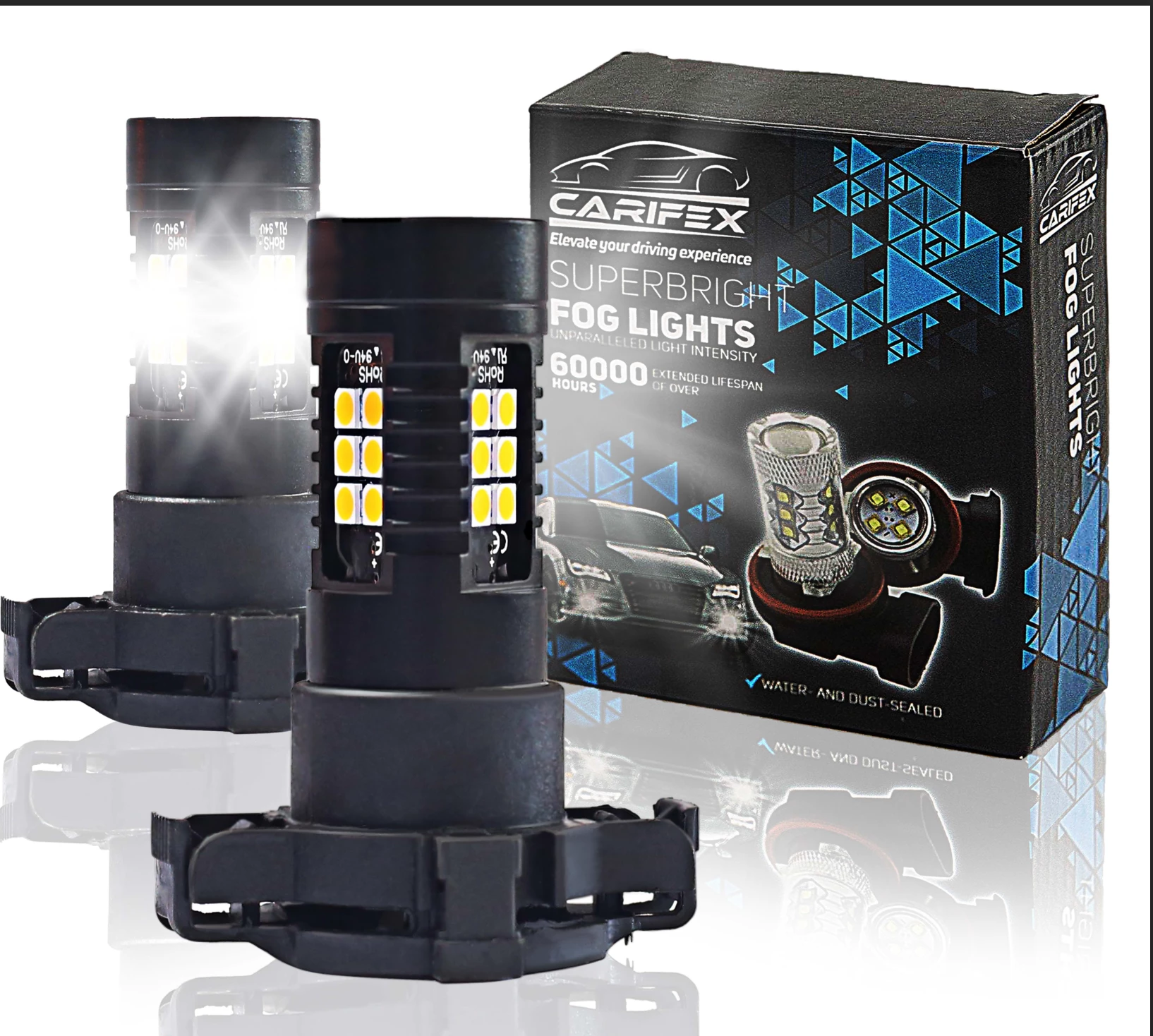
How do i either duplicate or create some light rays similar to the left fog light.


I have isolated the right fog light and want to add a lighting effect to it.
 

This topic has been closed for replies.
Correct answer Conrad_C

The updated nondestructive gradients may provide another option. Many users are using the updated Gradient tool to replace some older lighting effects. These are the components of the example in the picture below:
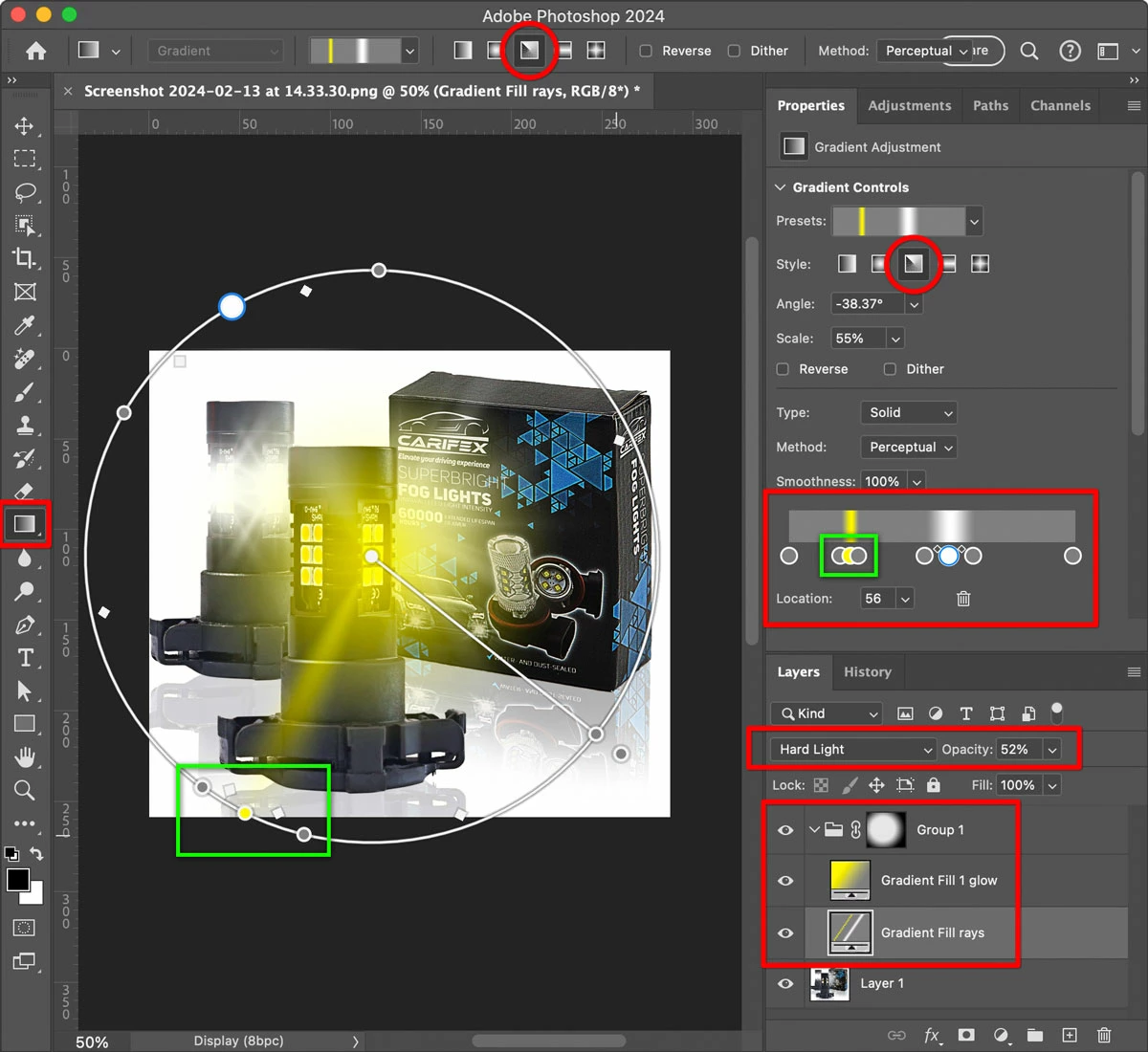
 

  • The rays are built with gradient stops on an Angle gradient. 
  • You can quickly adjust the look using gradient stop positions and colors, layer blending modes, and opacity. 
  • The glow is a Radial gradient. 
  • The two layers are grouped, a mask is added to the group, and a radial gradient is applied to that mask to control how the rays fade out. 


4 replies

Trevor.Dennis
Community Expert
Community Expert
February 14, 2024

There's a rather good plugin that would be useful for this.  It's called Starfilter Pro 4 and it's from ProDigital Software.  The UI is world class, and you get total control of the flares/stars.  I don't use it every day, but I am always glad that I have it when I need it.  It's a steal at US$40.


The way I use it is to fill a layer with black, and set it to Screen or Lighten.  That makes the layer appear empty.  I then use the brush to put a dab of white where I need the stars/flares to be.


Full disclosure, Prodigital is run by Noel Carboni who used to be a forum regular, but now works for Adobe.  Several of us know Noel and call him a friend.

Conrad_C
Community Expert
Conrad_CCommunity ExpertCorrect answer
Community Expert
February 13, 2024

The updated nondestructive gradients may provide another option. Many users are using the updated Gradient tool to replace some older lighting effects. These are the components of the example in the picture below:


  • The rays are built with gradient stops on an Angle gradient. 
  • You can quickly adjust the look using gradient stop positions and colors, layer blending modes, and opacity. 
  • The glow is a Radial gradient. 
  • The two layers are grouped, a mask is added to the group, and a radial gradient is applied to that mask to control how the rays fade out. 


Inspiring
February 14, 2024

 Thanks.

How do i get rid of the black around the light. - I'm using hard light.


Conrad_C
Community Expert
Community Expert
February 14, 2024
quote

How do i get rid of the black around the light. - I'm using hard light.

By @Summayah5FC7


Off the top of my head I’m not sure, but it might have to do with the color between the rays. I picked 50% gray because I know that becomes invisible with some blending modes. See if it helps to change the non-ray color.

Myra Ferguson
Community Expert
Community Expert
February 13, 2024

You could simulate the light with brush strokes, blur, and layer masks. Here's how:

  1. Make a new layer
  2. Select the Brush tool and set its Hardness to 0
  3. Set the Foreground color to white
  4. Draw lines emanating from the LED lights similar to the pattern of the light on the left (to draw straight lines, hold the Shift key, click once to place a dot, and click somewhere else to connect the line)
  5.  Apply a blur filter (Filter > Blur Gallery, select Iris Blur, and place the pin between the rows of lights)
  6. Add a layer mask (click on the 3rd icon from the left at the bottom of the Layers panel or go to Layer > Layer Mask > Reveal All)
  7. Select the Gradient tool and in the Options bar (Window > Options) set the Gradient to white to black and radial
  8. Draw the radial gradient on the layer mask so that the radial gradient aligns with center of the light and goes from white iin the center to black
  9. Duplicate the layer a few times to increase the amount of light as needed


Trevor.Dennis
Community Expert
Community Expert
February 14, 2024

The smudge tool is one of those unrecognised heros of the Photoshop too line up.  I discovered that in a Steve Caplin video where he used the Smudge tool to make an explosion effect.  This video is 13 years old!


His books on making illustrations with Photoshop are right up there with Bert Monroy.


Inspiring
February 13, 2024

The Render ---> Lens flare doesn't provide the same light.
