
Adobe DME Logo
  • Featured Communities
  • Announcements
  • Feature Requests
Adobe DME Logo
  • Create a post
  • Login
  • Home
  • App communities
  • Photoshop ecosystem
  • Questions
  • Adding an action to the sidebar
Giulio fa cose
Giulio fa cose
Inspiring
Forum|Forum|2 years ago
May 11, 2023
Question

Adding an action to the sidebar

  • Forum|Forum|2 years ago
    May 11, 2023
  • 3 replies
  • 1944 views

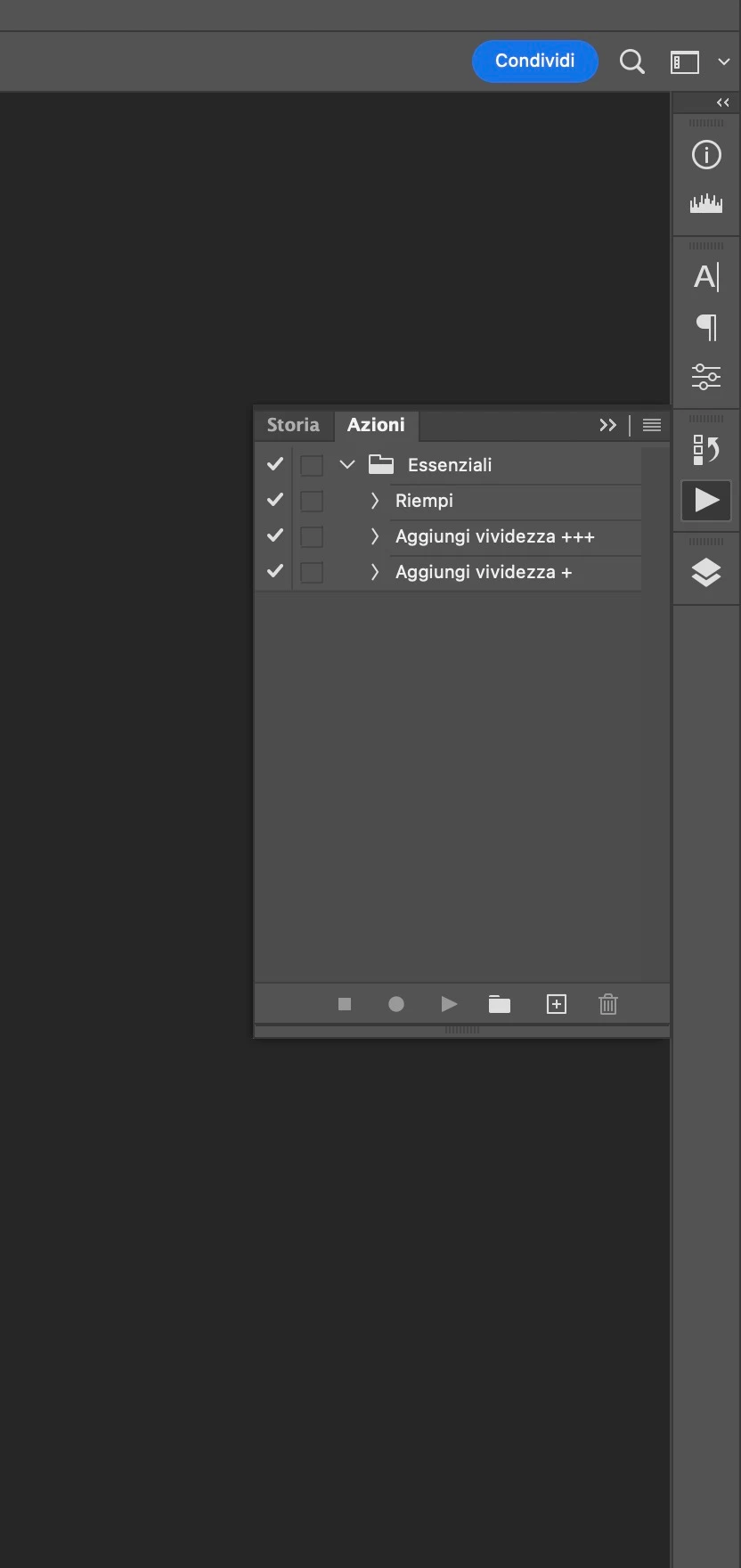
Hi everyone, is there a way to add an action I created to the tools in the sidebar panel as icon? It would be more easy and quick for me in some cases. Thank you!
 

  • Actions and scripting
  • macOS
This topic has been closed for replies.

3 replies

  • Oldest first
  • Most Liked
Stephen Marsh
Community Expert
Stephen MarshCommunity Expert
Community Expert
Forum|Forum|2 years ago
May 11, 2023

Actions can also have an F-key shortcut assigned to them.


If a Function key isn't convenient, then a simple 1 line script can run the action and the script can be installed and have a custom keyboard shortcut applied which doesn't have a dependency on using a Function key.


    Trevor.Dennis
    Community Expert
    Trevor.DennisCommunity Expert
    Community Expert
    Forum|Forum|2 years ago
    May 11, 2023

    I always like to put this up when Function Key shortcuts are mentioned for the sake of visitors to the forum.  My take is that having shortcuts to those panels might make sense if you have limited screen space, but if you have multiple monitors, or even just the one BIG screen, then those single key shortcuts are too valuable to be left unused.  


    FYI: Photoshop has a wee gotcha when using a single F-Key shortcut to trigger actions.  They work OK the first time you use them, but will warn you about the default shortcut that is being overwritten, but if you want to update an existing Action using the same F-Key as the shortcut, Photoshop won't let you unless you add a modifier (Shift and/or Crtl(Cmd)).  You have to delete the action and rerecord it, and you can then assign your single F-Key shortcut.


    Don't forget that we can save custom shortcuts and toolbar layouts with custom workspaces.  This greatly expands their usability by having context sensitive shortcuts.  Motion is a good example, as lots of the default shortcuts don't do what you want them to do.

      jane-e
      Community Expert
      jane-eCommunity Expert
      Community Expert
      Forum|Forum|2 years ago
      May 12, 2023

      @Giulio fa cose 


      Since you marked that you are on macOS, the function keys are programmed by default to do this:

      • F1 – Decrease display brightness
      • F2 – Increase display brightness
      • F3 – Open Mission Control
      • F4 – Open Launchpad
      • F5 – Decrease keyboard brightness (On compatible notebooks only)
      • F6 – Increase keyboard brightness (On compatible notebooks only)
      • F7 – Skip back (Audio)
      • F8 – Pause / Play (Audio)
      • F9 – Skip forward (Audio)
      • F10 – Mute
      • F11 – Volume down
      • F12 – Volume Up


      There are two ways on macOS to use the standard function keys that Trevor describes:

      1.  Hold down the fn key and press the function key (slow)
      2.  Change your system settings to use the standard shortcut keys (best)


      https://support.apple.com/guide/mac-help/use-keyboard-function-keys-mchlp2596/mac

      On your Mac, choose Apple menu  > System Settings, then click Keyboard

      • Click Keyboard Shortcuts on the right, then click Function Keys in the list on the left.

      • Turn on “Use F1, F2, etc. keys as standard function keys”

      If you are not on macOS13, choose your OS from the dropdown at Apple's site.


      Trevor is a Photoshop pro and has given you good advice, but he uses Windows only. Here is a slightly revised table for macOS, taken from

      https://helpx.adobe.com/photoshop/using/default-keyboard-shortcuts.html

      (but I haven't tested them)


      Result Windows macOS
      Start Help F1 Help key

      Undo/Redo


      F1

      Cut

      F2

      F2

      Copy

      F3

      F3

      Paste

      F4

      F4

      Show/Hide Brush panel

      F5

      F5

      Show/Hide Color panel

      F6

      F6

      Show/Hide Layers panel

      F7

      F7

      Show/Hide Info panel

      F8

      F8

      Show/Hide Actions panel

      F9

      Option + F9

      Revert

      F12

      F12

      Fill

      Shift + F5

      Shift + F5

      Feather Selection

      Shift + F6

      Shift + F6

      Inverse Selection

      Shift + F7

      Shift + F7

       
      Jane
       
      Jeff Arola
      Community Expert
      Jeff ArolaCommunity Expert
      Community Expert
      Forum|Forum|2 years ago
      May 11, 2023

      You can set the action panel to Button Mode and then you only need to click on your action to run it.


        Giulio fa cose
        Giulio fa coseAuthor
        Inspiring
        Forum|Forum|2 years ago
        May 12, 2023

        Not bad! I wasn't aware of this feature. It doesn't save me a click, so it doesn't solve the problem, but it could be an alternative solution. Thank you ☺️

        Mylenium
        Mylenium
        Legend
        Forum|Forum|2 years ago
        May 11, 2023

        No. Actions can't register as new tools or panels. Scripts and plug-ins can, though.


        Mylenium

          Giulio fa cose
          Giulio fa coseAuthor
          Inspiring
          Forum|Forum|2 years ago
          May 11, 2023

          Oh, what a pity. How can I add a plug-in there? 

          Powered by Gainsight
          Terms & ConditionsAccessibility statement

          Sign up

          Already have an account? Login

          To post, reply, or follow discussions, please sign in with your Adobe ID.

          Sign in

          Sign in to Adobe Community

          To post, reply, or follow discussions, please sign in with your Adobe ID.

          Sign in

          Enter your E-mail address. We'll send you an e-mail with instructions to reset your password.

          Back to overview

          Scanning file for viruses.

          Sorry, we're still checking this file's contents to make sure it's safe to download. Please try again in a few minutes.

          OK

          This file cannot be downloaded

          Sorry, our virus scanner detected that this file isn't safe to download.

          OK
          Using the community Terms of use Privacy Cookie preferences Do not sell or share my personal information ad choicesAdChoices
