
Inspiring
December 20, 2016
Question

Adding Two Black & White Adjustment Layers

  • December 20, 2016
  • 2 replies
  • 477 views

Hi

Is there anyway to have 2 active black and white layer masks on an image?

I have used one to change the image to black and white from color, but I would like to mask out part of a shadow which goes too dark.

I can't do this on the main B & W layer because the color image underneath will show though. When I try and add another B & W layer above, when I play with the sliders to change the reds for instance, nothing happens? (image attached).

How can I add a secondary B & W adjustment layer that only targets one aspect of the the image?
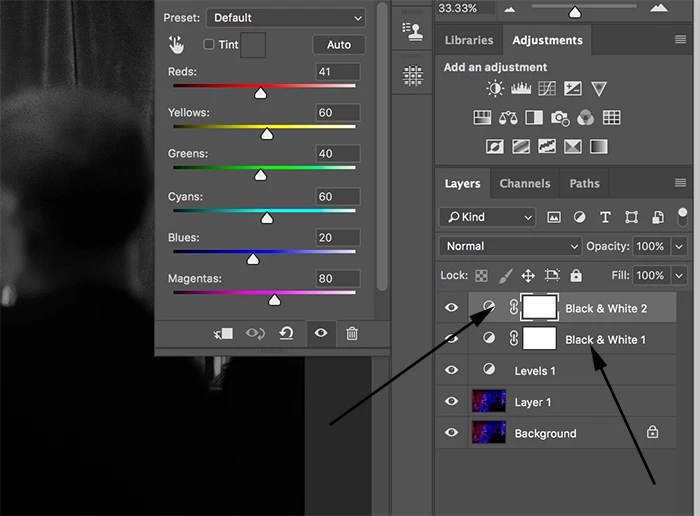
Any advice or help would be wonderful.

Paul.

This topic has been closed for replies.

2 replies

Trevor.Dennis
Community Expert
Community Expert
December 20, 2016

Adding to what Dave has told you, an easy way to get an exact opposite in the two Adjustment layer masks, is to Ctrl (Cmd) click the first mask > select the other mask, and Alt Backspace with black as the foreground colour to fill what becomes an inverted mask.

With ordinary layers that don't already have layer masks, after setting up the first mask, Shift Ctrl Alt (Shift Cmd Opt) drag the mask from the first layer to the second, to give you an inverted mask.

davescm
Community Expert
Community Expert
December 20, 2016

I have used one to change the image to black and white from color, but I would like to mask out part of a shadow which goes too dark.

I can't do this on the main B & W layer because the color image underneath will show though.

That is exactly what you have to do.

A mask on the first (i.e. the lower) layer lets the colour in that area through, where the maskt is black,  to the second layer so that you can convert that area with different settings. The settings on the upper layer will have no impact where the first layer has already converted.

Dave