Participant
February 21, 2018
Answered

adjust line drawings

  • February 21, 2018
  • 6 replies
  • 1088 views

I have a scan from a pencil drawing on grey drafting film. Any way to make that grey background white or transparent?

    This topic has been closed for replies.
    Correct answer Trevor.Dennis

    I am not a fan of Blend if.  It rarely produces nice results, even when splitting the sliders you tend to lose the antialiasing leading to nasty jaggies.

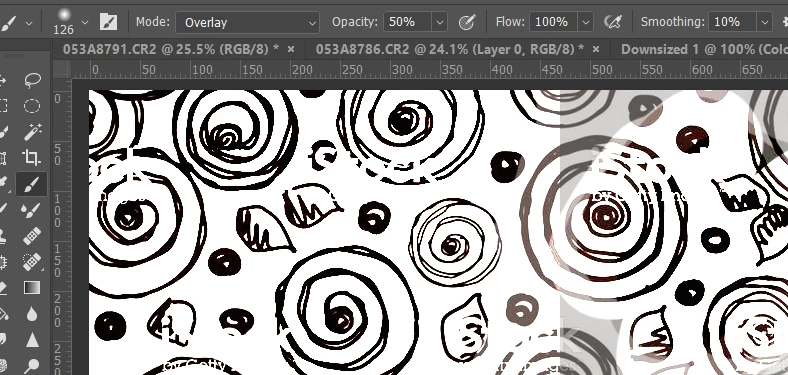
    My preferred method of tidying up after using curves or levels is to use the brush with it set to Overlay in the options bar (as below).  Then paint with white to bring up the whites, and black to harden up the blacks.  Note this needs black and white on the same layer, so you'd need to either merge the curve and design layers, or add a copy merged layer to the top of the stack with Shift Ctrl Alt E — which is how I would do it.  This is the usual method we use to clean up Alpha Channels and line art.
    6 replies

    Raimundo Illanes
    Inspiring
    February 22, 2018
    rayek.elfin
    Legend
    February 22, 2018

    https://forums.adobe.com/people/Raimundo+Illanes  wrote

    Did you try to use it with Adobe Capture Photo to vector converter app for iOS, Android | Adobe Capture CC

    How would that work? Capture will attempt to convert that subtle grey pencil work into vectors, and fail to capture the soft tones - completely unsuitable, and it would destroy the original artwork. Bitmap is the way to go here. Vector cannot work in this case.

    Aside from that mobile devices' cameras are incapable to catch all the subtle detail and tones anyway - even under ideal lightning conditions.

    rayek.elfin
    Legend
    February 21, 2018

    The simplest method for a high-quality result would be to use Krita's "Color to Alpha" function. Photoshop doesn't provide such a function directly, and it saves a lot of time. Very simple and effective too.

    Download Krita (open source and free) here: www.krita.org

    Open you scan, and use Filter-->Color-->Color to Alpha. Click on the grey you'd like to remove. Use the threshold slider to control the effect. Done.

    This will "unmultiply" the grey from the scan. Subtle pencil strokes are retained, even the whites of white pencil lines - unless the grey is exactly the same, of course. Then save the result as PSD and open in Photoshop for further processing. Convert the transparency to a layer mask (found in the layer menu) for further optimization.

    Works like a charm, and great results.

    rayek.elfin
    Legend
    February 22, 2018

    Example grey pencil on grey drafting film:

    Be very very careful when executing the second step (levels correction): avoid the auto correction: it will blow out the subtle shades. Do it manually per channel - consider converting the image to greyscale mode first to avoid colour shifts. You don't want to lose subtle tones later.

    This took two minutes. As I said, quick and effective.

    Also, if you have access to the original scan (which you seem to have) ensure to scan in 16bpc mode to pick up all the shades. The final result will be (much) better than an 8bit scan.

    RbertieAAuthor
    Participant
    February 21, 2018

    Part of the problem is that this is a pencil drawing on gray, and their simply isn't enough contrast. I can see the lines clearly on the drafting film (and on the digital scan) but blending doesn't seem to be the answer for this, as it reduces visibility of the line art.

    The overlay option looks possible, but I would need more step by step to really understand the process (clearly I am not an advanced user).

    February 21, 2018

    Addition:

    You can use the layer style blending options:

    More about this tool here: Layer opacity and blending modes in Adobe Photoshop in the section "Specify a tonal range for blending layers"

    Fenja

    JonathanArias
    Legend
    February 21, 2018

    you can adjust your blending modes to pull the whites/grays out, like this:

    also, why not live trace it on illustrator?

    Trevor.Dennis
    Community Expert
    Community Expert
    February 21, 2018

    A nice steep curves layer will do it

    Trevor.Dennis
    Community Expert
    Trevor.DennisCommunity ExpertCorrect answer
    Community Expert
    February 21, 2018

    I am not a fan of Blend if.  It rarely produces nice results, even when splitting the sliders you tend to lose the antialiasing leading to nasty jaggies.

    My preferred method of tidying up after using curves or levels is to use the brush with it set to Overlay in the options bar (as below).  Then paint with white to bring up the whites, and black to harden up the blacks.  Note this needs black and white on the same layer, so you'd need to either merge the curve and design layers, or add a copy merged layer to the top of the stack with Shift Ctrl Alt E — which is how I would do it.  This is the usual method we use to clean up Alpha Channels and line art.