PyxelMxr
Participating Frequently
January 31, 2020
Answered

Adjusting brush preview icon sizes in Photoshop

  • January 31, 2020
  • 3 replies
  • 4477 views

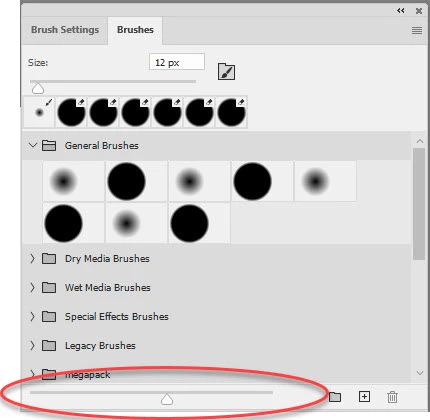
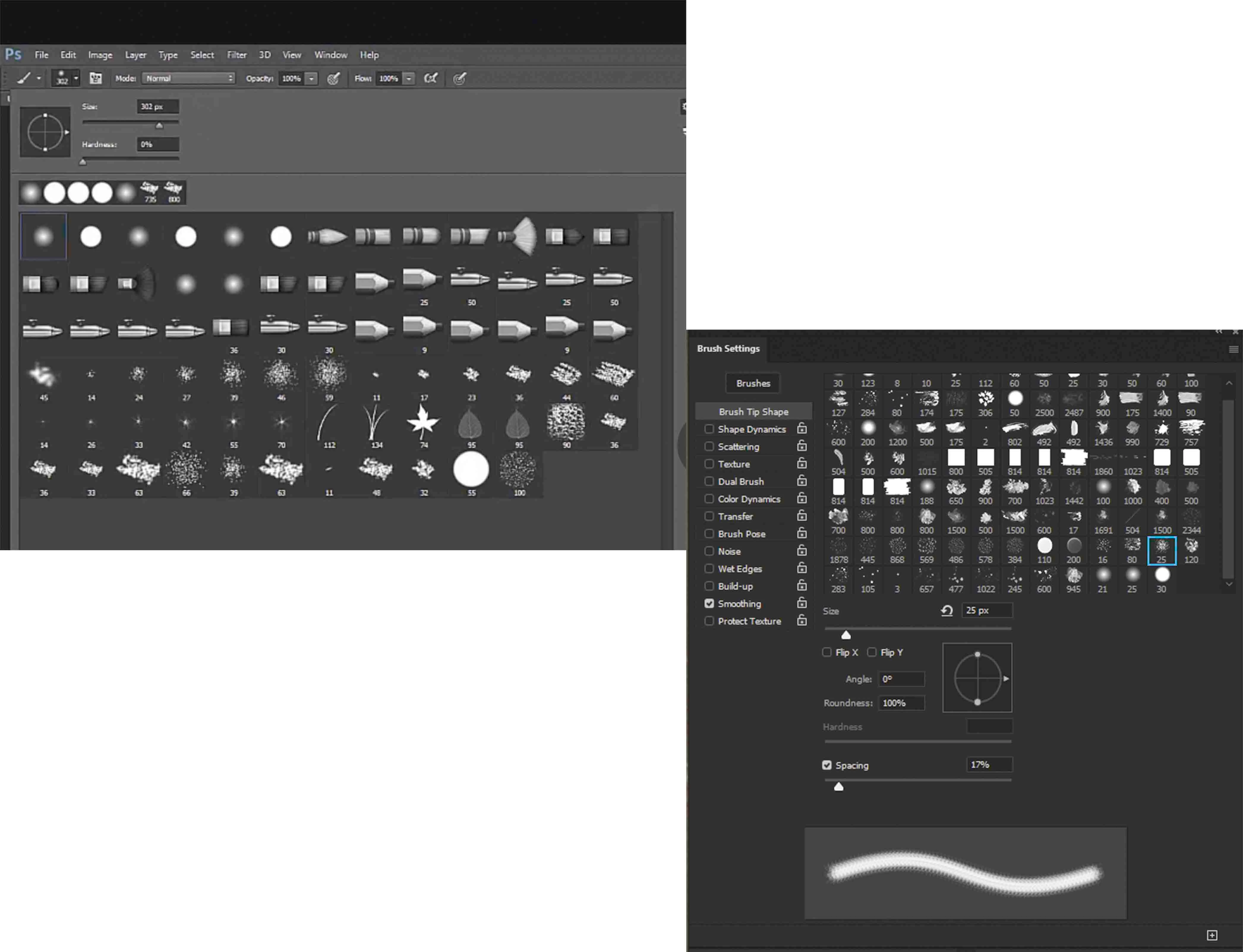
Hello and thanks very much for viewing my post, HOPEFULLY, someone can help me resolve what should be a simple issue.I am using Photoshop Version: 21.0.3 20200115.r.91 2020/01/15 and my issue is tied to brushes. I do not see where I can adjust the size of the brush icons like they are seen in the image on the LEFT. My icons are on the RIGHT and they are simply too small for me.


Please share where I need to go to make teh adjustment, I have looked EVERYWHERE!!


Thanks
Correct answer davescm

On the brushes panel you can adjust the preview size , using the slider at the bottom of the panel


On the brush settings panel you cannot


Dave

3 replies

davescm
Community Expert
Community Expert
February 1, 2020

A quick on line search turned up this example which I like even better. Put your finger over the join between them and you will see that blocks A and B are the same shade of grey.

Funny things eyes and brains 🙂

Dave

davescm
Community Expert
Community Expert
February 1, 2020

The order of replies in this thread is all over the place and a prime example of why nested replies in this forum should go !


On the eye-brain adaptation subject, the centre squares in the cube are identically coloured, measure them and you'll see . They don't look it though.


Dave

jane-e
Community Expert
Community Expert
January 31, 2020

Hi

You have two different panels open. The one on the left that you chose from the options bar is the Brushes panel.


Here is the Brush Settings panel with the panel menu open. Neither panel menu has an option to change the size of the brush.


 You can make a feature request here: https://feedback.photoshop.com/photoshop_family or you can change the resolution of your monitor.


~ Jane

c.pfaffenbichler
Community Expert
Community Expert
January 31, 2020

And the comparison of the screenshots the two of you posted brings another issue to mind: 

Unless one works for video/movies Photoshop’s dark Color Themes are not the right choice. 

jane-e
Community Expert
Community Expert
January 31, 2020

Why is that, C_P?