
oeunoia
Participant
July 3, 2021
Answered

Adjustment layer incorrectly exporting - exported image looks different to image in workspace

  • July 3, 2021
  • 1 reply
  • 2166 views

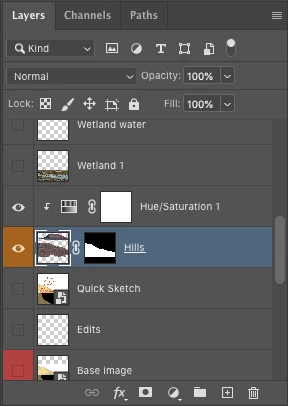
I am having difficulties exporting my work in that the resulting exported image is different to the image in the workspace.  Specifically, the problem is with a particular layer that is composed of a clipping mask with an associated colorized Hue/Saturation layer at 50% opacity - please see this image:
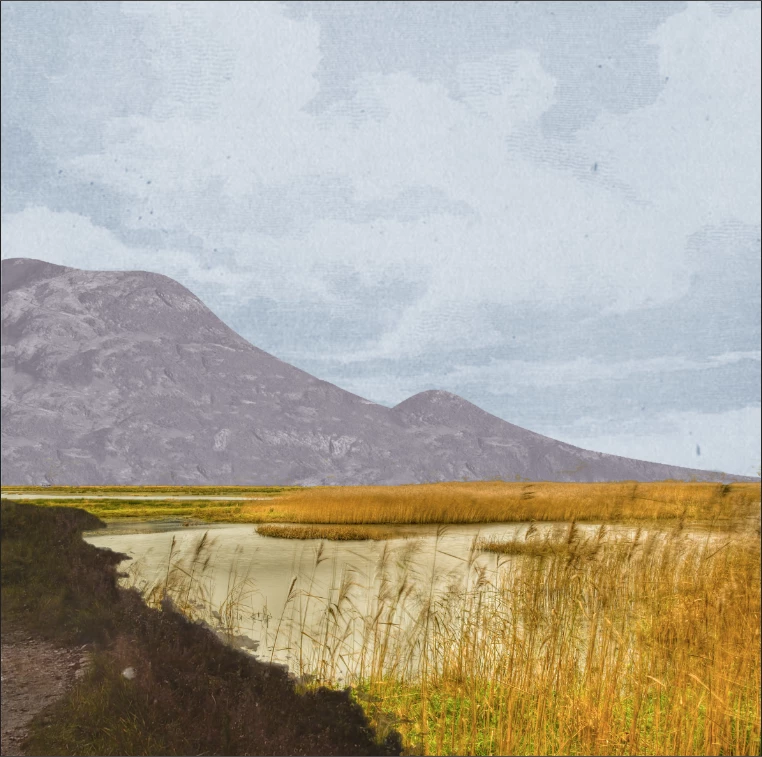
^ this is the work as it appears in the workspace.  The layer in question is the hills in the background of the image: in the workspace they are a purple mauve colour.  However, when I export, the hills layer changes colour to a blue colour:
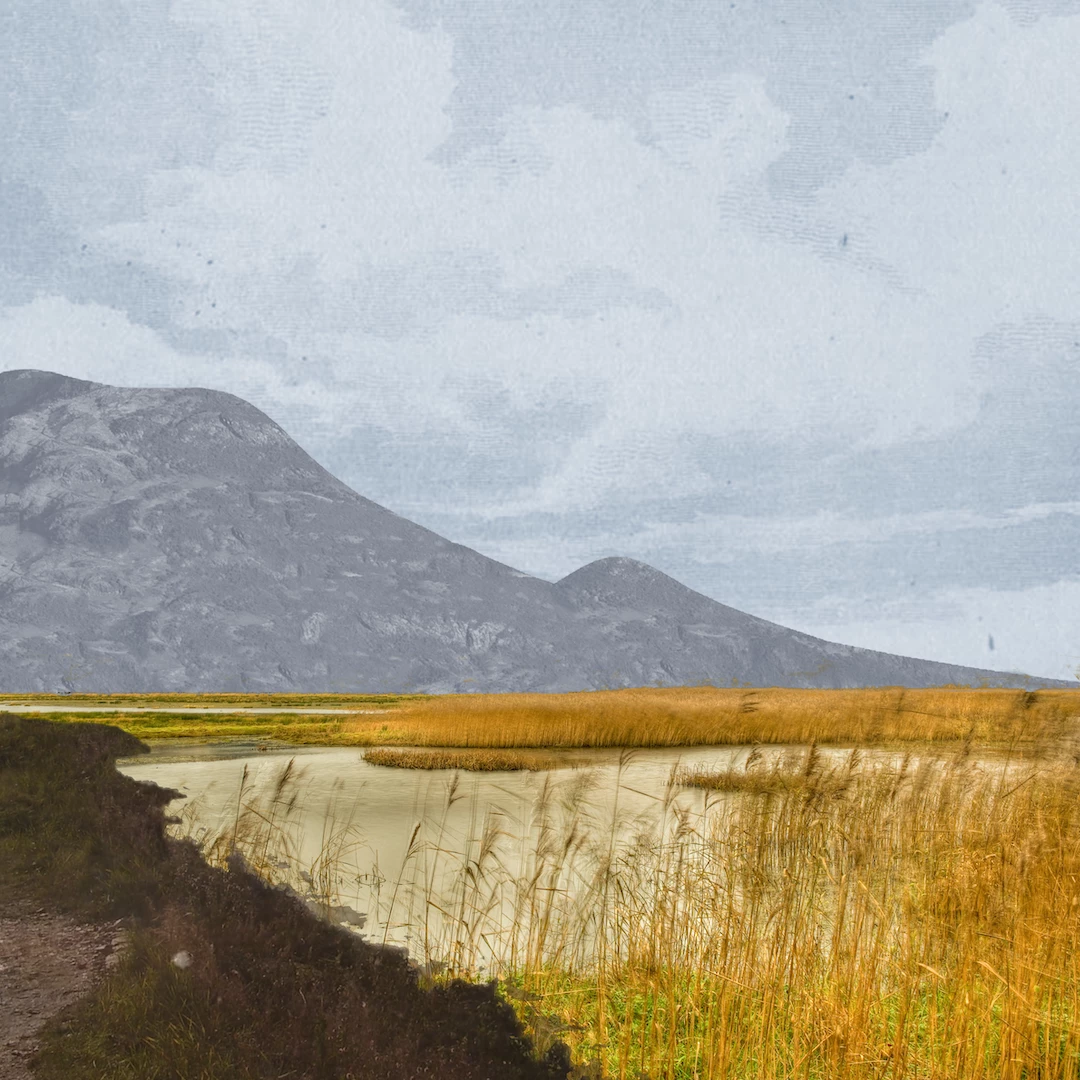
^ this is the resulting exported image with the incorrect coloration.  Does anyone have any idea why this is happening?

For reference, here are screenshots of my exporting options (notice how in the 'Export As' dialogue box the hills are the wrong colour) -
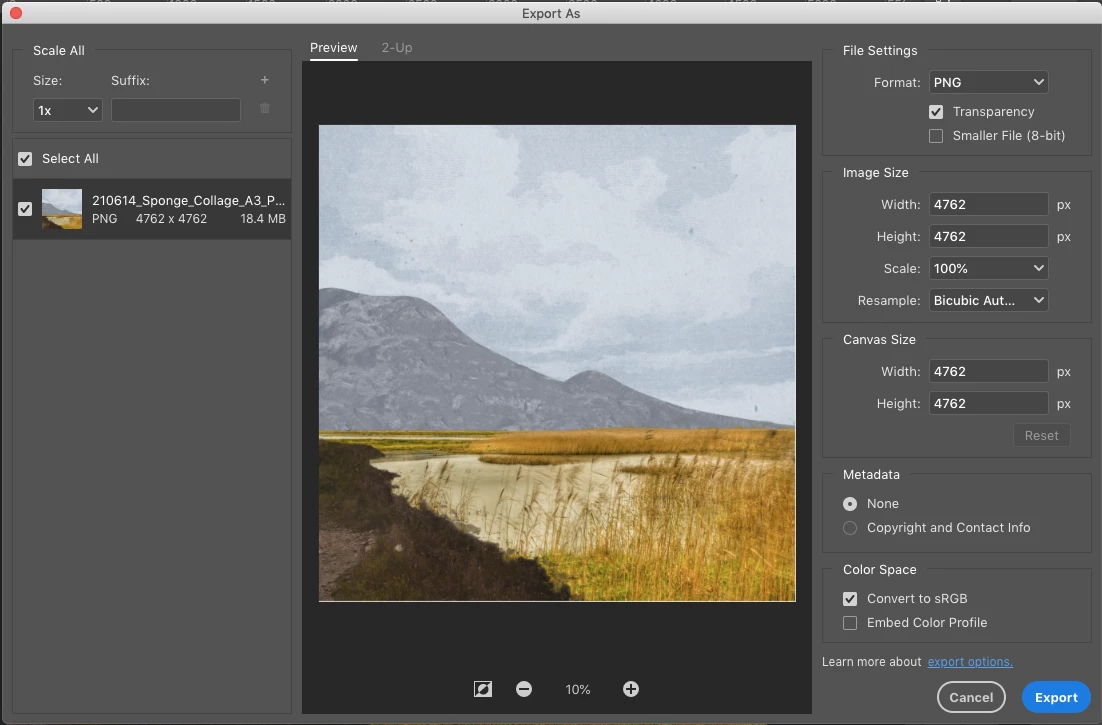
^PNG
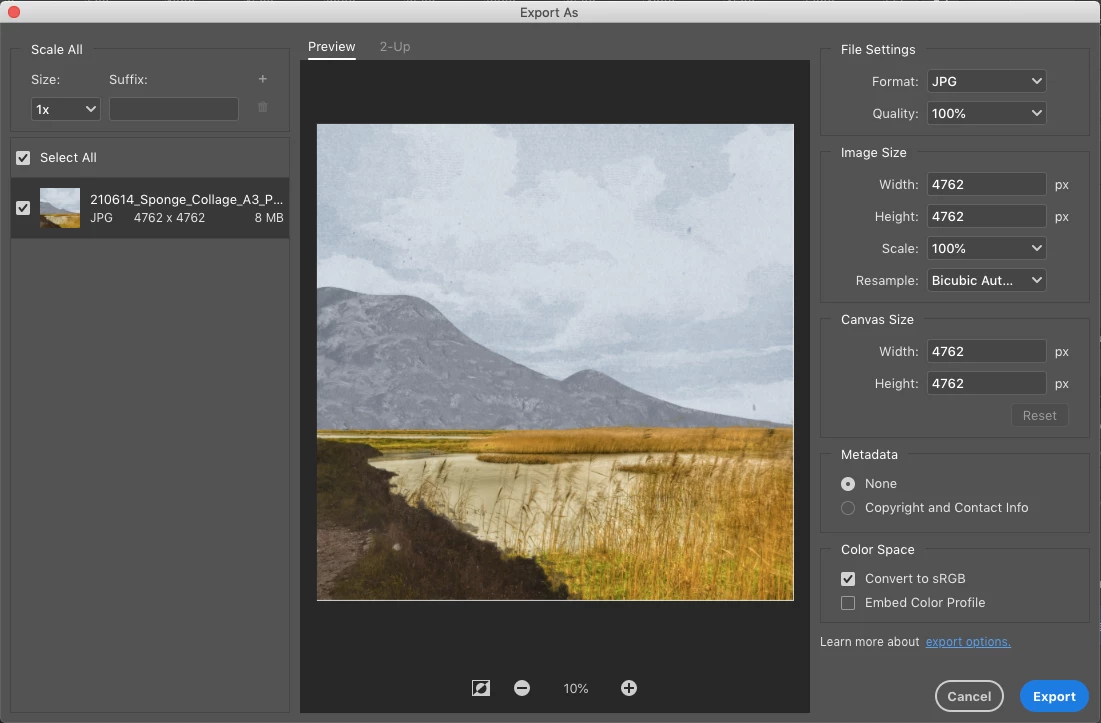
^ JPEG 


If I do 'Quick Export as PNG' I get the same problem.


Here is a screenshot of the layer:
Any help would be greatly appreciated.


I am using Photoshop 2021 and these are the specs of my laptop:


MacBook Air (13-inch, Early 2015)

Processor: 1.6 GHz Intel Core i5

Memory: 4 GB 1600 MHz DDR3

Graphics: Intel HD Graphics 6000 1536 MB


This topic has been closed for replies.
Correct answer c.pfaffenbichler

Exporting png or jpg necessitates merging the Layers because those formats only support one Layer. 

So unless @D Fosse ’s advice already solved the issue please post screenshots taken at View > 100% before and after flattening the image. 

1 reply

c.pfaffenbichler
Community Expert
Community Expert
July 3, 2021

Could you please post screenshots from before and after flattening the image taken at View > 100% with the pertinent Panels (Toolbar, Layers, Channels, Options Bar, …) visible? 

oeunoia
oeunoiaAuthor
Participant
July 3, 2021

Hello @c.pfaffenbichler, hope you are well and thank you for your response.


Here is a screenshot with all the panels with the view at 100%:


Sorry, what do you mean by flattening the image?

Also, I have been working on the image since my initial post, and this is how the image is now appearing in the 'Export As...' dialogue box:

^ now a different layer seems to be affected by the same problem.

c.pfaffenbichler
Community Expert
c.pfaffenbichlerCommunity ExpertCorrect answer
Community Expert
July 3, 2021

Exporting png or jpg necessitates merging the Layers because those formats only support one Layer. 

So unless @D Fosse ’s advice already solved the issue please post screenshots taken at View > 100% before and after flattening the image.