
Participant
July 7, 2021
Answered

Align the center of two objects, but only one object is shifted.

  • July 7, 2021
  • 2 replies
  • 2483 views

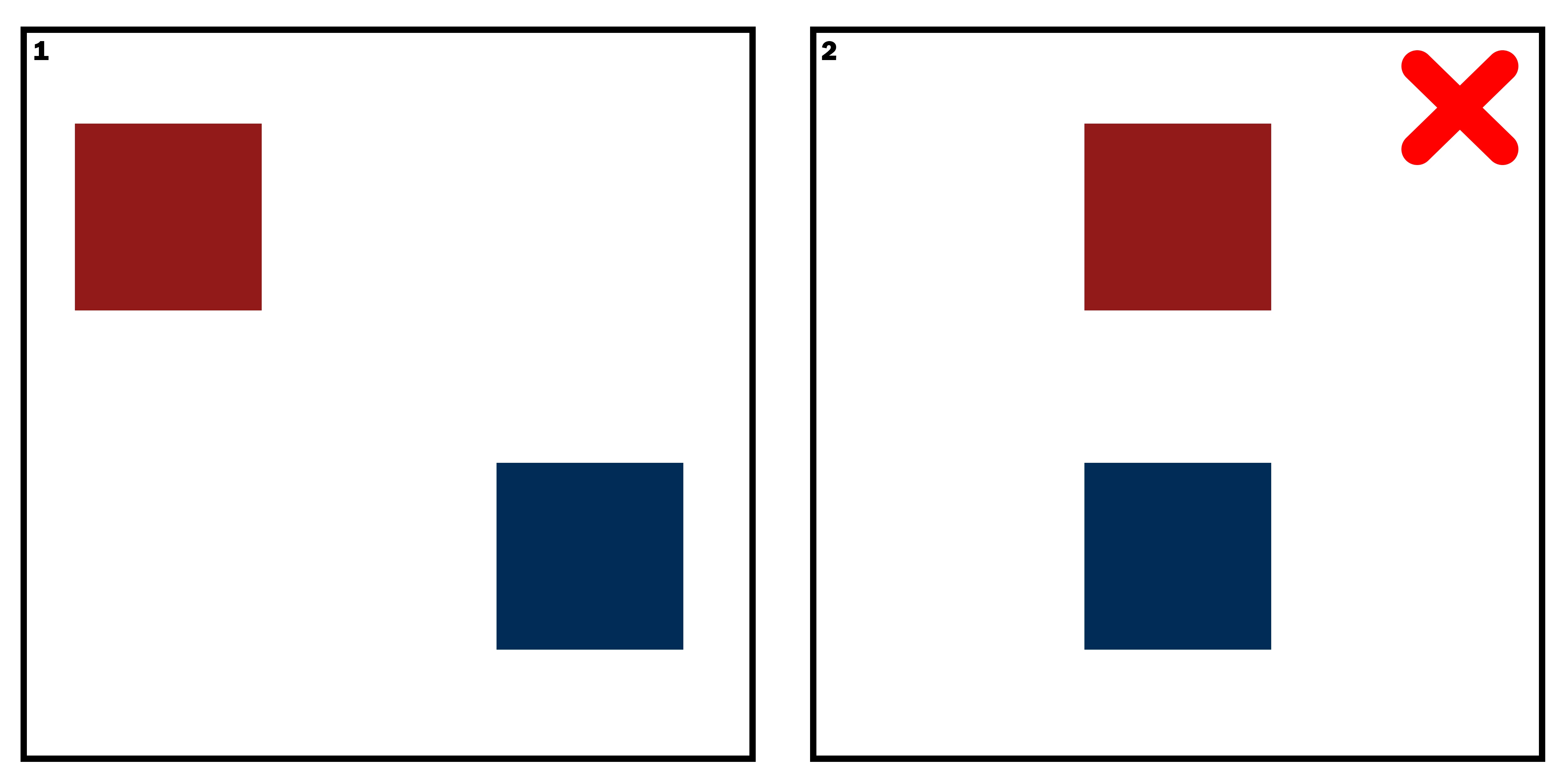
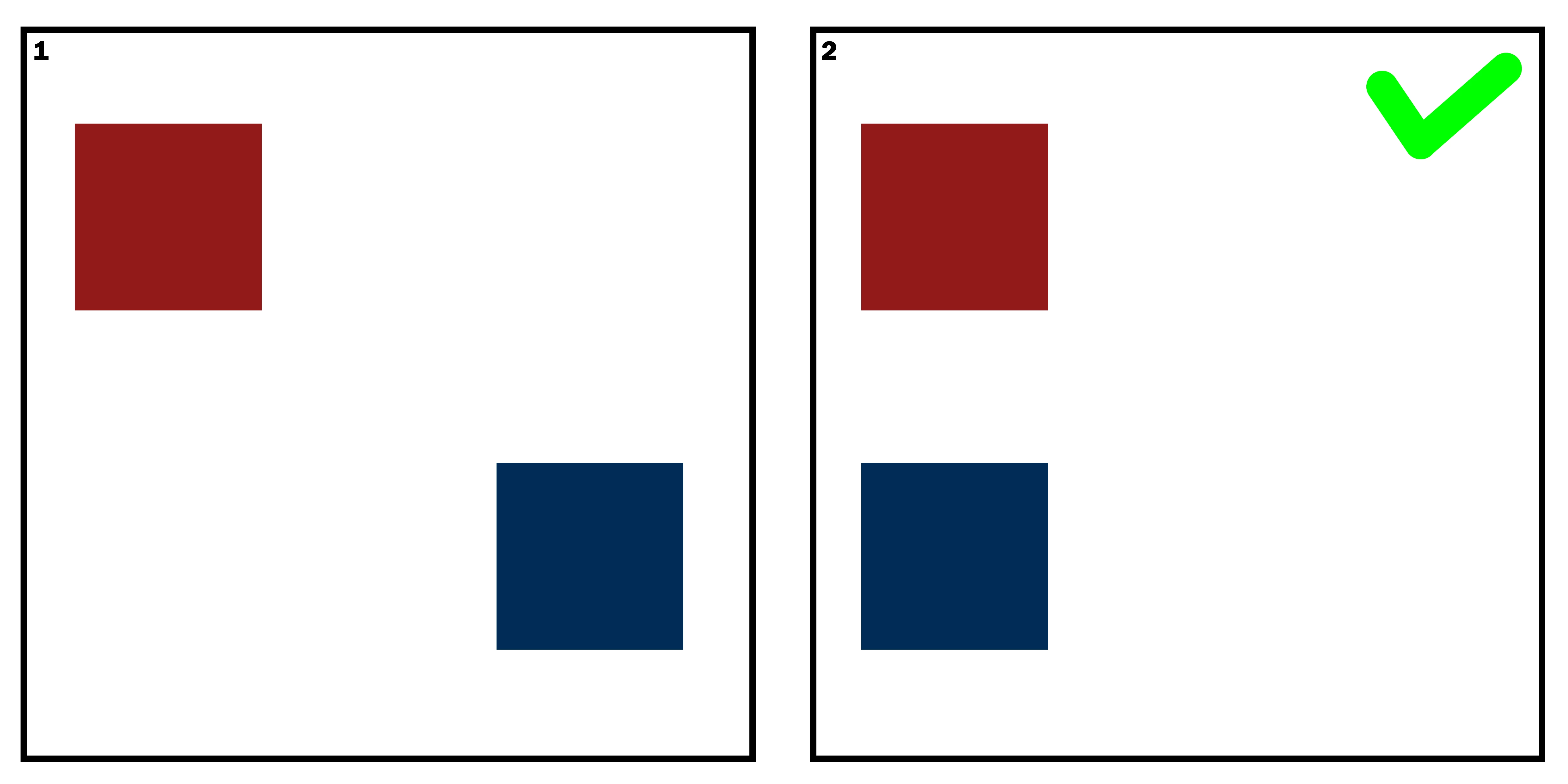
Help me please. How to align center of one object relative to another without moving the second object? When I click Align Center, both objects are offset, but I only need to offset one. I will send you two images of what i mean:

The red square remains in place, and the blue square is aligned to the center of the red square. Red square should not move. Thanks in advance!
This topic has been closed for replies.
Correct answer Trevor.Dennis

Goodness that works.  Nice one.


So in case you are not getting what c.p. is saying, simply Ctrl click the red square layer icon to load it as a selection, and then use the alighn tools.

2 replies

Trevor.Dennis
Community Expert
Community Expert
July 7, 2021

I am not sure if that is even possible with the Align tools.  The way I do it is to have Smart Guides turned on, and View > Snap to Guides checked, and use that.  If you hold down the Shift key it will force the moved object to remain on the horizontal or vertical, so you wait till the pink line appear and it's job done.

anykittenAuthor
Participant
July 7, 2021

Thank you, my friend!

c.pfaffenbichler
Community Expert
Community Expert
July 7, 2021

You could load the red square’s transparency as a Selection before aligning. 

Trevor.Dennis
Community Expert
Trevor.DennisCommunity ExpertCorrect answer
Community Expert
July 7, 2021

Goodness that works.  Nice one.


So in case you are not getting what c.p. is saying, simply Ctrl click the red square layer icon to load it as a selection, and then use the alighn tools.

anykittenAuthor
Participant
July 7, 2021

Oh, I get it, thank you again!