
Participant
January 16, 2020
Answered

Alpha channel used to display with red overlay - not in 21.0.2?

  • January 16, 2020
  • 5 replies
  • 4028 views

Hey guys,


In Photoshop 21.0.2. when creating an alpha channel, it used to display in red when setting the channel to visible and going back into the layers tab. This just seems to be gone or does not work anymore? Is this by design? I would like to see the alpha channel that I created applied to the RGB channels or at least get a preview as it used to be in previous Photoshop versions. What am I doing wrong? Is there any setting? This used to work out of the box in previous versions


Thanks in advance
This topic has been closed for replies.
Correct answer c.pfaffenbichler

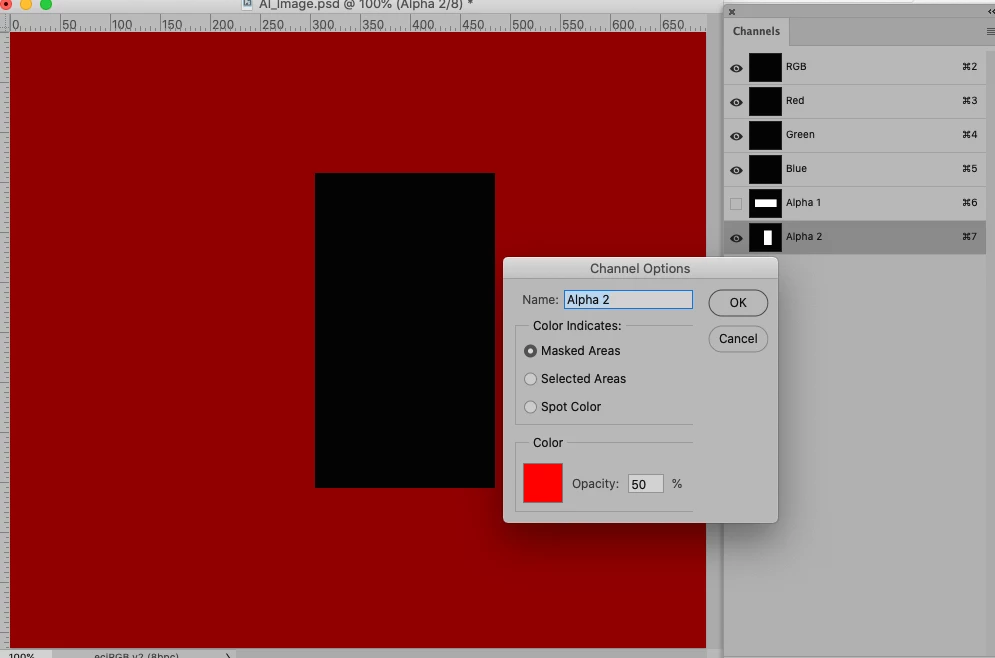
And to change the Display Color double-click beside the Channel’s name in the Channels Panel. 

5 replies

jane-e
Community Expert
Community Expert
January 16, 2020

"when setting the channel to visible and going back into the layers tab."


As others have said:

  • Enable visibilty for the RGB channels as well as for your Alpha Channel.

In addition:

  • Confirm which Channel you have selected (important). Note that c_p has the "Alpha 2" selected. You might want to have the RGB composite selected instead, depending on what you are going to do next.

Tip:

  • Pull your Layers panel away so you can see both Layers and Channels at the same time instead of "going back into the Layers tab" and only looking at one of these panels at a time.


~ Jane

c.pfaffenbichler
Community Expert
Community Expert
January 16, 2020

Good point, one needs to keep track of which ones of the visible Channels one actually wants to edit. 

jane-e
Community Expert
Community Expert
January 16, 2020

Thanks — I know that everyone who has replied knows to do this automatically, but over the years I've seen a lot of folks get in trouble on this one.

Participating Frequently
January 16, 2020

These features are available as well in Photoshop 21.0.2.

You need to turn these features on this version to use it.

Turn on the visibility of the Alpha channel as well as RGB to see the desired effects.

davescm
Community Expert
Community Expert
January 16, 2020

Turn on visibility of  RGB as well as the Alpha channel and you will see the channel as an overlay

Dave

c.pfaffenbichler
Community Expert
c.pfaffenbichlerCommunity ExpertCorrect answer
Community Expert
January 16, 2020

And to change the Display Color double-click beside the Channel’s name in the Channels Panel. 

GuyGoodAuthor
Participant
January 17, 2020

Ah thanks! I missed to check the channel options because I never change those in the first place. Was set to zero opacity after the update.  🙂 Great that ths is an easy fix

c.pfaffenbichler
Community Expert
Community Expert
January 16, 2020

Please post a meaningful screenahot including Layers adn Channels Panel. 

Did you click the visibility-field for the Channel in the Channels Panel?