
davidg16137480
Participant
November 12, 2017
Answered

Alt+Right Click to resize brush and other keybinds not working since 2018 update

  • November 12, 2017
  • 9 replies
  • 14261 views

Normally Alt+Right Click allows me to drag with my pen so that I can resize my brushes on the fly. Ever since I updated to Photoshop 2018 about two weeks ago, however, I have had problems with this particular keybind.

Right now, the normal red icon will flash for a single frame before it is replaced with the color selection tool (normally Alt+Left Click). Right clicking with my tablet pen works as normal.

I have also noticed frequent issues with other keybinds that make use of the Alt key, such as Ctrl+Alt+Z for undo and Ctrl+Alt+G to create a clipping mask. While it doesn't behave differently, it does have a significant lag when pressed and often needs to be used two or three times to actually take effect.

Outside of Photoshop all of my keys, tablet pen, and mouse work as normal. The only solution I've been able to come up with is to disable Windows Ink in my tablet settings, but this means I don't have pressure sensitivity, which is an even bigger headache. This issue has been slowing me down severely, and I haven't been able to make any significant progress recently. Is anyone else encountering these problems, and is there a solution?

I am using a Wacom Intuos with Windows 10, if that helps.
This topic has been closed for replies.
Correct answer mihaij57623063

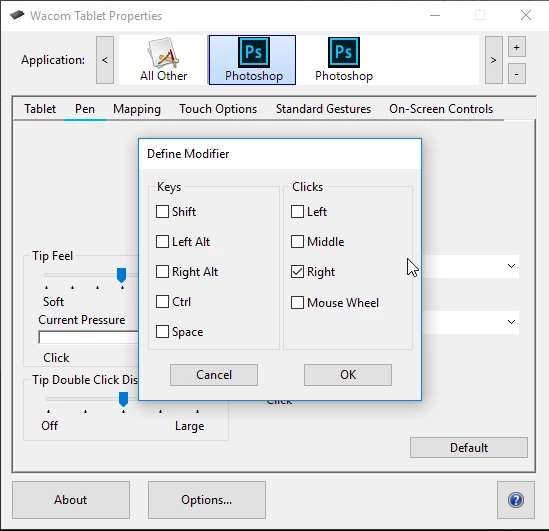
I finally fixed it! You have to check only in upper button >Modifier>Click>Right
It worked for me.

9 replies

dougamebook
Participating Frequently
September 18, 2018

YOU ARE A GOD!

Participating Frequently
May 29, 2018

Couldn´t fix it with the trick shown above... Realy terrible how Adobe acts with professional users. Instead of making sure it works with wacom they put in videos and other performance killing stuff for beginners.. Sad direction where this thing is heading..

JJMack
Community Expert
Community Expert
May 29, 2018

Supply pertinent information for quicker answers

  • The more information you supply about your situation, the better equipped other community members will be to answer. Consider including the following in your question:
  • Adobe product and version number
  • Operating system and version number
  • The full text of any error message(s)
  • What you were doing when the problem occurred
  • Screenshots of the problem
  • Computer hardware, such as CPU; GPU; amount of RAM; etc.
JJMack
AndyAtPBZinc
Known Participant
February 12, 2018

Ok... tried this (although mihaij... screen capture obscures what the setup actually is...) and it does not work for me.

Context: Latest Win10, latest Ps CC (19.1.0) and updated Wacom drivers for Intuos5 touch. (6.3.27-2)

Now I do have something working that is similar to what I had before: If I hold the Alt key and then right click my lower pen key BUT don't touch the pad, I can change the Size and Opacity by moving pen in air... But that's not what I want. I want Size and Hardness via Alt+Right Click and drag on pad.

I've also tried the fix here:Alt-right click-drag: brush adjust not working in CC 2018   This too does not work.

Finally, here's a capture of my Wacom Desktop Center>Pen Settings showing what I think is mihaij... 's recommendation.

(And under Mapping,  Use Windows Ink is unchecked)

What am I missing or not doing that would solve this and bring back the functionality I had before? Any help is appreciated. Thanks

AndyAtPBZinc
Known Participant
February 13, 2018

Update... I added the PSUserConfig.txt to the Adobe Photoshop CC 2018 Settings folder - AND - In Wacom...>Pen Settings (my previous screen shot) I changed upper and lower buttons to previous settings (upper --> Double Click and lower --> Right Click) and then went into Options... Changed/checked Hover Click to Click & Tap.

Now an Alt+Right Click(lower button on pen) drag does give me changing the brush Diameter/Size and Opacity...  But I don't want Opacity; I want Hardness. Not sure how to get that back.... Has anyone made progress with these issues? Thanks for any help.

JJMack
Community Expert
Community Expert
February 13, 2018

I seem to remember version of Photoshop doing size and hardness now in cc 2018 it seems to do size and opacity like you wrote.  You can set one or you touch ring controls to hardness and control size and opacity with the pen and hardness with the touch ring.  I do not remember seeing Adobe documented that change in operation.  Adobe documentation is often not up to date.

I know Adobe made some change in 19.1 it stated hardness but that is not what you and I see. It may be a new Bug....

January 2018 (version 19.1) release

JJMack
phooka_ob
Participant
February 11, 2018

Hero!!

Participant
December 16, 2017

great job man

Afirmative is working

roxannem25859756
Participant
December 6, 2017

Modifier - Right Click worked for me! So happy!

mihaij57623063Correct answer
Inspiring
November 18, 2017

I finally fixed it! You have to check only in upper button >Modifier>Click>Right
It worked for me.

Inspiring
November 17, 2017

I have the exact same problem. Wacom support suggested me to redifine the upper button as "alt" instead of "right click" . I find their answer absolutely useless. waiting for their reply again.

Inspiring
November 17, 2017

The same problem in CC 2017. So i suppose the problem is caused by windows 10 update, not photoshop. Also if i click and drag it doesn't select text in browser.

JJMack
Community Expert
Community Expert
November 12, 2017

Ther are problem reports the hab been acknpowledged with the Alt key reported in Photoshop CC 2018.  However,I do not have a problem using Windows 10 CC 2018 and a Wacom Intuos Pro use Alt+Bottom Rocket switch(Right Click) and dragging Left/Right and Up/Down to change  Brush tips Size and hardness.  I have configured  Photoshop to use wintab API rather then Adobe Default to use Microsoft INK API by adding the text file "PSUserConfig.txt" to my user ID CC 2018 Preferences.

And in Wacom Preferences for Photoshop uncheck in Pen Mapping use Microsoft Windows INK

Here is a screen capture.

JJMack
davidg16137480
Participant
November 12, 2017

I've tried this already, but Wintab wouldn't give me pressure sensitivity.

I also tried reverting, but the same issue is happening in PS 2017. I think Microsoft may have changed the behavior of the Alt key in their co-called 'Creator's Update' without telling anyone, and combined with the bugs in 2018 it's creating a royal mess.

Edit: After doing some digging, it appears that this issue is almost certainly related to the Windows 10 Fall Creators Update. There were updates to Windows Ink that weren't announced particularly well, and my best guess is CC 2018 wasn't built with these changes in mind. With any hope either Adobe or Microsoft will take notice and fix this. Until then, I can't actually do anything.

JJMack
Community Expert
Community Expert
November 12, 2017

I do not have that problem.

JJMack