christies6133462
Participant
February 7, 2019
Answered

Anchor/Origin point doesn't work in new transform (2019)

  • February 7, 2019
  • 1 reply
  • 2434 views

Its well documented that the new transform feature is frustrating a lot of people, but I haven't seen much discussion around this specific issue. I understand how to transform proportionally and non-proportionally with the new PS, but the anchor point seems to be just for show now. The anchor point doesn't work. For my work I need to be able to overlay two objects and transform one to match the other. I used to line up a specific point, set my anchor point there, and then transform the second object to match the other. Now I set my anchor point and transform but it never transforms around the anchor point. I have to now do this dance of scaling a little, then nudging the second object back into place. Scale and nudge, scale and nudge. This is wasting a lot of my time. Does anyone have any fixes? Reverting to old versions is not practical for my work flow. I need a fix for PS 2019. Please help!
This topic has been closed for replies.
Correct answer Daniel E Lane

Hello there. I just figured it out. It is no longer working as far as I can tell, if when you are in transform, you just click and drag on a corner. But it does at other times.

First, you need to make sure the center point is turned on with the check box in the upper left corner. When you check it, you will see the center point of the grid next to it highlight and you will have the floating center point dead center on your image.

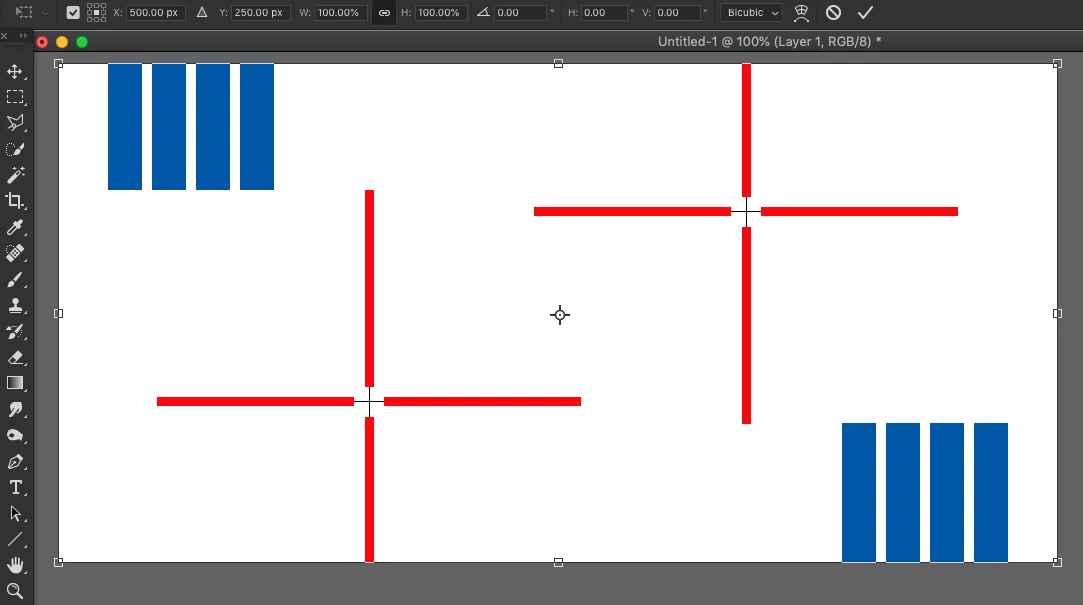
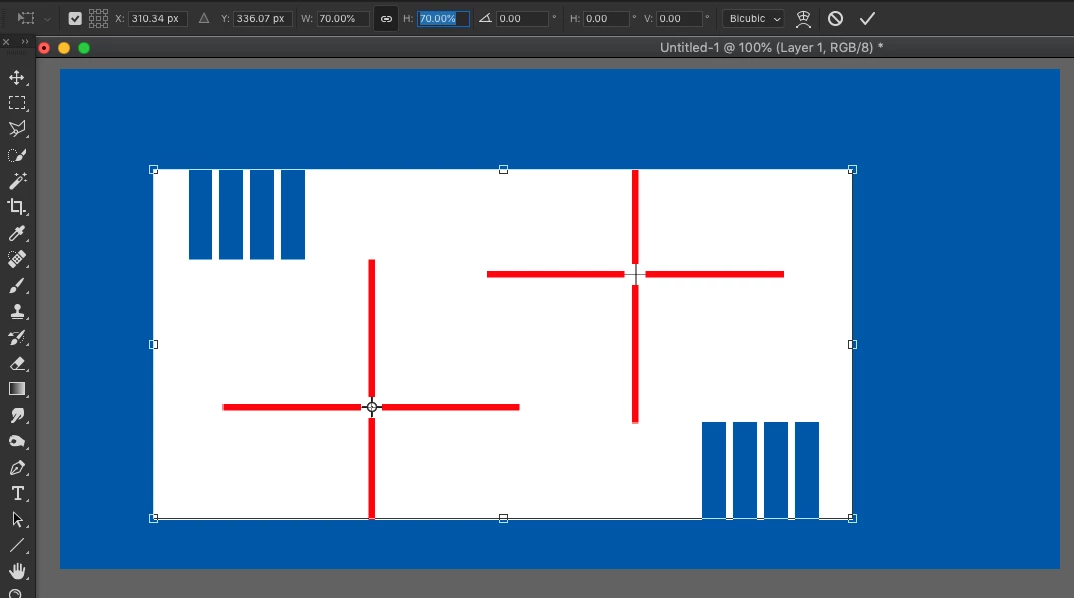
In this example, I moved the center point into the center of the red cross hairs on the left. Then, instead of using the corner points, I used the numbers up on the top and the scaling followed the center point exactly. No matter where you put it, as long as you use the number boxes on the top, it will always follow that center point.

Though you can use the corner controls to do rotation around the floating center point.

I hpe that helps you with your projects.

1 reply

Daniel E Lane
Daniel E LaneCorrect answer
Inspiring
February 8, 2019

Hello there. I just figured it out. It is no longer working as far as I can tell, if when you are in transform, you just click and drag on a corner. But it does at other times.

First, you need to make sure the center point is turned on with the check box in the upper left corner. When you check it, you will see the center point of the grid next to it highlight and you will have the floating center point dead center on your image.

In this example, I moved the center point into the center of the red cross hairs on the left. Then, instead of using the corner points, I used the numbers up on the top and the scaling followed the center point exactly. No matter where you put it, as long as you use the number boxes on the top, it will always follow that center point.

Though you can use the corner controls to do rotation around the floating center point.

I hpe that helps you with your projects.

christies6133462
Participant
February 8, 2019

Thank you Daniel very much for this information. This is at least some kind of work around, and transform will once again be functional, which is a great relief.

To the rest of the Adobe community: while this is technically correct, it is still unsatisfying as it will change my work flow. Does anyone know how to get a hold of Adobe? I don't know why they decided that this change was a good idea. When you have to visually scale different objects, what is the point of having corner points if they do not function? I would very much like an explanation and a chance to talk to Adobe about this.

Does anyone know of any way to make the corner features work with the anchor points? Thank you!!!!