VisualDigits
Inspiring
November 17, 2019
Answered

Annoyance when using a Wacom Tablet

  • November 17, 2019
  • 2 replies
  • 532 views

Hi out there,

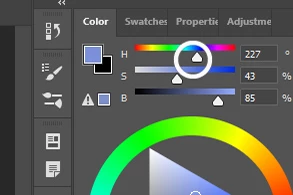
today I stumbled upon a little annoyance when using a Wacom Tablet (Bamboo) in Photoshop 2020 (Windows 10 Pro 64bit) - see screenshot below.

This only happens in Photoshop and in no other Application:

When I click somewhere in a slider a white circle overlay shows up for a short time and then the handle is not moved. When I use the Mouse instead this also does not happen.

Back on Windows 7 I did not have that issue. I already disabled visual effects and Windows Ink.

I cannot find any setting for this.

Has anybody an idea how to fix this?


Thanks,

Stephan


This topic has been closed for replies.
Correct answer VisualDigits

Hello,


now I found the solution myself after digging a bit into the Wacom settings. For the case someone has the same issue I post it here.

The circle appears when you click and hold the pentip for a few moments (also everywhere else).

You find the setting in question deep in the Wacom Settings.

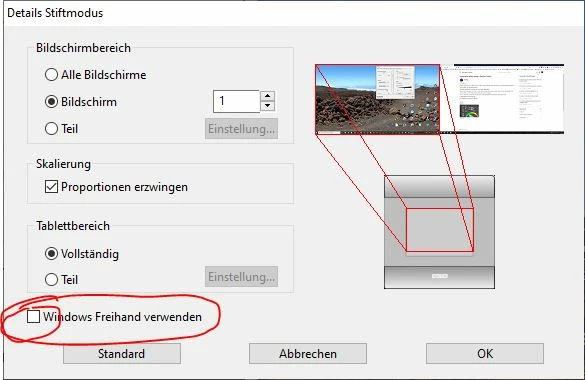
In the Pen Tab click on the Projection Button on the right hand side. In the dialog you find the checkbox at the bottom (see screenshot below - sorry german version) Uncheck the "Use Windows freehand" or so.


2 replies

Participating Frequently
September 5, 2024

in 2024 we have the same problem.
Adobe? When you finnaly fix this???
It is such a paint to paint somehting in Substance painter. 
So bad feeling with wacom pen and your app. Right click white circle always appears on the top!

VisualDigits
VisualDigitsAuthorCorrect answer
Inspiring
November 17, 2019

Hello,


now I found the solution myself after digging a bit into the Wacom settings. For the case someone has the same issue I post it here.

The circle appears when you click and hold the pentip for a few moments (also everywhere else).

You find the setting in question deep in the Wacom Settings.

In the Pen Tab click on the Projection Button on the right hand side. In the dialog you find the checkbox at the bottom (see screenshot below - sorry german version) Uncheck the "Use Windows freehand" or so.