
Horshack
Legend
February 23, 2018
Answered

Any way to set 'Load channel as selection' luminance threshold?

  • February 23, 2018
  • 2 replies
  • 1935 views

I can't find detailed documentation on the 'Load channel as selection' function in terms of the selection criteria. After some trial and error I determined it only selects pixels for a given color channel whose luminance values are equal to or above middle gray, ie >= 128 for an 8-bit image. For example if I have a layer with the following raster image, where each row has text whose color is equal to the value displayed (red 255 = RGB of 255,0,0 and red 127 = RGB of 127,0,0, etc..):
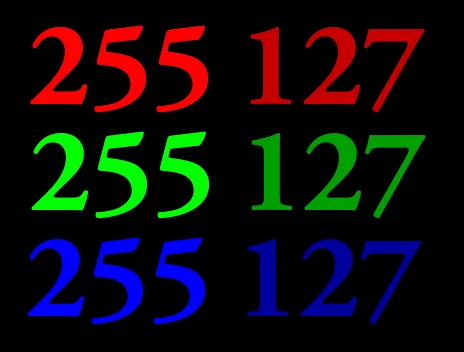
And then Ctrl-click the red channel of the layer to load the channel as the selection, only the red '255' will be selected. The red '127' will not. If I change the RGB of the red '127' text to 128,0,0 then it will be included in the selection.

What I'd like is the ability to select every pixel in the channel that has a non-zero value. I'm currently accomplishing this by using a levels adjustment against the channel in quick mask mode and setting the white point - I was wondering if there's a way to set the threshold for the 'Load channel as selection', which would be much faster.
This topic has been closed for replies.
Correct answer D Fosse

This is a very interesting question that actually reveals some of the inner workings of Photoshop. You wouldn't believe it, but the mechanics of color management lurks behind the curtains here, and is responsible for the results you see.

But first of all - there's no "threshold" here. You need to let that idea go, it doesn't work like that. A luminosity selection is the full image data where lighter is more selected, darker is less selected. It's gradual.

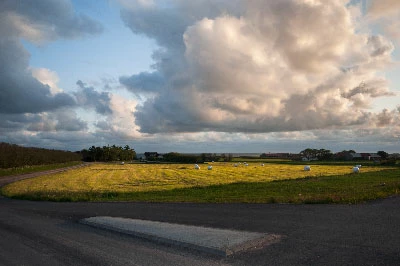
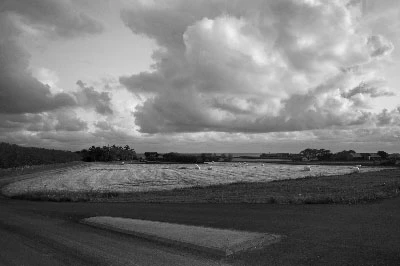
A luminosity selection from this image -

- actually looks like this:

That's the selection. The marching ants is just a 50% boundary line.

But there's more to it. When you make a luminosity selection from the RGB channel, you don't get the composite RGB data. You get the Lab L channel. That's not the same thing, because the Lab model accounts for a color's inherent lightness: A yellow-green color is inherently light, a blue color is inherently dark. So the yellow-green is more selected than the blue.

The reason this is so, is that it's a mode change, a profile conversion from the document's RGB profile to a grayscale profile. And profile conversions always go through Lab.

And it doesn't stop there. Individual color channels are represented according to your working gray. So, a selection from a single channel will look different depending on what your working gray is set to. In this case, single channels, a straight conversion is not possible because it's only partial data, not the full set. So here, the working gray profile is simply assigned.

2 replies

Horshack
HorshackAuthor
Legend
February 23, 2018

I also noticed that if I load a selection from the RGB channel, it excludes blue pixels from the selection. Here is the resulting layer mask from Shift-clicking the RGB channel:

D Fosse
Community Expert
D FosseCommunity ExpertCorrect answer
Community Expert
February 23, 2018

This is a very interesting question that actually reveals some of the inner workings of Photoshop. You wouldn't believe it, but the mechanics of color management lurks behind the curtains here, and is responsible for the results you see.

But first of all - there's no "threshold" here. You need to let that idea go, it doesn't work like that. A luminosity selection is the full image data where lighter is more selected, darker is less selected. It's gradual.

A luminosity selection from this image -

- actually looks like this:

That's the selection. The marching ants is just a 50% boundary line.

But there's more to it. When you make a luminosity selection from the RGB channel, you don't get the composite RGB data. You get the Lab L channel. That's not the same thing, because the Lab model accounts for a color's inherent lightness: A yellow-green color is inherently light, a blue color is inherently dark. So the yellow-green is more selected than the blue.

The reason this is so, is that it's a mode change, a profile conversion from the document's RGB profile to a grayscale profile. And profile conversions always go through Lab.

And it doesn't stop there. Individual color channels are represented according to your working gray. So, a selection from a single channel will look different depending on what your working gray is set to. In this case, single channels, a straight conversion is not possible because it's only partial data, not the full set. So here, the working gray profile is simply assigned.

Horshack
HorshackAuthor
Legend
February 24, 2018

Thanks D Fosse, that's exactly the kind of technical information I was seeking.

Horshack
HorshackAuthor
Legend
February 23, 2018

After more experimentation I figured out the pixels with luminance values below < 128 areas are actually being selected but only pixels with a luminance value >= 128 have the marching ants around their selection.

Here's what the red channel looks like after I Ctrl-click to do a "load channel as selection" - notice the red "127" doesn't have the marching ants around it:

But after I create a layer mask from this selection it becomes obvious the red 127 was actually included in the selection:

Is this marching-ants behavior of only including pixels with a luminance value >= middle gray unique to selections from the channels? Also, is this documented anywhere?

Semaphoric
Community Expert
Community Expert
February 23, 2018

All selections are like this. The marching ants are very useful when using the Marquee and Lasso tools, but when making complex masks, they can be quite distracting. You can hide them, but then you risk forgetting they are there.