



Andreas Resch
Inspiring
April 26, 2025
Answered

Artefacts when processing images

  • April 26, 2025
  • 6 replies
  • 1151 views

A friend of mine gets strange geometric artefacts when processing their image. Mostly when using a filter like High Pass. I first thought that these might only display issues related to the drivers or maybe a GPU issue, but the artefacts are saved in the image as well after they appeared. They definitely are not in the original image but rather randomly appear during applying filters. You can see them in the image below. They don't always appear in the same place and sometimes might not appear at all.
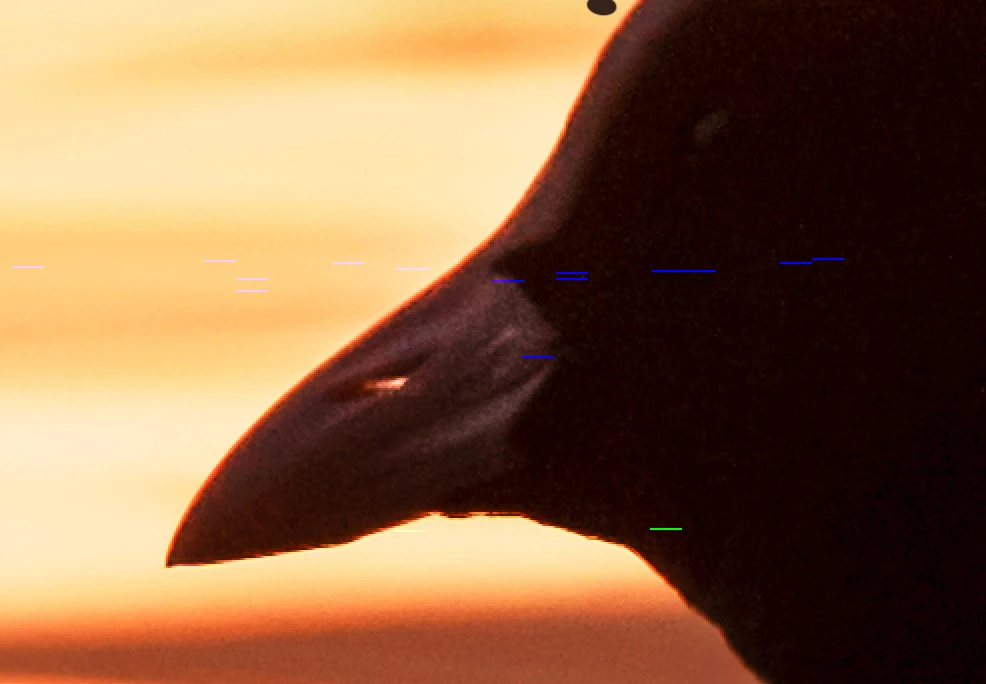


Here's a link where you can actually see the artefacts appear. When clicking somewhere in the image, they disappear again.
http://www.andreasresch.at/upload/WhatsApp%20Video%202025-04-26%20um%2012.29.55_26515d56.mp4 

Any ideas what that could be?


Correct answer Andreas Resch

After many tests we finally found out that the CPU was faulty. Just leaving this here in case somebody has similar issues.

6 replies

Andreas Resch
Andreas ReschAuthorCorrect answer
Inspiring
June 29, 2025

After many tests we finally found out that the CPU was faulty. Just leaving this here in case somebody has similar issues.

Andreas Resch
Inspiring
May 5, 2025

Changing the GPU didn't help. Also starting with SHIFT pressed results in the same problems. We also tried a new user account - same issue.
At this point we are running our of ideas. The next step will be to use the Adobe Clean Tool and DDU to wipe all the Adobe files and NVidia drivers. That's the last step before wiping the whole PC. Maybe something went wrong when they upgraded to Windows 11 a while ago. Not sure.

Andreas Resch
Inspiring
May 1, 2025

Here are some answers ...


ad 1) The issue isn't in the images themselves. I tried some of the affected images on my system and had no issues whatsoever with them. So it's no use to send them to you as they will work fine on your system as well.

ad 2) I've uploaded the system info ... Sysinfo 

ad 3) They use a monitor connected via DisplayPort. Not sure about the maker.


ad 4) They have some plugins installed. You can see them in the sys info file. Nothing too crazy though.

Thanks for checking this. They will try to swap the GPU on the weekend to see if it might be a hardware issue. We will see. If you any insights about what the issue can be, please let me know.

Cheers, Andreas.

Anshul_Saini
Community Manager
Community Manager
May 2, 2025

Thanks so much for getting back to me with those details. I appreciate you taking the time to follow up so thoroughly.


Given what you’ve shared, I have a couple of additional suggestions that could help narrow things down further:

  • Try using an HDMI cable instead of DisplayPort (if possible) to connect the external monitor. We’ve seen rare cases where specific DisplayPort configurations cause rendering issues.

  • Launch Photoshop in isolation (Safe Mode)—that is, boot your system into Safe Mode as described here:

    How to boot Safe Mode in Windows 11, and only launch Photoshop (no other apps). Then repeat the same steps that usually trigger the artifacts. This helps rule out any system-level or third-party interference.

  • Also, try holding down the Shift key while launching Photoshop. This forces Photoshop to skip loading third-party plug-ins, which is another way to rule out plugin-related issues.

Please let us know how these steps go, and also keep us posted on the GPU swap test once it’s done. That should give us a much clearer idea of whether this is hardware-related or not.


We’re here to help every step of the way.


Best regards,

Anshul Saini

Andreas Resch
Inspiring
May 20, 2025

We've arrived at a dead end. Even after a fresh reinstall of Windows 11/Photoshop and using a different GPU, the problem stills persists. I'm running out of ideas.
So if anybody has a clue what's going on here. enlighten me please. 

Andreas Resch
Inspiring
April 28, 2025

Thanks for the suggestions. They tried both, deactivating GPU and the older GPU option. The problem was still there. As far as I know it happened in PS 2023 as well as PS 2025.

Anshul_Saini
Community Manager
Community Manager
April 30, 2025

Hi Andreas,


Thanks for following up. I agree with Dave that, at first glance, this does resemble a GPU-related issue. However, since you’ve already tried disabling the GPU and enabling the older GPU mode without success, let’s dig a little deeper to help isolate the root cause.


Could you please help us with the following:

  • Can you upload the original image (before applying the High Pass or other filters) that triggers these artifacts?

  • In Photoshop, go to Help > System Info, copy all the contents, paste it into a .txt file, and upload it here. This will give us a detailed view of your hardware and software environment.

  • If your friend is using an external monitor, could you confirm how it’s connected (e.g., HDMI, DisplayPort, Type-C dongle)? And what is its resolution, refresh rate, make, and model?

  • Could you try working on Photoshop under a new administrator account with a fresh installation to rule out corrupted preferences or user-specific settings?

  • Also, is there any third-party plugin used in PS?
  •  

Once we have these details, we’ll be in a better position to investigate or escalate it to the product team if needed.


Appreciate your help with this!

Best,

Anshul Saini

davescm
Community Expert
Community Expert
April 28, 2025

It certainly looks like a GPU issue. In current versions the GPU is used for processing and compositing, not just display. What version of Photoshop is he/she using?


If current, he/she could try going to Preferences > Technology Previews and check 'Older GPU Mode (pre 2016)'

If that does not help, then try turning off the GPU in Preferences > performance, just to narrow down the issue.


Dave

Andreas Resch
Inspiring
April 28, 2025

Still looking for an answer. Any thoughts?

Resetting the settings didn't help. GPU drivers should be up to date. GPU is a GTX 1650.