



Artifact Issue with GPU Compositing and Artboards
I’m experiencing an issue with GPU Compositing, multiple layers, and artboards.
I’m working on an RGB, test image 3848px by 8548px with 6, standard layers, on an Artboard. Big- but nothing fancy or out of the ordinary. Now, it has been a few months since I last worked on something this size, but it has not been an issue previously. And this piece is far simpler than previous work on the same system.
The artifacts occur when I try to use the built in Hard Round – brush, using either the brush or pencil tool at 100px. When I try to paint a zig zag pattern from bottom to top, artifacts
appear midway through the stroke.
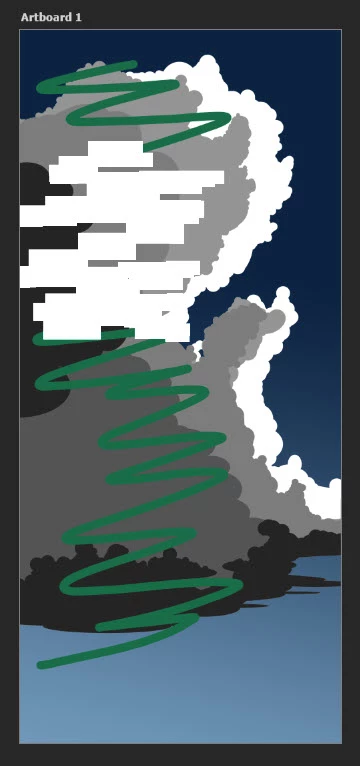
- Togging the layer off and back on again clears the artifacts, so the stroke is being applied correctly.
- Hiding one or more layers prevents the artifacts from occurring.
- Turning off GPU Compositing in Preferences/Performance/Graphic Processing Setting prevents the artifacts.
- Adding a 7th layer and filling a selection and moving it also causes artifacts.
- This issue doesn’t manifest itself with quick masking turn on.
- It seam artboard related, if remove the artboard via "Ungroup Artboards". The artifacts nolonger occur. 😁
- If I remove or replace layer six the artifacts still occur. 😥 Issue occurs.
Things Also Tested:
- I cleared my Photoshop preferences. 😥 Issue occurs.
- I tried it in the latest Adobe Photoshop Beta. 😥 Issue occurs.
- I installed, rebooted, and reinstalled:
Adobe Photoshop Version: 24.7.0 20230719.r.643 efe3886 x64 . 😥 Issue occurs. - I tried reverting to 24.6, 😥 Issue occurs.
- I disabled Display Fusion and rebooted. 😥 Issue occurs.
- I disable MS PowerToys and rebooted. 😥 Issue occurs.
I ran the “Show GPU Compatibility” test in Photoshop/Help.
Your graphics processor is compatible:
- OpenGL available
- OpenCL available
- DirectX available
- DirectX feature level 12.1 available, feature level 12.0 required.
- Above required VRAM (8038 MB of 1500 MB required)
- GPU Detected: NVIDIA GeForce RTX 3060 Ti (NVIDIA)
My NVIDIA drivers are up to date:
NVIDIA GEForce RTX 3060Ti Driving Primary Monitor
NVIDIA GeForce GTX 1050 Ti Driving 2 additional monitors.
I don't think it's system related. Here is my setup.
Microsoft Windows 10 Pro 10.0.19045 Build 19045
Gigabyte Technology Co., Ltd.
Desktop: Z390 AORUS PRO x64-based PC Default string
Intel(R) CorefTM) ¡9-9900K CPU @ 3.60GHz, 3600 Mhz, 8 Core(s), 16 Logical
Gigabyte Technology Co., Ltd. Z390 AORUS PRO-CF x.x
Installed Physical Memory (RAM): 32.0 GB
60 gig of Primary Scratch Disk on C: m.2 SSD
80 gig of Alternet Scratch - on a external dedicated USB-3, SSD - NTFS

 AdChoices