
Participant
June 16, 2022
Question

Automate Resize and Crop for objects?

  • June 16, 2022
  • 4 replies
  • 1367 views

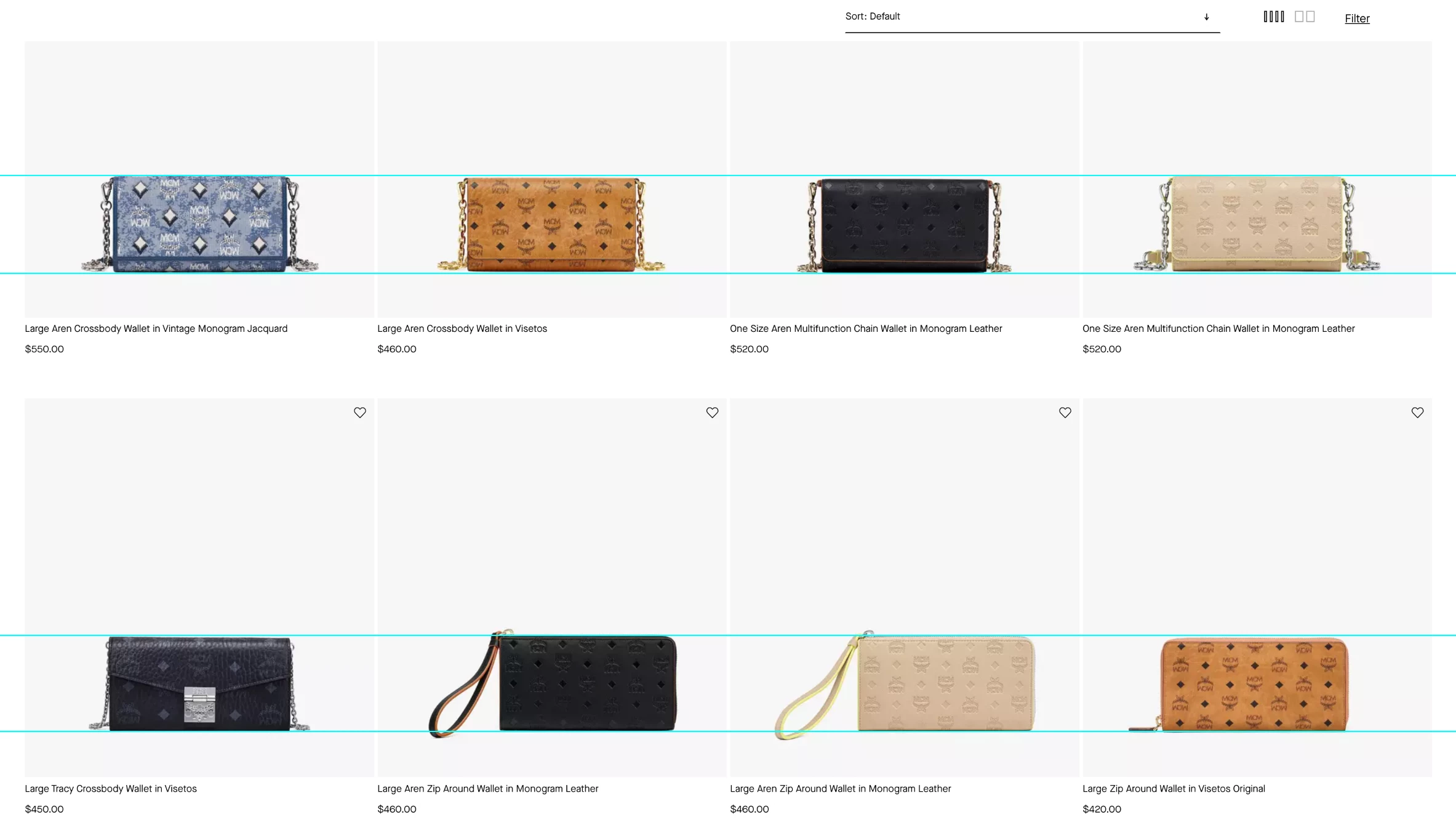
Hello! I have 1000 bag photos and when I crop them, one bag looks big and the other small. How can I make each one aligned and the same size as in the example? Has anyone done something like this before? I want the product photos to look compatible with each other.
4 replies

Legend
June 16, 2022

You can use this script as a base for positioning layers (it uses the select Subject function to determine object boundaries).

This script works with layers. The sample size is the bottom layer (it doesn't have to be a photo, you can just draw a square of the desired size).


#target photoshop
var lr = new AM('layer'),
    doc = new AM('document');
activeDocument.suspendHistory('Align and fit subjects', 'alignAndFit()')
function alignAndFit() { app.doProgress('', 'main ()') }
function main() {
    var targets = [],
        targetIds = doc.getProperty('targetLayersIDs');
    app.updateProgress(1, 2)
    for (var i = 0; i < targetIds.count; i++) {
        doc.selectLayer(id = targetIds.getReference(i).getIdentifier('layerID'))
        app.changeProgressText('Find object bounds: ' + lr.getProperty('name', false, id))
        lr.autoCutout();
        if (doc.hasProperty('selection')) {
            var subject = doc.descToObject(doc.getProperty('selection'))
            lr.deselect()
            with (subject) {
                subject.width = right - left
                subject.height = bottom - top
                subject.center = { y: top + height / 2, x: left + width / 2 }
                subject.vertical = bottom - top > right - left
            }
            subject.id = id
            targets.push(subject)
        }
    }
    app.updateProgress(2, 2)
    if (targets.length > 1) {
        sample = targets.shift()
        for (var i = 0; i < targets.length; i++) {
            lr.selectLayer(targets[i].id)
            app.changeProgressText('Align layer: ' + lr.getProperty('name', false, targets[i].id))
            lr.transform(sample.center.x - targets[i].center.x, sample.center.y - targets[i].center.y,
                sample.vertical ? sample.width / targets[i].width * 100 : sample.height / targets[i].height * 100,
                targets[i].center.x, targets[i].center.y)
        }
    }
}
function AM(target, order) {
    var s2t = stringIDToTypeID,
        t2s = typeIDToStringID;
    target = s2t(target)
    this.getProperty = function (property, descMode, id, idxMode) {
        property = s2t(property);
        (r = new ActionReference()).putProperty(s2t('property'), property);
        id != undefined ? (idxMode ? r.putIndex(target, id) : r.putIdentifier(target, id)) :
            r.putEnumerated(target, s2t('ordinal'), order ? s2t(order) : s2t('targetEnum'));
        return descMode ? executeActionGet(r) : getDescValue(executeActionGet(r), property)
    }
    this.hasProperty = function (property, id, idxMode) {
        property = s2t(property);
        (r = new ActionReference()).putProperty(s2t('property'), property);
        id ? (idxMode ? r.putIndex(target, id) : r.putIdentifier(target, id))
            : r.putEnumerated(target, s2t('ordinal'), order ? s2t(order) : s2t('targetEnum'));
        return executeActionGet(r).hasKey(property)
    }
    this.descToObject = function (d) {
        var o = {}
        for (var i = 0; i < d.count; i++) {
            var k = d.getKey(i)
            o[t2s(k)] = getDescValue(d, k)
        }
        return o
    }
    this.selectLayer = function (id, add) {
        add = (add == undefined) ? add = false : add;
        (r = new ActionReference()).putIdentifier(s2t('layer'), id);
        (d = new ActionDescriptor()).putReference(s2t('null'), r);
        if (add) { d.putEnumerated(s2t('selectionModifier'), s2t('selectionModifierType'), s2t('addToSelection')) }
        d.putBoolean(s2t('makeVisible'), false)
        executeAction(s2t('select'), d, DialogModes.NO)
    }
    this.deselect = function () {
        (r = new ActionReference()).putProperty(s2t('channel'), s2t('selection'));
        (d = new ActionDescriptor()).putReference(s2t('null'), r);
        d.putEnumerated(s2t('to'), s2t('ordinal'), s2t('none'));
        executeAction(s2t('set'), d, DialogModes.NO);
    }
    this.autoCutout = function (sampleAllLayers) {
        sampleAllLayers = sampleAllLayers == undefined ? false : true;
        (d = new ActionDescriptor()).putBoolean(s2t('sampleAllLayers'), sampleAllLayers);
        executeAction(s2t('autoCutout'), d, DialogModes.NO);
    }
    this.transform = function (dX, dY, scale, x, y) {
        (r = new ActionReference()).putEnumerated(s2t('layer'), s2t('ordinal'), s2t('targetEnum'));
        (d = new ActionDescriptor()).putReference(s2t('null'), r);
        d.putEnumerated(s2t("freeTransformCenterState"), s2t("quadCenterState"), s2t("QCSIndependent"));
        ((d1 = new ActionDescriptor())).putUnitDouble(s2t('horizontal'), s2t('pixelsUnit'), x);
        d1.putUnitDouble(s2t('vertical'), s2t('pixelsUnit'), y);
        d.putObject(s2t('position'), s2t('paint'), d1);
        (d2 = new ActionDescriptor()).putUnitDouble(s2t('horizontal'), s2t('pixelsUnit'), dX);
        d2.putUnitDouble(s2t('vertical'), s2t('pixelsUnit'), dY);
        d.putObject(s2t('offset'), s2t('offset'), d2);
        d.putUnitDouble(s2t('width'), s2t('percentUnit'), scale);
        d.putUnitDouble(s2t('height'), s2t('percentUnit'), scale);
        d.putEnumerated(s2t('interfaceIconFrameDimmed'), s2t('interpolationType'), s2t('bicubic'));
        executeAction(s2t('transform'), d, DialogModes.NO);
    }
    function getDescValue(d, p) {
        switch (d.getType(p)) {
            case DescValueType.OBJECTTYPE: return (d.getObjectValue(p));
            case DescValueType.LISTTYPE: return d.getList(p);
            case DescValueType.REFERENCETYPE: return d.getReference(p);
            case DescValueType.BOOLEANTYPE: return d.getBoolean(p);
            case DescValueType.STRINGTYPE: return d.getString(p);
            case DescValueType.INTEGERTYPE: return d.getInteger(p);
            case DescValueType.LARGEINTEGERTYPE: return d.getLargeInteger(p);
            case DescValueType.DOUBLETYPE: return d.getDouble(p);
            case DescValueType.ALIASTYPE: return d.getPath(p);
            case DescValueType.CLASSTYPE: return d.getClass(p);
            case DescValueType.UNITDOUBLE: return (d.getUnitDoubleValue(p));
            case DescValueType.ENUMERATEDTYPE: return [t2s(d.getEnumerationType(p)), t2s(d.getEnumerationValue(p))];
            default: break;
        };
    }
}


At the moment, I see the problem in the different shape of objects, which makes it difficult to position them with pixel accuracy.

Stephen Marsh
Community Expert
Community Expert
June 19, 2022

@xcptn - are you out there?

Stephen Marsh
Community Expert
Community Expert
June 16, 2022

Although the following link had people as the subject, however, it may also work with your images if select subject can make a consistent, rough selection of the main object. In addition, if there is good contrast between the bag and the background then you can use this to create a selection as a base start point for expansion before cropping:


https://community.adobe.com/t5/photoshop-ecosystem-discussions/script-help-crop-based-on-select-subject/m-p/10405382


Example original images would help to work out the automation, as well as the final results at the correct final size. Is this for print or web/screen display (I'm guessing the latter)?

Zesty_wanderlust15A7
Known Participant
June 16, 2022

If not all are nicely level, you could output two versions (or more), some on which you've applied one of the ACR Geometry auto modes on.

Chuck's idea is good. If you want your crop to be larger than the selection (both for composition and to be safe), record dragging the crop larger while your ruler is set to percent. The action will remember that and do it similarly no matter the size of the photo. Then finally, you do a Fit Image to the smallest format you are using (or smaller), and hopefully those all line up well enough.

-

Edit > Trim... and Edit > Crop might be useful too maybe.

Chuck Uebele
Community Expert
Community Expert
June 16, 2022

You might get somewhat consistent results using a script, maybe an action, where you use something like select subject then use the selection bounding box to adjust the crop around that bounding box.

xcptnAuthor
Participant
June 16, 2022

Thank you! I don't want select subject because some details of the bag can be lost. Can you send me example video?

Zesty_wanderlust15A7
Known Participant
June 16, 2022

Select Subject is not meant to cut it out here (I think?), but to establish where the subject is.

For example, you could use Edit > Crop after (in theory), but this too may cut off stuff you want to keep. So the trick is to first enlarge the selection, for example. You could do this with Select > Transform Selection (to a safer distance), then use Edit > Crop.  You might find a way to do it exactly right w/o even needing a script. Key is often to record it with the ruler set to %.
-

Watch the toolbar you get when Transform Selection is active. You can probaby set the width to, for example, 300% so you are sure to keep the width of your photo when using Edit > Crop, and adjust the vertical % to what you like. As you can use % here, you probably don't even need the ruler set to % for anything.